Reading time: 4 minutes | Difficulty: Beginner
Overview
Allow customers to select quantities for your products. This guide covers enabling quantity controls, setting limits, and displaying quantity-based totals.
Prerequisites
- A payment form with price options configured
- Understanding of your inventory/quantity needs
Step 1: Access Price Options
- Edit your payment form
- Click the Price Options tab
- Expand the price option you want to configure
Step 2: Enable Quantity
- Find the Allow Quantity toggle
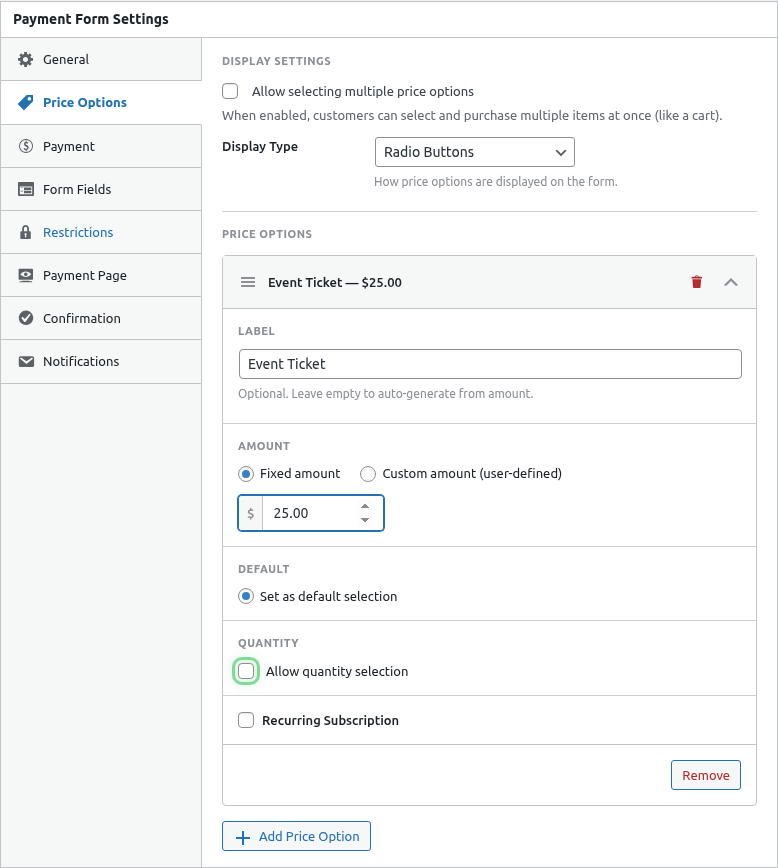
- Enable it
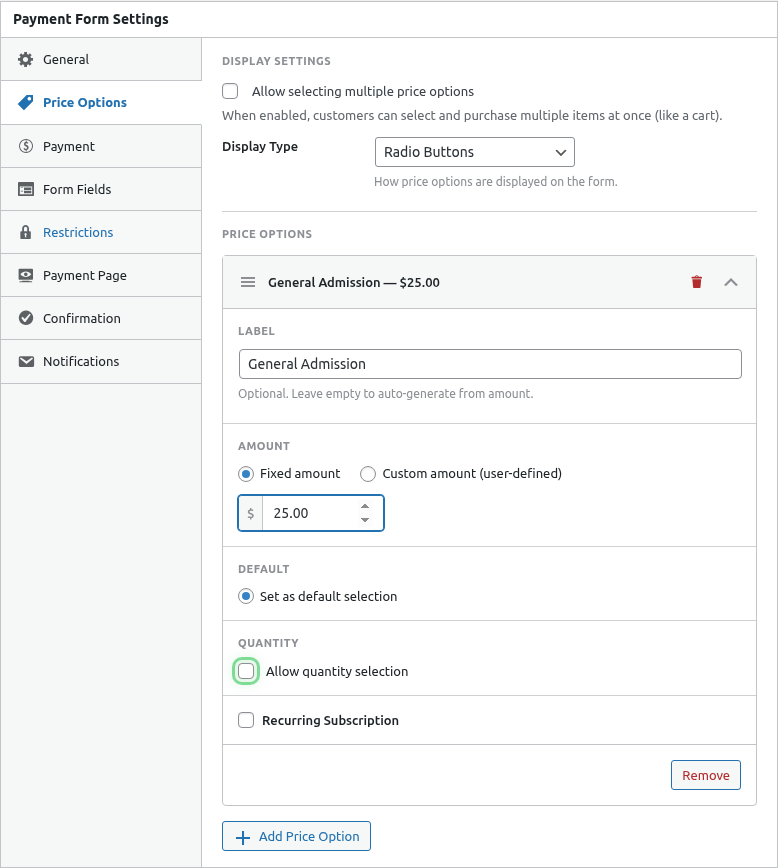
- Configure quantity settings
Step 3: Set Quantity Constraints
| Setting | Description | Example |
|---|---|---|
| Minimum | Lowest quantity allowed | 1 |
| Maximum | Highest quantity allowed | 10 |
| Default | Starting quantity | 1 |
Recommended Settings
| Use Case | Min | Max | Default |
|---|---|---|---|
| Standard product | 1 | 10 | 1 |
| Bulk items | 5 | 100 | 10 |
| Limited edition | 1 | 2 | 1 |
| Team licenses | 1 | 50 | 5 |
Frontend Appearance
Quantity Controls
Customers see +/- buttons or input field:

Quantity Total Display
The total updates in real-time as quantity changes:

| Feature | Behavior |
|---|---|
| Real-time update | Total changes instantly |
| Currency formatting | Proper symbol and decimals |
| Works with multi-select | Individual and combined totals |
Quantity with Single Selection
When using single-select mode:
- Customer selects ONE price option
- Adjusts quantity for that option
- Total = option price × quantity
Example:
- Product: $25
- Quantity: 3
- Total: $75
Quantity with Multi-Select
When using multi-select mode:
- Customer selects MULTIPLE price options
- Each option can have its own quantity
- Total = sum of (each option price × quantity)
Example:
| Product | Price | Qty | Subtotal |
|---|---|---|---|
| T-Shirt | $20 | 2 | $40 |
| Hat | $15 | 1 | $15 |
| Total | $55 |
Common Configurations
Event Tickets
General Admission - $50
├── Quantity: Yes
├── Min: 1
├── Max: 10
└── Default: 1

VIP Ticket - $150
├── Quantity: Yes
├── Min: 1
├── Max: 4
└── Default: 1
Digital Products
Single License - $29
├── Quantity: No (one per customer)

Team License - $199
├── Quantity: Yes
├── Min: 5
├── Max: 100
└── Default: 10
Physical Products
Widget - $15
├── Quantity: Yes
├── Min: 1
├── Max: 50
└── Default: 1
Bulk Discounts Setup
Create separate options for quantity tiers:
1-4 Items - $10 each
├── Quantity: Yes
├── Min: 1
├── Max: 4

5-9 Items - $8 each
├── Quantity: Yes
├── Min: 5
├── Max: 9

10+ Items - $6 each
├── Quantity: Yes
├── Min: 10
├── Max: 100
Inventory Integration
Quantity selection works with inventory tracking:
- Enable inventory in the Restrictions tab
- Set your total inventory
- Quantity maximum is automatically limited to available stock
When inventory runs low:
- Maximum quantity adjusts to remaining stock
- “Sold Out” message appears when inventory is 0
See Limiting Inventory/Stock for details.
Order Summary Display
Add the Order Summary field to show quantity details:
- Go to Form Fields tab
- Add Order Summary field
- Enable Show Line Items
Customers see:
Item Name × 3      $75.00
────────────────────────
Total              $75.00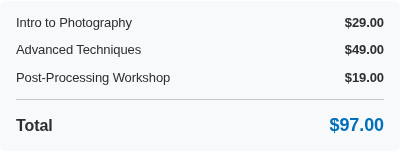
Coupons with Quantity
When coupons are applied:
- Subtotal calculated (price × quantity)
- Discount applied to subtotal
- Final total shown
Example with 20% coupon:
- Item: $25 × 4 = $100
- Discount: -$20
- Total: $80
Validation
The form validates quantity:
- Can’t go below minimum
- Can’t exceed maximum
- Must be a whole number
- Must be within inventory limits
Tips
For Physical Products
- Set reasonable maximums (10-20)
- Consider shipping implications
- Link to inventory tracking
For Digital Products
- Higher maximums are fine (no shipping)
- Consider license implications
- Bulk pricing tiers work well
For Services
- Maximum = your capacity
- Consider time constraints
- Maybe disable quantity entirely
For Events
- Maximum = venue capacity per order
- Consider group booking limits
- Track total tickets sold
Troubleshooting
Quantity controls not showing
- Verify Allow Quantity is enabled
- Save the form and refresh
Can’t increase quantity
- Check the maximum setting
- Check inventory limits
- Verify JavaScript is working
Total not updating
- Clear browser cache
- Test in incognito mode
- Check for JavaScript errors
What’s Next?
- Limiting Inventory/Stock – Track available stock
- Building a Multi-Product Checkout – Multi-select mode
- Creating Discount Coupons – Volume discounts