Reading time: 4 minutes | Difficulty: Beginner
Overview
Issue partial refunds to return a specific amount rather than the full payment. This guide covers processing partial refunds.
Prerequisites
- A completed transaction with refundable balance
- Understanding of partial refund use cases
When to Use Partial Refunds
- Return one item from multi-item order
- Customer dissatisfaction adjustment
- Goodwill gesture
- Pricing error correction
- Service partially delivered
- Shipping refund only
Step 1: Find the Transaction
- Go to WP Payment Pal > Transactions
- Search or filter for the transaction
- Click to view details
Step 2: Check Refundable Balance
In the transaction details, verify:
- Original amount
- Previous refunds (if any)
- Remaining refundable balance
Refundable Balance Calculation
Original Amount - Previous Refunds = Refundable Balance

$100.00 - $0.00 = $100.00 (no prior refunds)
$100.00 - $25.00 = $75.00 (after $25 refund)
Step 3: Open Refund Dialog
- Click the Refund button
- The refund modal opens
Step 4: Enter Partial Amount
- Select Partial Refund
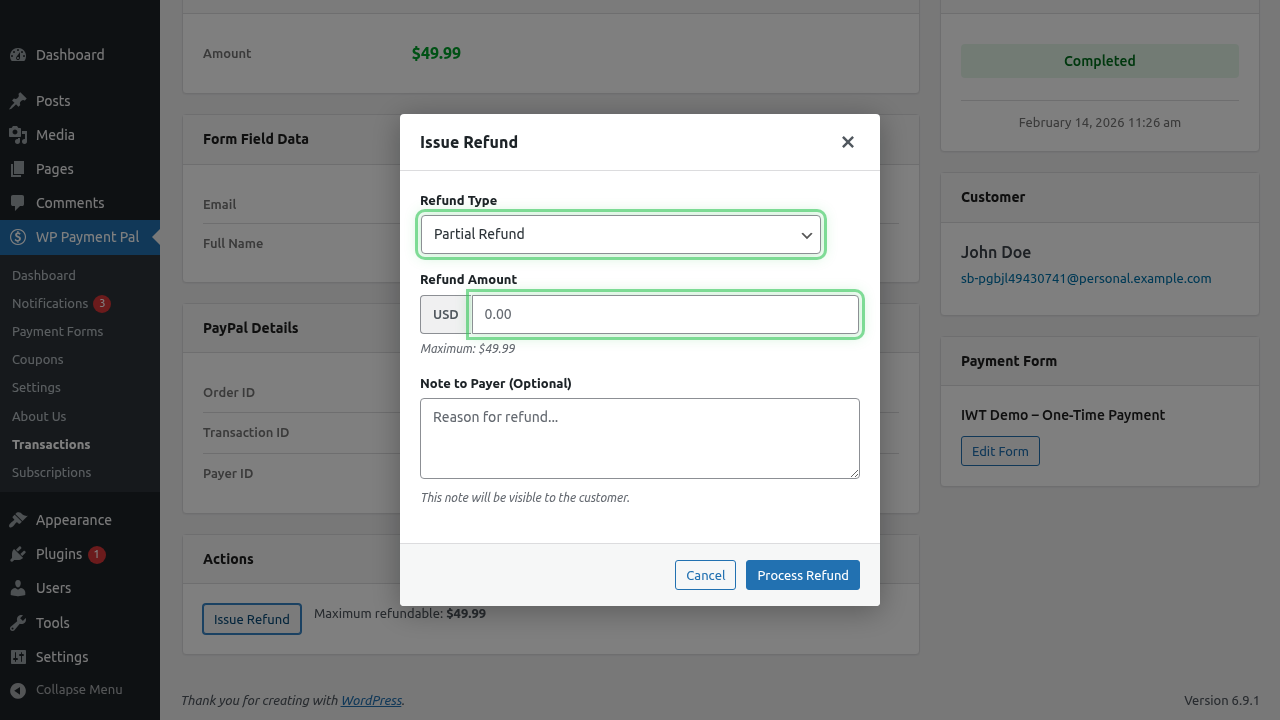
- Enter the specific amount to refund
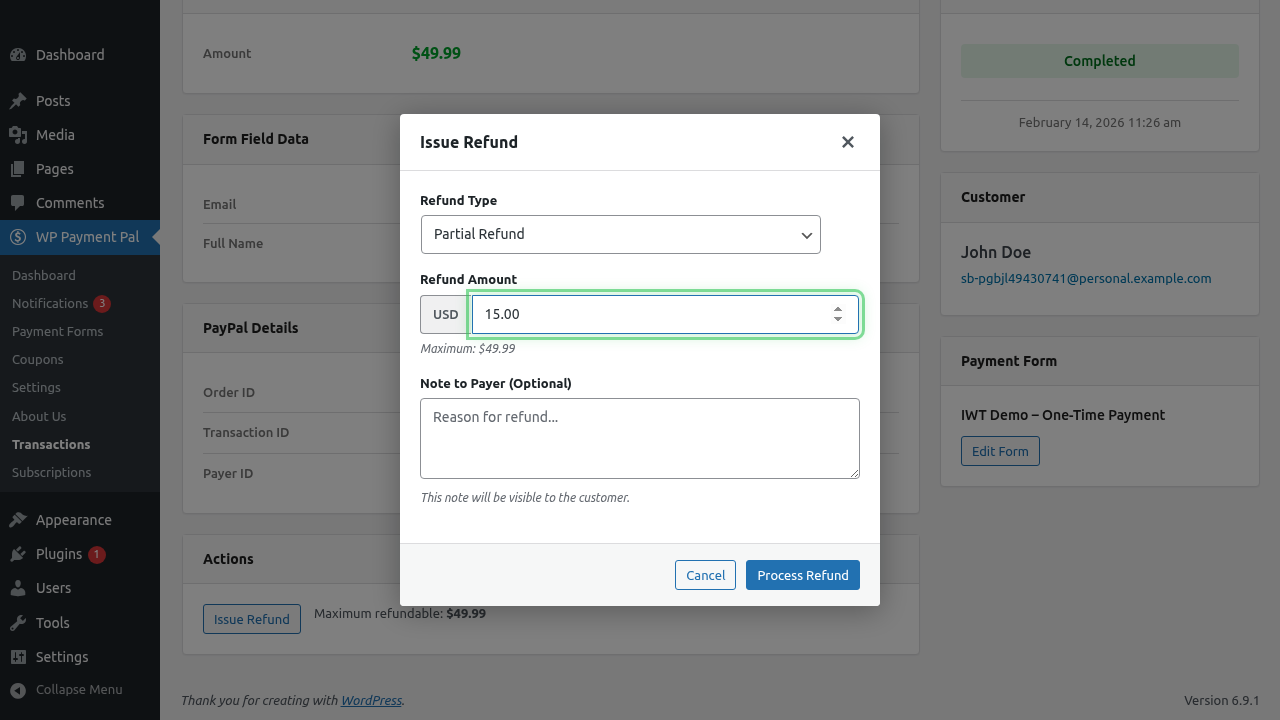
- Optionally add a Note to Payer
- Click Process Refund
Amount Validation
- Must be greater than $0
- Must not exceed refundable balance
- Uses same currency as original
Step 5: Confirm and Process
- Review refund details
- Confirm the action
- Wait for processing
After the Partial Refund
Transaction Status
Changes to Partially Refunded
Remaining Balance
Available for future refunds:
Original: $100.00
Refunded: $25.00
Remaining: $75.00
Customer Notification
Customer receives:
- PayPal notification for refund amount
- Your refund email (if configured)
Multiple Partial Refunds
You can issue multiple partial refunds:
| Refund # | Amount | Total Refunded | Remaining |
|---|---|---|---|
| 1 | $25.00 | $25.00 | $75.00 |
| 2 | $30.00 | $55.00 | $45.00 |
| 3 | $45.00 | $100.00 | $0.00 |
After the final refund, status becomes Refunded.
Common Scenarios
Partial Product Return
Order: T-Shirt ($25) + Hat ($15) = $40
Return: Hat ($15)
Partial Refund: $15
Remaining: $25
Goodwill Discount
Order: Service $200
Issue: Minor dissatisfaction
Goodwill: 10% refund
Partial Refund: $20
Remaining: $180
Multi-Item Adjustment
Order: 5 items × $10 = $50
Problem: 1 item defective
Partial Refund: $10
Remaining: $40
Setup Fee Refund (Subscription)
Payment: $49 setup + $29 first month = $78
Request: Refund setup fee only
Partial Refund: $49
Remaining: $29
Calculating Refund Amounts
By Percentage
$100 × 10% = $10 refund
$100 × 25% = $25 refund
$100 × 50% = $50 refund
By Item
Item 1: $25
Item 2: $35
Item 3: $40
Total: $100

Refund Item 2: $35
By Shipping
Product: $80
Shipping: $20
Total: $100

Refund shipping only: $20
Note to Payer Examples
Include context for the customer:
Refund for returned item (Hat)10% goodwill discount for inconvenienceShipping fee refundPrice adjustment per your requestTracking Partial Refunds
In Transaction Details
See refund history:
- Each refund amount
- Date of each refund
- Notes provided
- Remaining balance
Record Keeping
Document:
- Reason for each partial refund
- Items or services being refunded
- Customer communication
- Approval if required
Completing Remaining Refund
To refund the entire remaining balance:
- Open refund dialog
- Select Full Refund (of remaining balance)
- Or enter exact remaining amount
Troubleshooting
Can’t enter amount
- Check refundable balance exists
- Verify transaction is eligible
- Ensure amount is valid number
Amount exceeds balance
- Check for previous refunds
- Verify remaining balance
- Enter smaller amount
Refund not processing
- Check PayPal connection
- Verify valid capture ID
- Try again later
Wrong amount refunded
- Cannot undo refunds
- Contact customer
- Document the error
- Adjust future refunds if needed
Best Practices
- Calculate carefully – Double-check amounts
- Document reasons – Keep clear records
- Be consistent – Follow refund policies
- Communicate – Tell customer what’s refunded
- Use notes – Add context in note to payer
Refund Limits
PayPal limits:
- Within 180 days of original payment
- Can’t exceed original amount
- Must have valid capture
PayPal Fees on Partial Refunds
PayPal’s fee policy:
- Fees are NOT returned on refunds
- Original fee was charged on full amount
- Each partial refund is a cost to you
What’s Next?
- Processing Full Refunds – Complete refunds
- Understanding Transaction Details – Transaction view
- Viewing Transaction History – Find transactions