Reading time: 5 minutes | Difficulty: Beginner
Overview
Learn how to view, sync, and cancel subscriptions from the WordPress admin panel. This guide covers the subscription management interface.
Prerequisites
- Active subscriptions in your system
- Administrator access to WordPress
Accessing the Subscriptions List
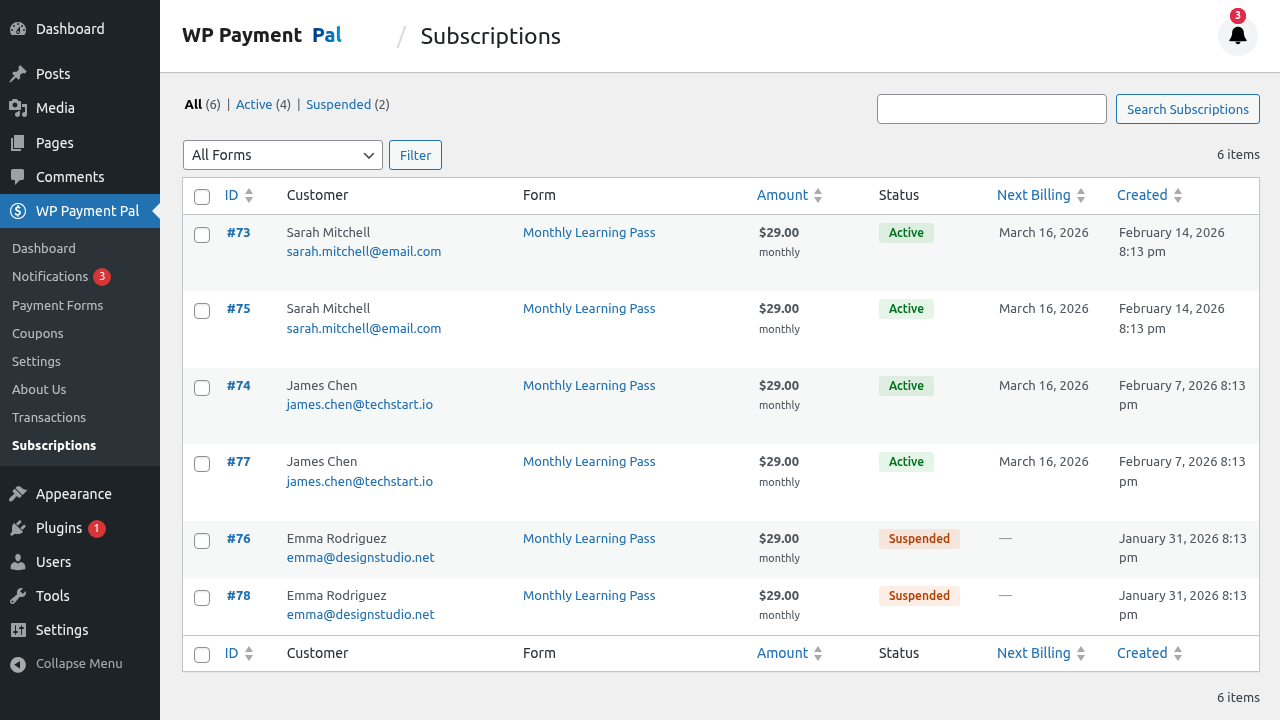
- Go to WP Payment Pal > Subscriptions in your admin menu
- View all subscriptions in a sortable table
Understanding the List View
Columns
| Column | Description |
|---|---|
| ID | Internal subscription ID |
| Subscriber | Customer name and email |
| Form | Payment form used |
| Amount | Recurring payment amount |
| Status | Current subscription status |
| Created | Subscription start date |
Subscription Statuses
| Status | Meaning |
|---|---|
| Active | Billing normally |
| Trial | In trial period |
| Suspended | Temporarily paused |
| Cancelled | Stopped by user or admin |
| Completed | All cycles finished |
| Expired | Payment method expired |
Viewing Subscription Details
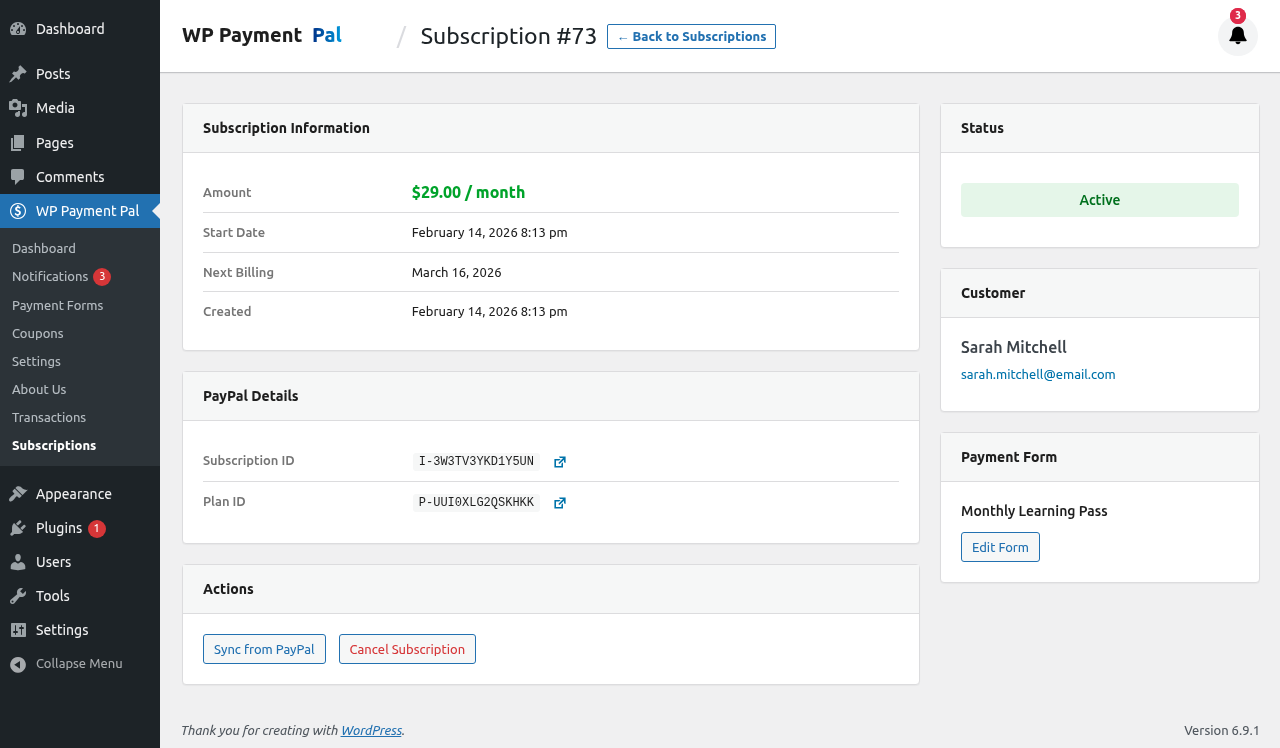
Click on any subscription to see full details:
Detail View Information
| Section | Contains |
|---|---|
| Subscriber Info | Name, email, PayPal ID |
| Plan Details | Amount, interval, cycles |
| Status | Current status and dates |
| Billing History | Past payments |
| Form Data | Custom field values |
Syncing with PayPal
Keep subscription status current by syncing with PayPal:
- Open a subscription’s detail view
- Click the Sync from PayPal button
- Wait for sync to complete
When to Sync
- If status seems incorrect
- After PayPal dashboard changes
- To verify current state
- Troubleshooting billing issues
What Sync Updates
- Subscription status
- Next billing date
- Payment method status
- Cycle count
Cancelling Subscriptions
Cancel a subscription from the admin panel:
- Open the subscription detail view
- Click the Cancel Subscription button
- Confirm the cancellation
Cancellation Effects
- Billing stops immediately
- Status changes to “Cancelled”
- Customer receives cancellation email (if configured)
- No refunds are automatically issued
Refunding After Cancellation
Cancellation doesn’t refund past payments. To refund:
- Go to Transactions
- Find the subscription payments
- Issue refunds as needed
Filtering and Searching
Filter by Status
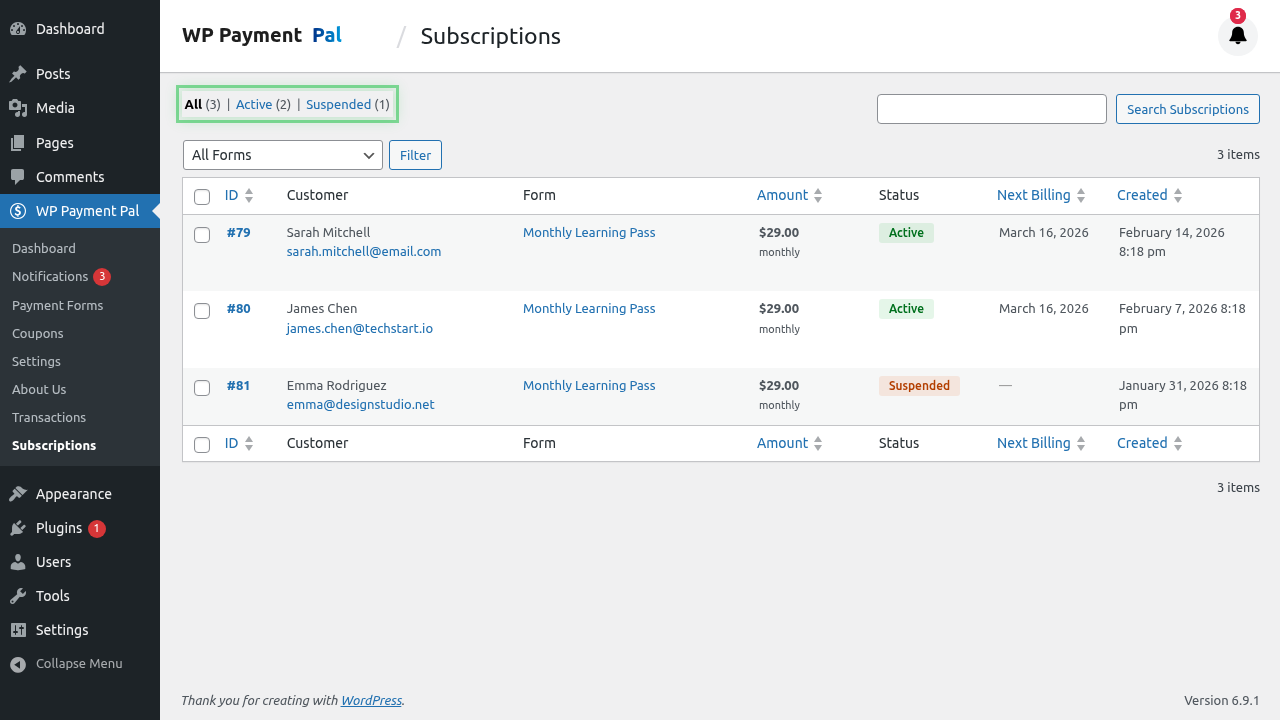
Use the status filter to show:
- All subscriptions
- Active only
- Cancelled only
- Other status filters
Search
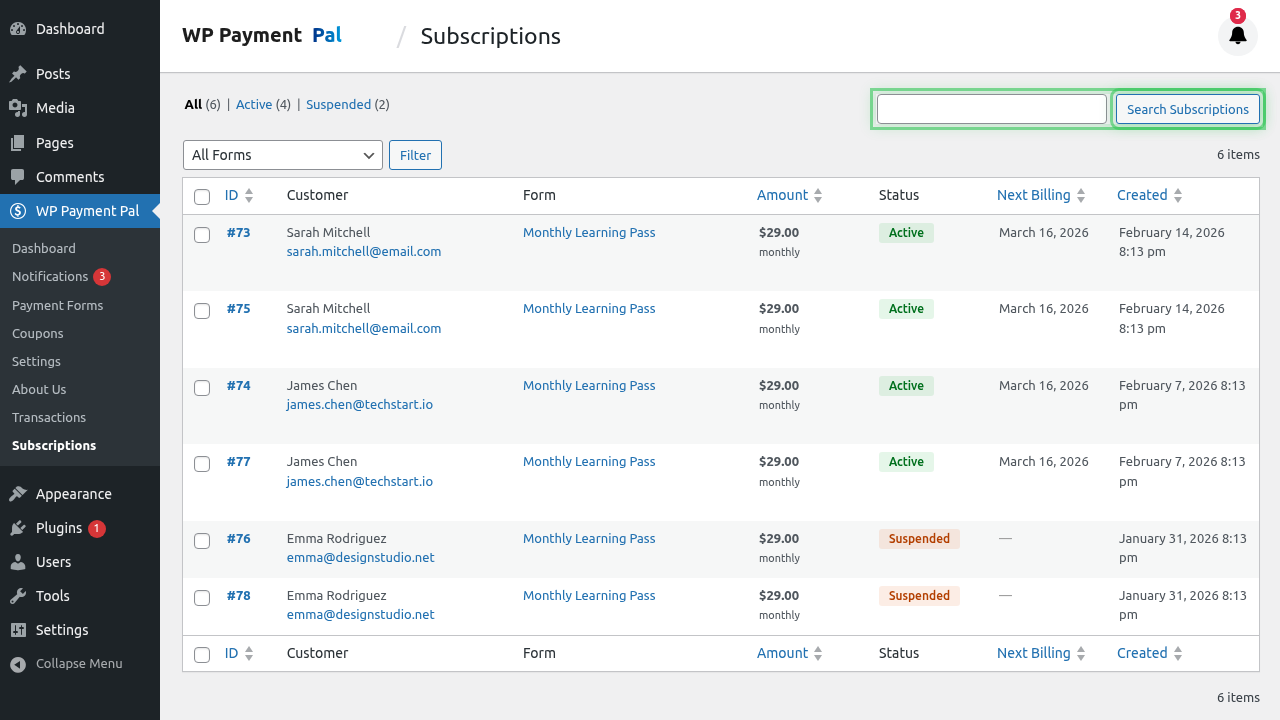
Search by:
- Customer name
- Customer email
- Subscription ID
Subscription Actions
From List View
- View – Open detail page
- Filter – Narrow results
From Detail View
- Sync – Update from PayPal
- Cancel – End subscription
- View Transactions – See related payments
- View Form – Open the source form
Billing History
The detail view shows all payments:
| Date | Amount | Status |
|---|---|---|
| Jan 1 | $29.00 | Completed |
| Feb 1 | $29.00 | Completed |
| Mar 1 | $29.00 | Pending |
Click a transaction to view full details.
Troubleshooting Subscriptions
Subscription shows wrong status
- Click Sync from PayPal
- Verify status updates
- Check PayPal dashboard if still incorrect
Payments not processing
- Sync the subscription
- Check payment method status in PayPal
- Verify customer’s PayPal account is active
- Check for PayPal notifications
Customer says they cancelled but status is active
- Sync with PayPal
- If still active, cancellation may have failed
- Cancel from admin panel
Duplicate subscriptions
- Check if customer subscribed multiple times
- Cancel duplicates as needed
- Refund unintended charges
Export Options
Currently, subscription data can be viewed in the admin panel. For reporting:
- Use the list view for overview
- Check detail views for specifics
- PayPal dashboard has additional reporting
Subscription Lifecycle
Created → Trial (optional) → Active → [Cancelled/Completed/Expired]Normal Flow
- Created: Customer subscribes
- Trial: Optional free period
- Active: Regular billing occurs
- Completed: All cycles finished (if limited)
Cancellation Flow
- Active: Subscription is billing
- Cancelled: Admin or customer cancels
- Billing stops immediately
Failure Flow
- Active: Subscription is billing
- Suspended: Payment fails, retry pending
- Cancelled: Too many failures
Best Practices
- Regular monitoring – Check subscriptions weekly
- Sync periodically – Keep data current
- Prompt support – Respond to subscription issues quickly
- Document cancellations – Note why subscriptions were cancelled
- Follow up – Reach out to cancelled subscribers
What’s Next?
- Customer Subscription Portal – Self-service for customers
- Subscription Email Notifications – Automated emails
- Processing Full Refunds – Refund subscription payments