Reading time: 4 minutes | Difficulty: Beginner
Overview
Track and limit the number of purchases for your payment forms. This guide covers setting up inventory management for limited products or events.
Prerequisites
- A payment form created
- Knowledge of your available stock/capacity
Accessing Inventory Settings
- Edit your payment form
- Click the Restrictions tab
- Find the Inventory section
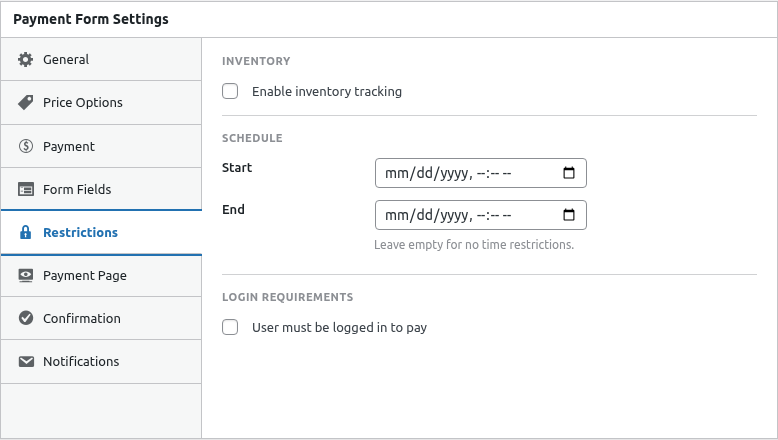
Step 1: Enable Inventory Tracking
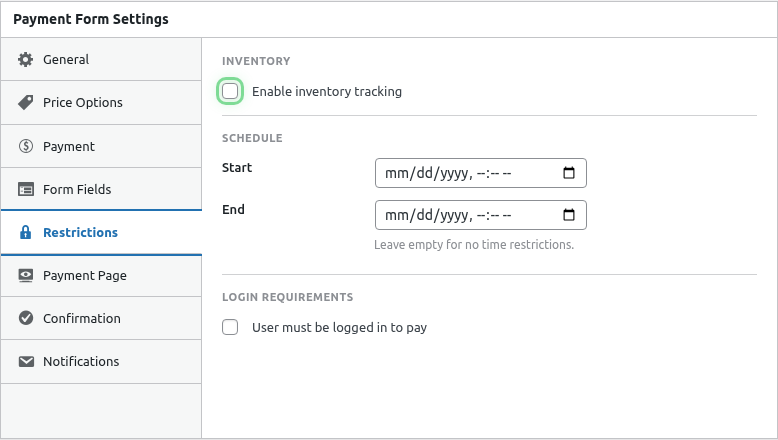
- Toggle Enable Inventory on
- Enter your Total Inventory count
- Save the form
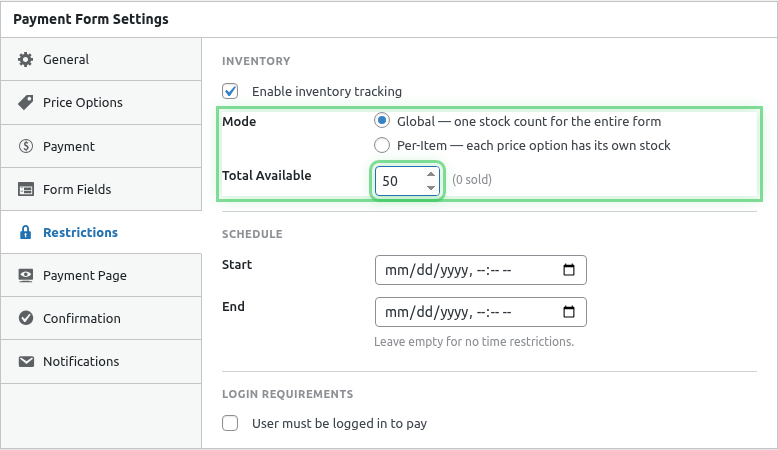
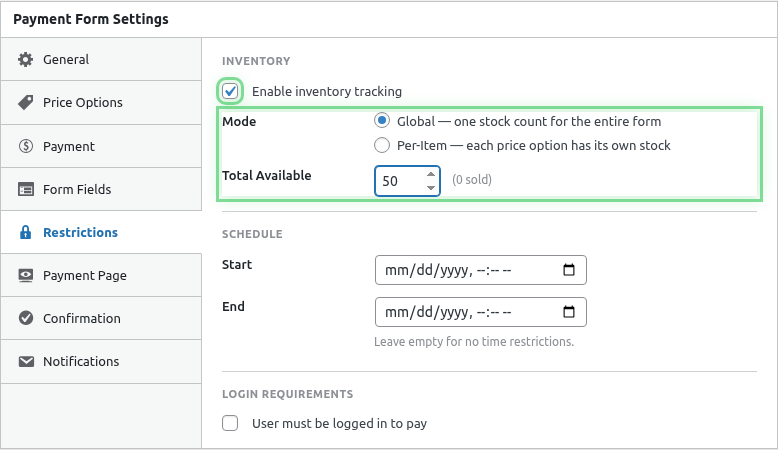
Inventory Settings
| Setting | Description |
|---|---|
| Enable Inventory | Turn tracking on/off |
| Total Inventory | Maximum available quantity |
| Sold Count | Automatically tracked |
| Remaining | Calculated (Total – Sold) |
How Inventory Works
Tracking
Each successful payment:
- Decrements available inventory
- Updates sold count
- Checks remaining stock
With Quantity
If quantity selection is enabled:
- Purchase of 3 items = 3 inventory used
- Inventory limit includes all quantities
Example
Total Inventory: 100
Customer A buys: 2
Customer B buys: 5
Remaining: 93
Customer Experience
Items Available
Normal checkout experience:
- Form displays normally
- No stock warnings
- Payment proceeds
Low Stock
Optional low-stock messaging:
- “Only X remaining!”
- Creates urgency
- Quantity limited to remaining
Sold Out
When inventory reaches zero:
- Form hidden or disabled
- Custom sold-out message displayed
- No purchase possible
Sold Out Message
Customize what customers see when sold out:
- Find Sold Out Message setting
- Enter your custom message
- Save the form
Example messages:
- “Sorry, this item is sold out!”
- “All tickets have been claimed.”
- “Check back later for restocks.”
Common Use Cases
Event Tickets
Total Inventory: 200 (venue capacity)
Quantity Enabled: Yes
Max per order: 10

Prevents overselling venue
Limited Edition Product
Total Inventory: 50
Quantity Enabled: No (1 per customer)

Creates exclusivity
Workshop Seats
Total Inventory: 25 (class size)
Quantity Enabled: Yes
Max per order: 4

Limits registrations to capacity
Digital Product Limit
Total Inventory: 1000 (promotional limit)
Quantity Enabled: No

Caps promotional sales
Viewing Inventory Status
From the form editor:
- See current sold count
- See remaining inventory
- Calculate fill rate
Adjusting Inventory
Increase Stock
- Edit the form
- Increase Total Inventory
- Save changes
Useful for:
- Restocking products
- Adding event capacity
- Extending promotions
Decrease Stock
- Edit the form
- Decrease Total Inventory
- Save changes
Note: Can’t set below current sold count.
Reset to Zero
- Set Total Inventory to current sold count
- Form shows as sold out
Inventory and Refunds
When you refund a transaction:
- Inventory is NOT automatically restored
- Manually increase Total Inventory if needed
- Consider your restocking policy
Inventory and Cancellations
For subscriptions:
- Initial signup uses inventory
- Cancellation doesn’t restore inventory
- Manual adjustment needed if restocking
Combining with Other Restrictions
Inventory works with:
+ Scheduling
Available: Dec 1-15 OR until sold out
Inventory: 100

Whichever comes first closes the form.
+ Login Required
Must be logged in AND items in stock+ Roles
Only subscribers can purchase AND must be in stockQuantity Limits Interaction
When both inventory and quantity are set:
Remaining Inventory: 5
Max Quantity Setting: 10

Customer can only buy up to 5 (inventory limit)
The lower limit always applies.
Real-Time vs Cached
Inventory checks happen:
- At page load (shows current availability)
- At checkout submission (final validation)
For high-traffic forms, consider caching implications.
Race Conditions
For very popular items:
- Two customers might see “1 remaining”
- First to complete checkout wins
- Second gets “sold out” error
This is normal behavior for limited inventory.
Best Practices
- Buffer stock – Keep a small reserve for issues
- Clear messaging – Tell customers about limits
- Monitor closely – Watch popular items
- Plan restocks – Know when/if you’ll add more
- Handle oversells – Have a policy for edge cases
Troubleshooting
Inventory not decreasing
- Verify tracking is enabled
- Check that payments complete successfully
- Look for webhook issues
Sold out showing incorrectly
- Verify Total Inventory setting
- Check sold count accuracy
- Clear any caching
Customer completed purchase after sold out
- Race condition (normal for popular items)
- Decide: honor or refund
- Consider oversell policy
What’s Next?
- Scheduling Payment Availability – Time limits
- Requiring User Login – Login restriction
- Adding Quantity Selection – Quantity controls