Reading time: 4 minutes | Difficulty: Beginner
Overview
Configure global email settings including sender information and email templates. This guide covers the Emails settings tab.
Prerequisites
- WP Payment Pal installed
- Understanding of your email requirements
Accessing Email Settings
- Go to WP Payment Pal > Settings
- Click the Emails tab
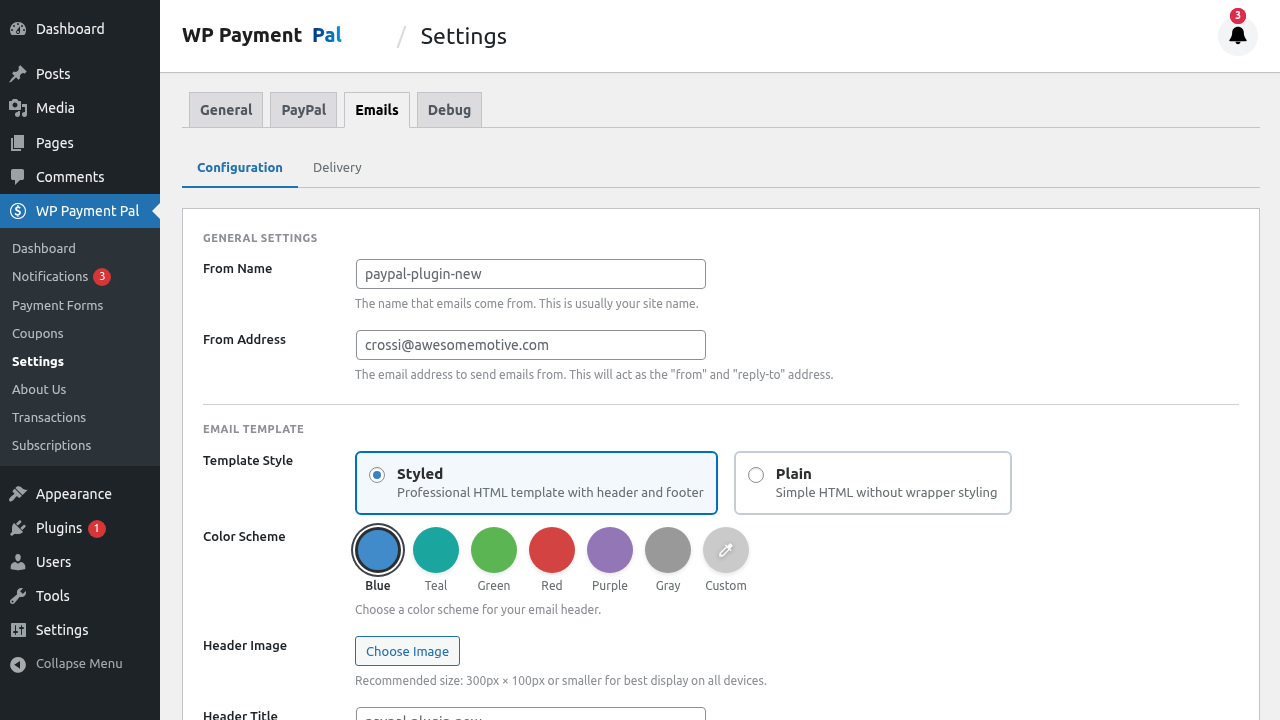
From Name and Email
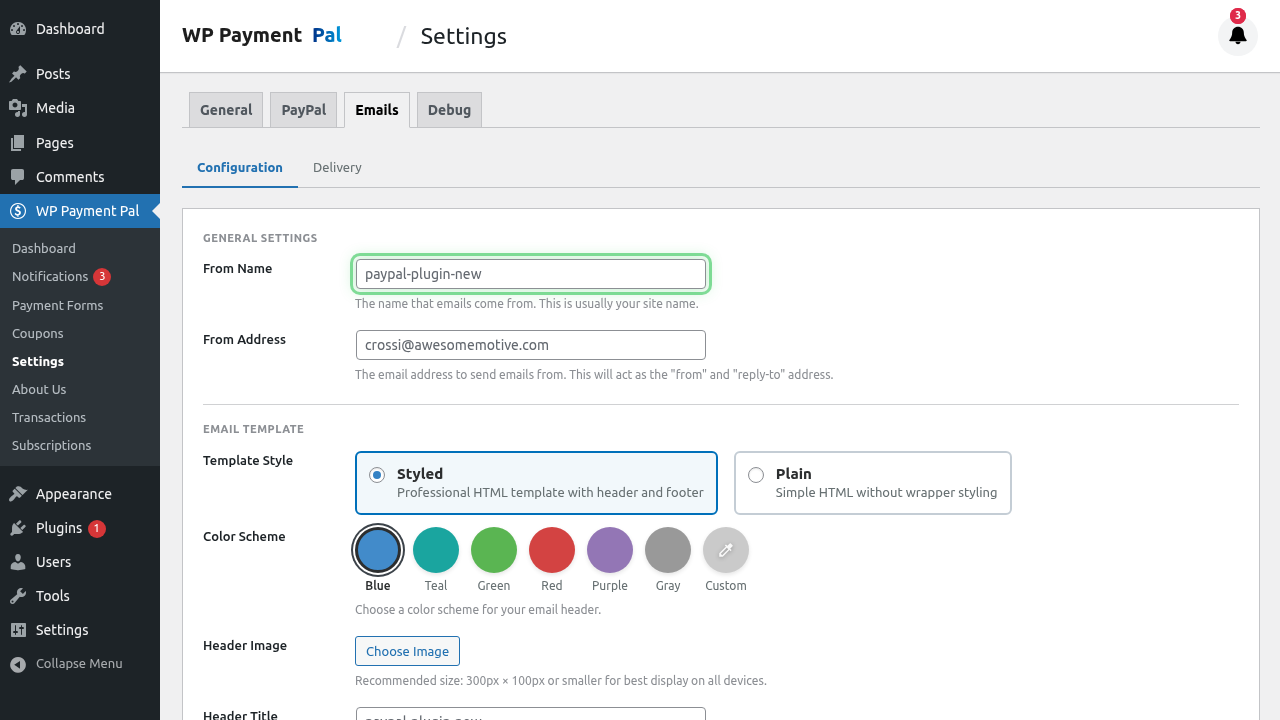
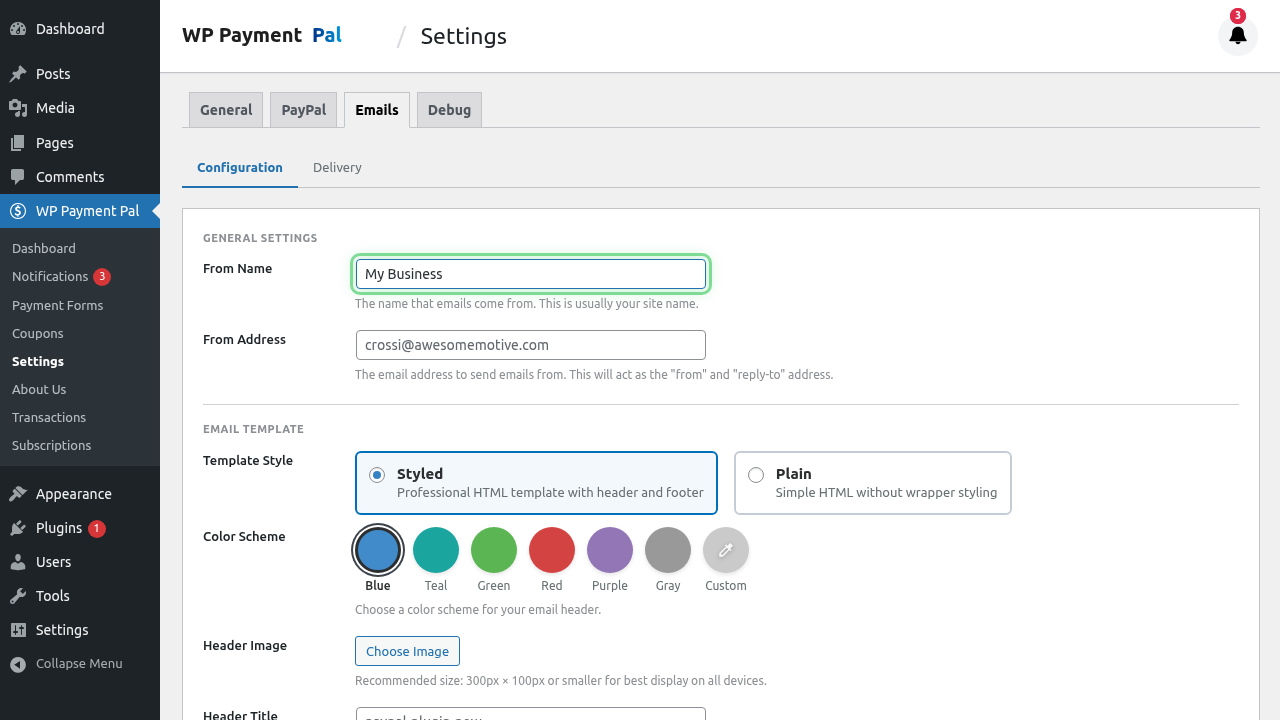
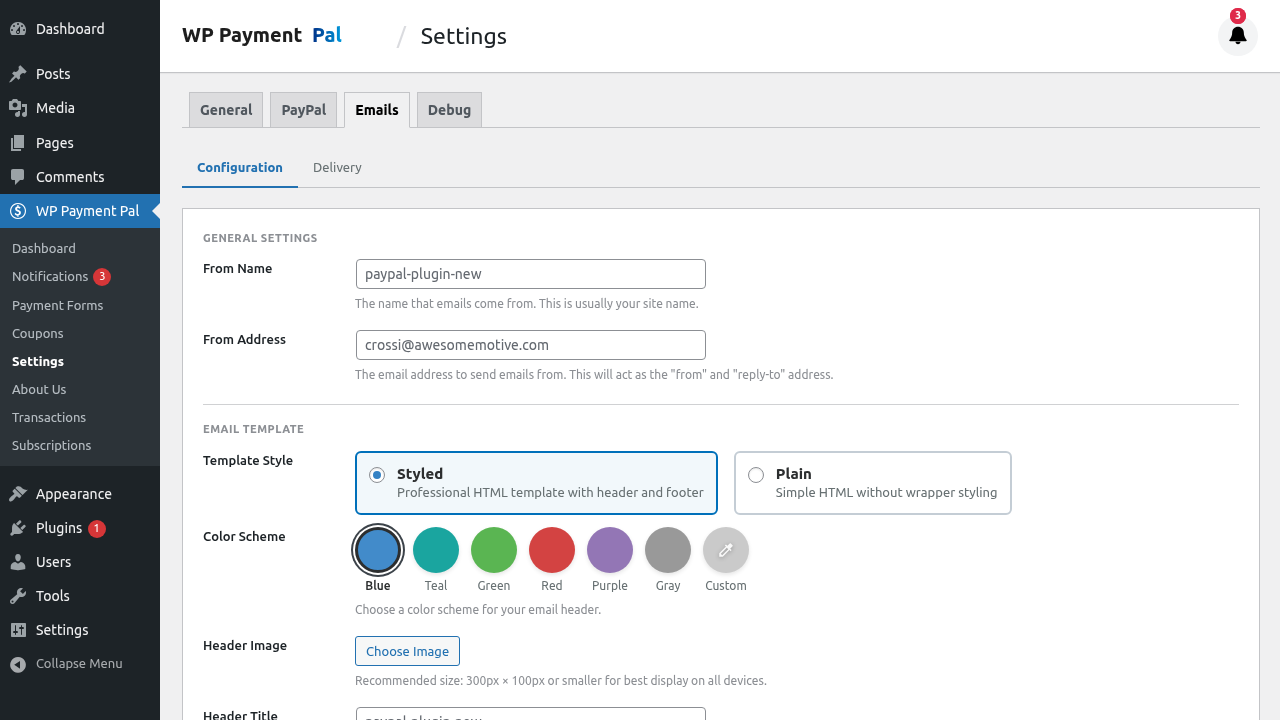
From Name
The name that appears in the “From” field:
From: Your Company NameRecommendations:
- Your business name
- “Your Company Support”
- Brand name customers recognize
From Email Address
The email address emails are sent from:
From: [email protected]Requirements:
- Valid email address
- Domain you control
- Configured for sending
Reply-To Address
Where replies go:
Reply-To: [email protected]Set this to an address you monitor.
Email Template Settings
Header Image
Add your logo to email headers:
- Click Upload Image
- Select logo from Media Library
- Save settings
Footer Text
Add text to all email footers:
© 2024 Your Company Name
123 Business Street, City, State 12345
[email protected]
Include:
- Company name
- Address (if applicable)
- Contact information
- Unsubscribe info (if required)
Email Styling
Some styling options:
- Background color
- Link color
- Text color
Match to your brand guidelines.
Email Types Configuration
Configure settings for each email type:
Payment Receipt (Customer)
- Enable/disable
- Subject line template
- Body template
Payment Notification (Admin)
- Enable/disable
- Recipient email(s)
- Subject and body
Refund Notification
- Enable/disable
- Subject and body
Subscription Emails
- Confirmation
- Renewal
- Cancellation
- Failed payment
See Subscription Email Notifications.
Cart Abandonment
- Enable/disable
- Delay before sending
- Subject and body
Email Deliverability
Common Issues
Emails going to spam? Check:
- From email uses your domain
- SPF records configured
- DKIM enabled
- Not using free email (gmail.com)
Recommended Setup
- Use your domain email ([email protected])
- Configure SPF in DNS
- Set up DKIM signing
- Consider email service (SMTP plugin)
Testing Delivery
- Configure settings
- Make test payment
- Check inbox AND spam
- Verify appearance
SMTP Configuration
For reliable delivery, consider SMTP plugin:
Popular options:
- WP Mail SMTP
- Easy WP SMTP
- Post SMTP
These route emails through proper mail servers.
Why Use SMTP?
Default WordPress mail:
- May not be deliverable
- Often lands in spam
- No authentication
SMTP provides:
- Authenticated sending
- Better deliverability
- Delivery tracking
Smart Tags in Templates
Use Smart Tags in email templates:
| Tag | Description |
|---|---|
{payer_name} |
Customer name |
{payer_email} |
Customer email |
{amount} |
Payment amount |
{transaction_id} |
Transaction ID |
{date} |
Date |
{form_title} |
Form name |
See Using Smart Tags in Emails.
Per-Form vs Global
| Setting | Global | Per-Form |
|---|---|---|
| From Name | ✓ | ✗ |
| From Email | ✓ | ✗ |
| Templates | Default | Override |
| Enable/Disable | Default | Override |
Per-form settings override global defaults.
Testing Email Settings
Test Process
- Configure all settings
- Save changes
- Create test payment (Sandbox)
- Check all triggered emails
Verification Checklist
- From name correct
- From email correct
- Reply-to working
- Subject renders correctly
- Body renders correctly
- Smart Tags populate
- Styling appears right
- Links work
- Not in spam folder
Email HTML vs Plain Text
WP Payment Pal sends HTML emails:
- Formatted content
- Your branding
- Links are clickable
- Professional appearance
Plain text fallback included for compatibility.
Compliance Considerations
CAN-SPAM (US)
Include:
- Physical address
- Unsubscribe option (for marketing)
- Accurate subject lines
GDPR (EU)
Consider:
- Data minimization
- Consent records
- Privacy policy link
Troubleshooting
Emails not sending
- Check email settings saved
- Verify From email is valid
- Test WordPress email function
- Consider SMTP plugin
- Check server logs
Emails in spam
- Use domain email
- Set up SPF/DKIM
- Use SMTP service
- Check content for spam triggers
Wrong content
- Check Smart Tag spelling
- Verify template saved
- Clear any caching
Missing information
- Ensure data collected
- Check field names
- Verify Smart Tag format
Best Practices
- Use your domain – Not gmail.com
- Professional From name – Your business name
- Test thoroughly – Before going live
- Monitor delivery – Track bounces
- SMTP is worth it – Better deliverability
What’s Next?
- Configuring Customer Receipt Emails – Receipt setup
- Setting Up Admin Notifications – Admin alerts
- Using Smart Tags in Emails – Dynamic content