Reading time: 3 minutes | Difficulty: Intermediate
Overview
Enable debug mode to troubleshoot issues with payments, webhooks, and API communication. This guide covers debug settings and log analysis.
Prerequisites
- Administrator access
- Understanding of basic troubleshooting
Accessing Debug Settings
- Go to WP Payment Pal > Settings
- Click the Debug tab
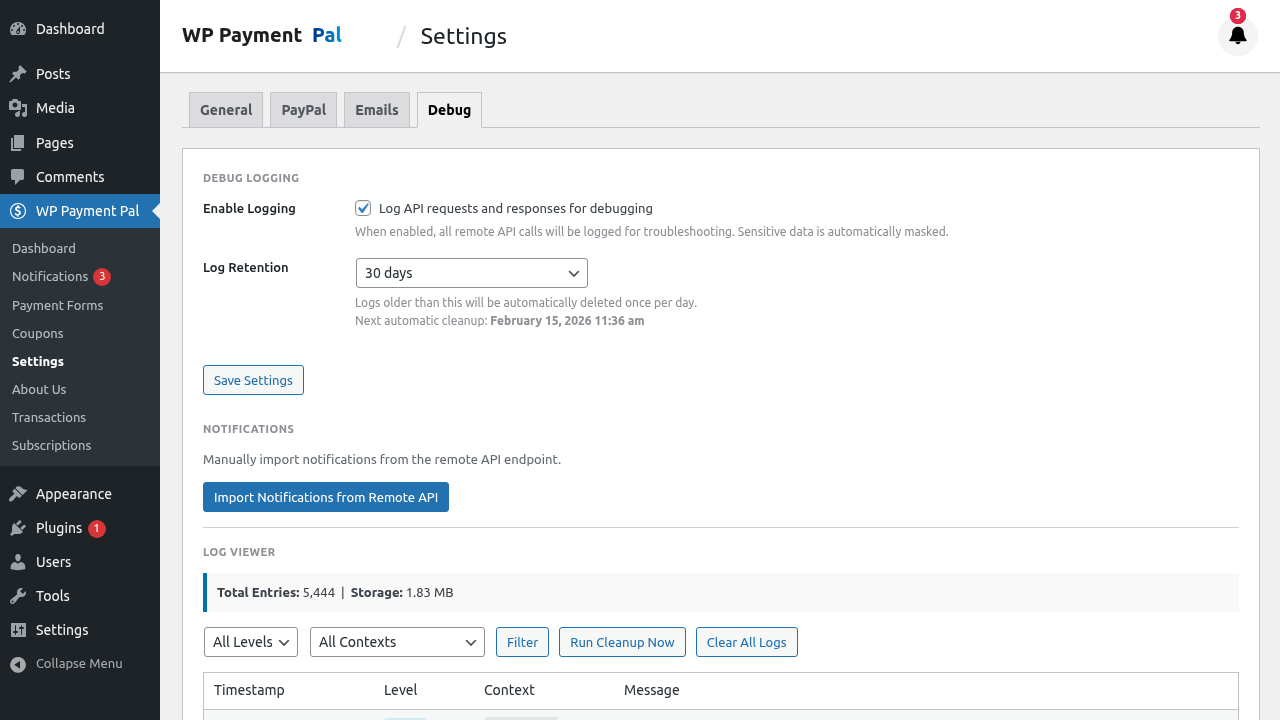
Enabling Debug Mode
Turn On Logging
- Find Enable Debug Logging toggle
- Turn it On
- Save settings
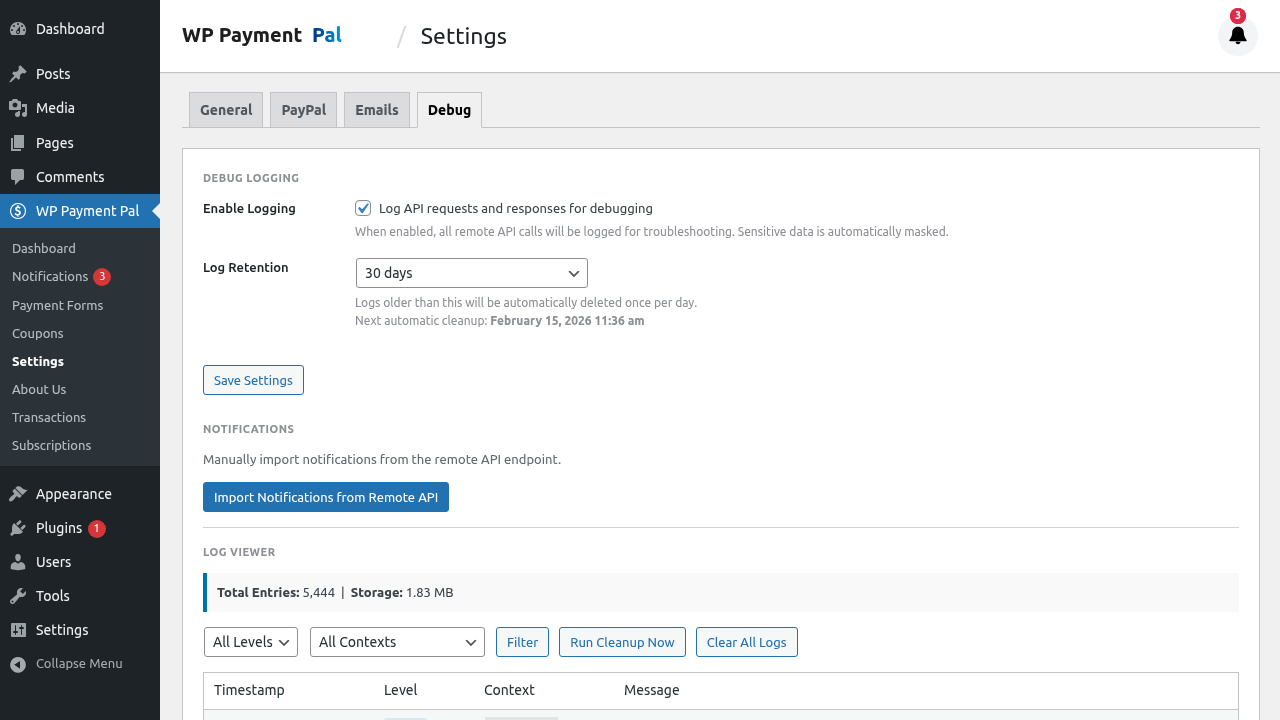
What Gets Logged
When enabled, the plugin logs:
- API requests to PayPal
- API responses
- Webhook events
- Errors and exceptions
- Payment flow steps
Debug Settings Options
Log Level
| Level | Records |
|---|---|
| Error | Only errors |
| Warning | Errors + warnings |
| Info | All events |
| Debug | Verbose details |
Recommendation:
- Info for troubleshooting
- Error for production monitoring
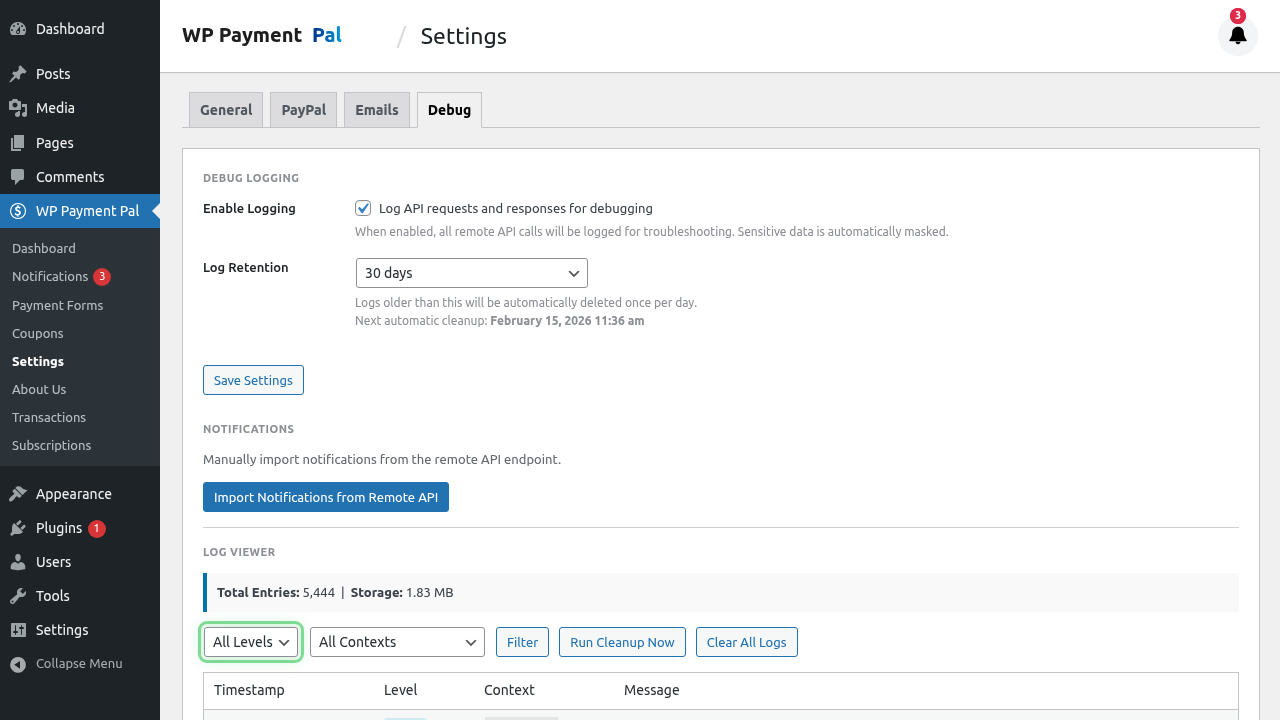
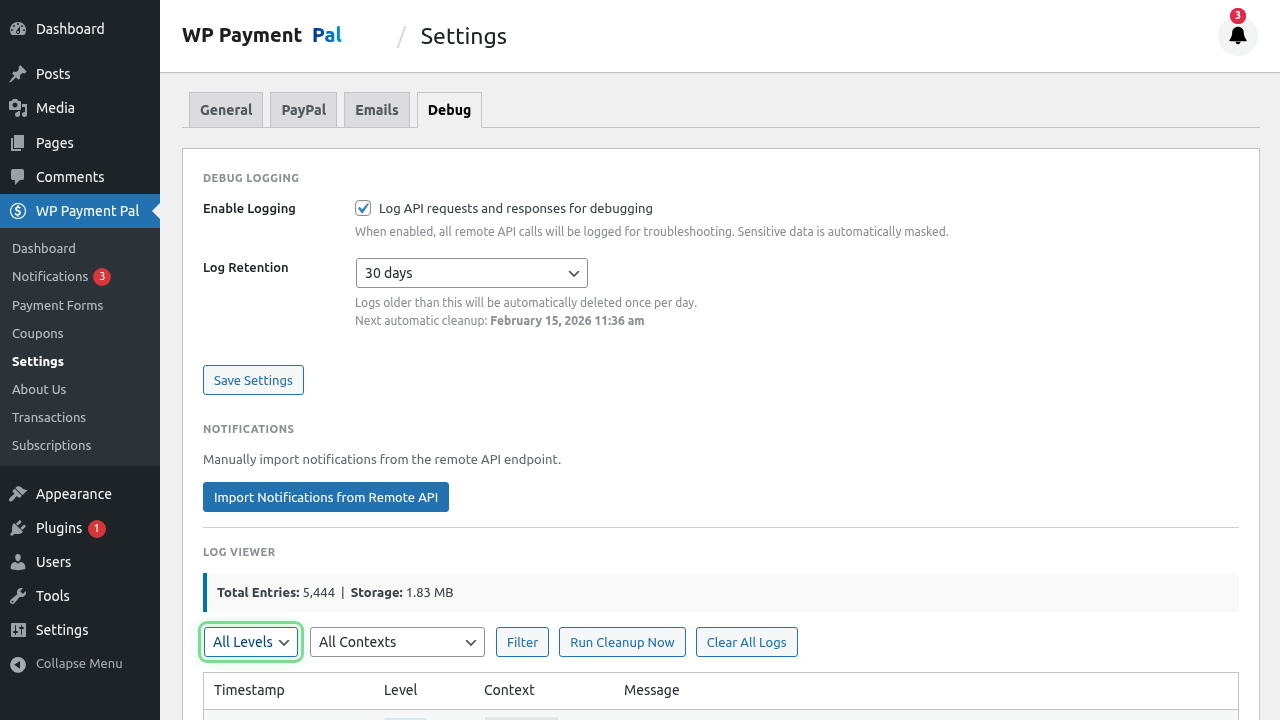
Log Retention
Set how long to keep logs:
- 7 days (recommended)
- 14 days
- 30 days
- Custom
Older logs are automatically deleted.
Viewing Logs
In Plugin
- Go to Debug settings
- Find View Logs section
- Browse recent log entries
Log Format
[2024-01-15 14:30:25] INFO: Payment initiated - Form ID: 123
[2024-01-15 14:30:26] INFO: PayPal API request - Create Order
[2024-01-15 14:30:27] INFO: PayPal API response - Order ID: ABC123
[2024-01-15 14:30:45] INFO: Webhook received - PAYMENT.CAPTURE.COMPLETED
[2024-01-15 14:30:45] INFO: Transaction created - ID: 456
Common Issues to Debug
Payment Failures
Look for:
- API error responses
- Validation failures
- PayPal rejection reasons
Webhook Issues
Look for:
- Webhook receipt timestamps
- Verification status
- Processing errors
Connection Problems
Look for:
- API timeout errors
- Authentication failures
- Network issues
Reading Log Entries
Successful Payment
INFO: Payment initiated - Form ID: 123
INFO: PayPal Order created - ID: ABC123
INFO: Customer approved payment
INFO: Webhook: PAYMENT.CAPTURE.COMPLETED
INFO: Transaction saved - ID: 456
Failed Payment
INFO: Payment initiated - Form ID: 123
ERROR: PayPal API error - Invalid amount format
DEBUG: Request body: {"amount": "invalid"}
Webhook Problem
INFO: Webhook received - PAYMENT.CAPTURE.COMPLETED
ERROR: Webhook verification failed - Invalid signature
Troubleshooting Workflow
Step 1: Enable Debug
- Turn on debug logging
- Set level to Info or Debug
- Save settings
Step 2: Reproduce Issue
- Attempt the failing action
- Note the exact time
- Capture any error messages
Step 3: Check Logs
- Find entries around that time
- Look for ERROR or WARNING
- Read the context
Step 4: Identify Cause
Common causes:
- Configuration errors
- API credential issues
- Network problems
- Data validation failures
Step 5: Resolve
- Fix the identified issue
- Test again
- Verify in logs
Security Considerations
Debug logs may contain:
- Transaction details
- Email addresses
- API responses
Best practices:
- Disable in production when not needed
- Don’t share logs publicly
- Clear logs after troubleshooting
- Limit log retention
Performance Impact
Debug logging:
- Minor performance impact
- Disk space usage
- More at Debug level than Error level
Recommendation:
- Use Info level normally
- Debug level only when needed
- Disable when not troubleshooting
Sharing Logs with Support
When contacting support:
- Enable debug logging
- Reproduce the issue
- Export relevant log section
- Redact sensitive data
- Share with support team
What to Redact
- Full email addresses
- API keys/credentials
- Personal information
- Full transaction IDs (partial OK)
Log File Location
Logs are stored:
- In WordPress uploads directory
- Under WP Payment Pal folder
- Named by date
Path example:
/wp-content/uploads/wppal-logs/2024-01-15.logClearing Logs
To clear logs:
- Use Clear Logs button if available
- Or delete files from server
- Old logs auto-delete per retention setting
WordPress Debug Mode
WP Payment Pal debug is separate from:
define('WP_DEBUG', true);Both can be useful for troubleshooting.
Best Practices
- Enable when needed – Not always on
- Use appropriate level – Info usually enough
- Check regularly – Don’t let logs grow huge
- Secure logs – Contains sensitive data
- Document findings – Note what you learn
Troubleshooting Debug Itself
Logs not appearing
- Verify debug is enabled
- Check file permissions
- Look in correct date file
Logs too large
- Reduce log level
- Decrease retention
- Clear old logs
Missing information
- Increase log level to Debug
- Ensure event occurred after enabling
What’s Next?
- Testing Webhooks – Verify PayPal communication
- Connecting Your PayPal Account – Connection issues
- Understanding Sandbox vs Live Mode – Test environment