Reading time: 5 minutes | Difficulty: Intermediate
Overview
Set up recurring billing to accept subscription payments. This guide covers creating subscription price options with various billing intervals.
Prerequisites
- WP Payment Pal installed
- PayPal Business account connected
- Understanding of your billing model
Step 1: Create or Edit a Form
- Go to Payment Forms
- Click Add New or edit an existing form
- Configure your general settings
Step 2: Add a Subscription Price Option
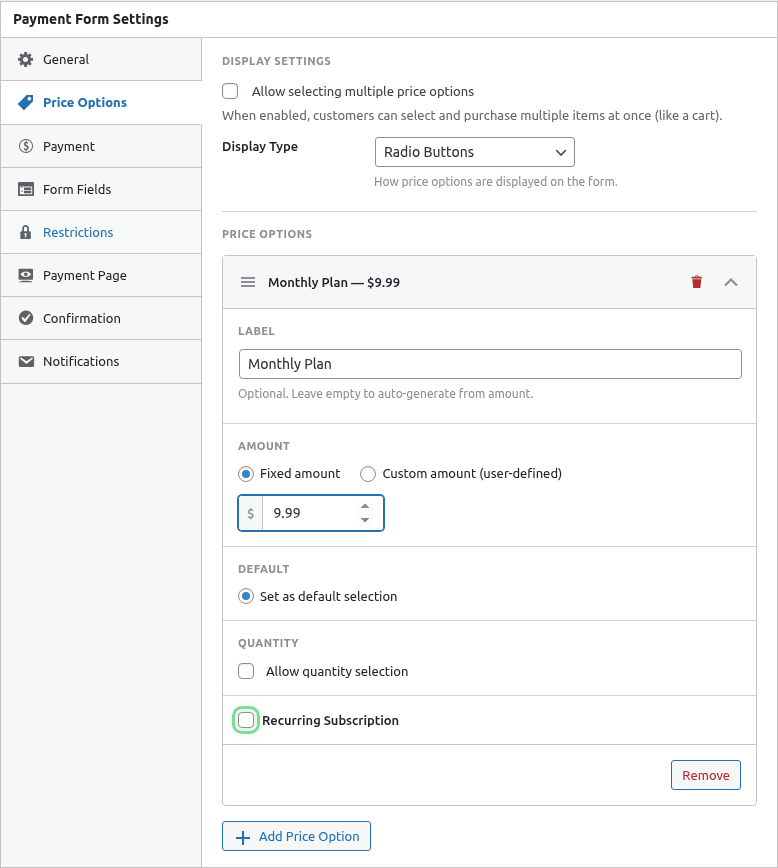
- Click the Price Options tab
- Click Add Price Option
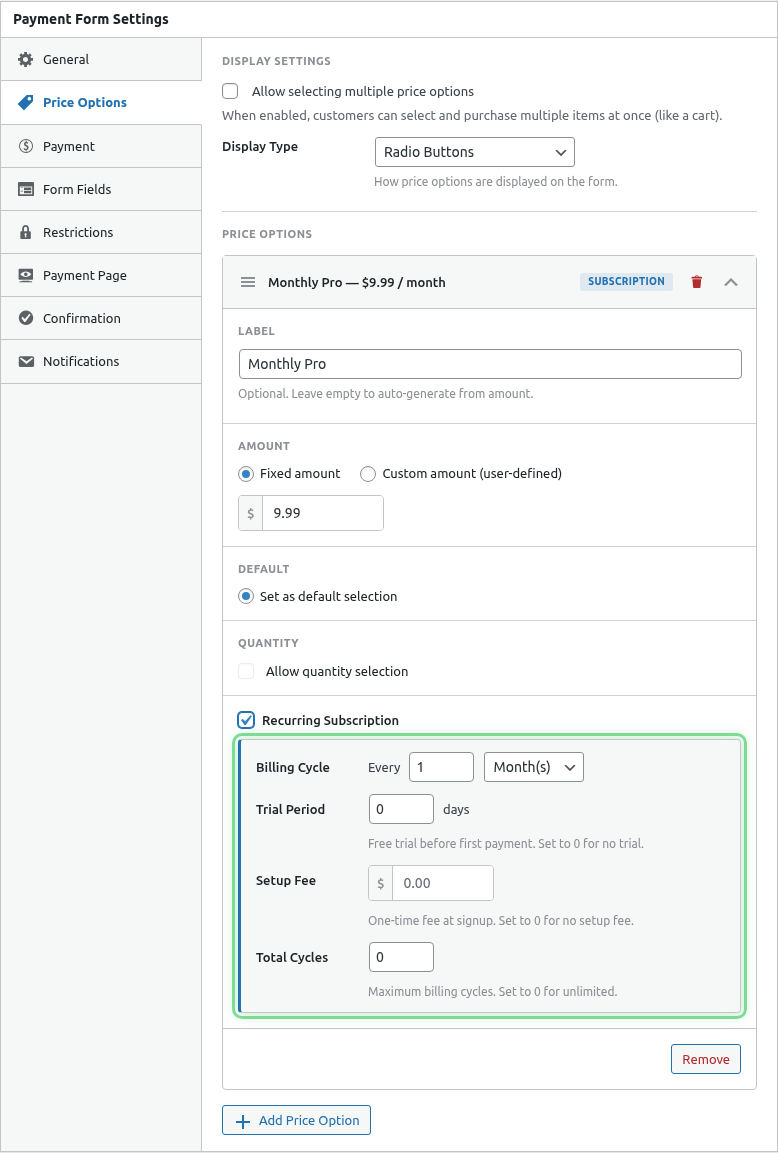
- Set the Type to Subscription
Step 3: Configure Billing
Billing Amount
Set the recurring charge amount:
- Enter the amount in your default currency
- This is what customers pay each billing cycle
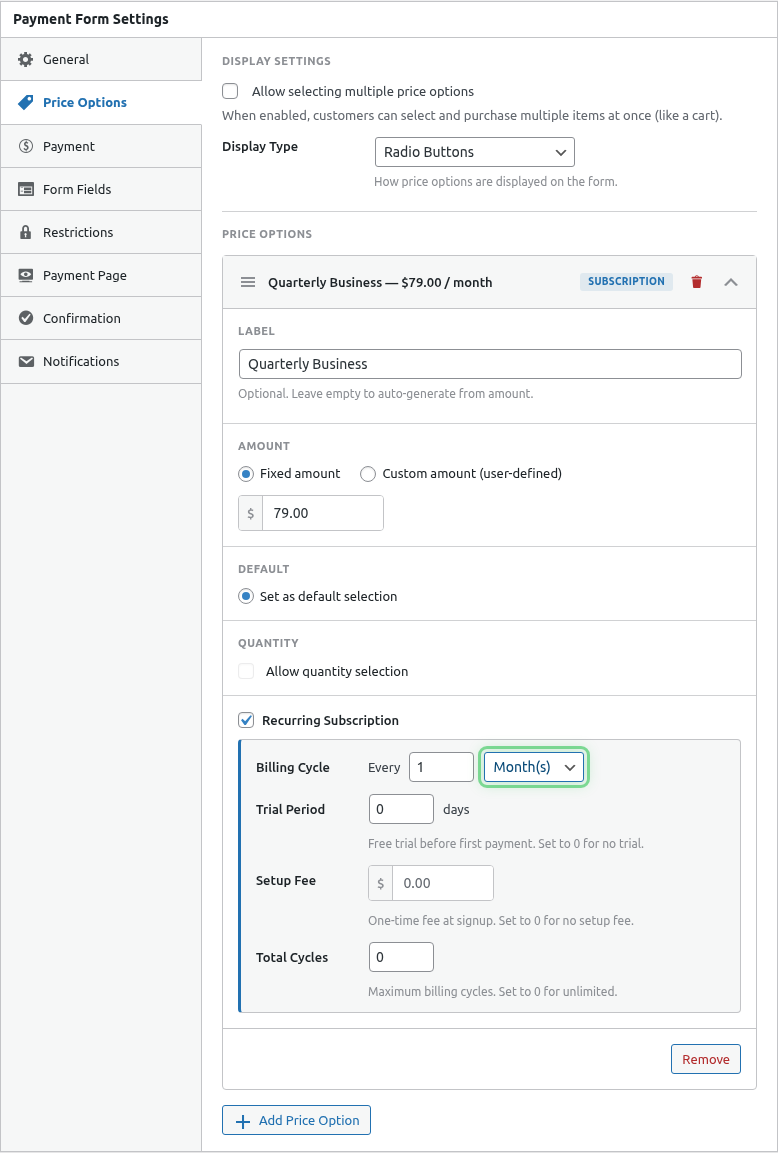
Billing Interval
Choose how often to charge:
| Interval | Examples |
|---|---|
| Daily | Every day, every 3 days |
| Weekly | Every week, every 2 weeks |
| Monthly | Every month, every 3 months |
| Yearly | Every year |
Interval Frequency
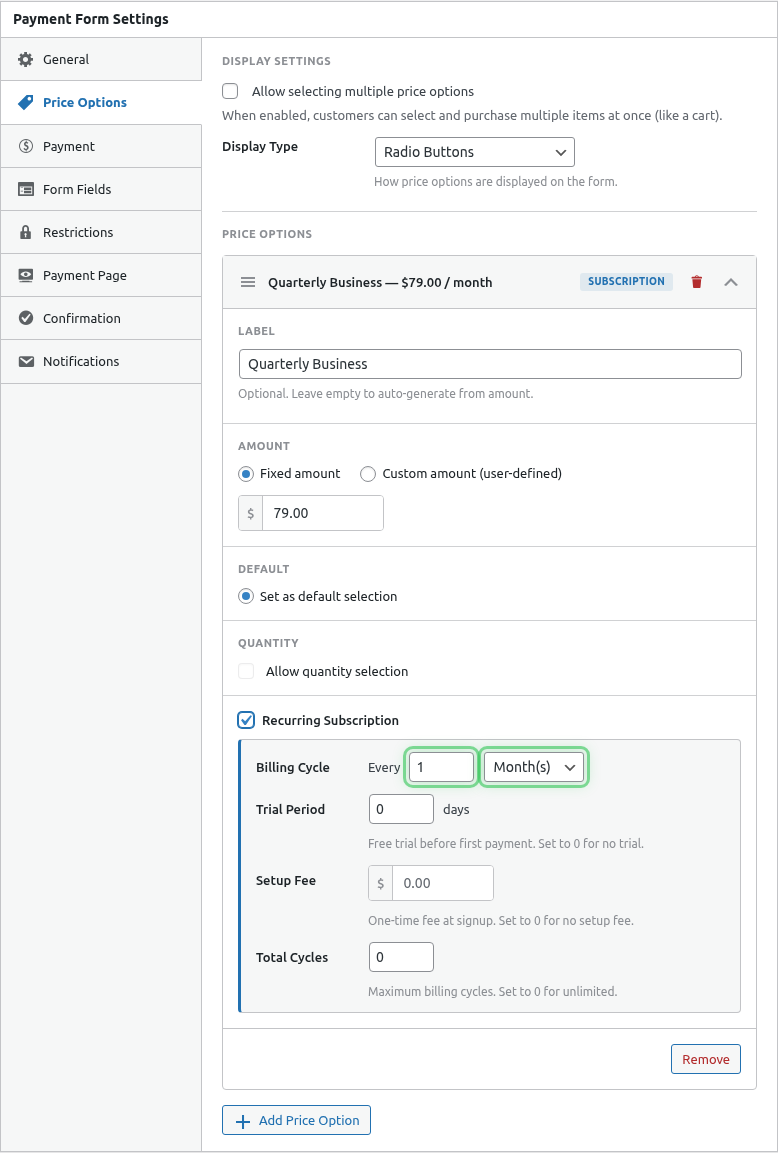
Set the number of intervals:
| Setting | Result |
|---|---|
| 1 Month | Monthly billing |
| 3 Months | Quarterly billing |
| 6 Months | Semi-annual billing |
| 1 Year | Annual billing |
Step 4: Optional Features
Trial Period
Offer a free trial before billing starts:
- Enable Free Trial
- Set Trial Days (e.g., 14)
See Configuring Trial Periods for details.
Setup Fee
Charge a one-time fee at signup:
- Enable Setup Fee
- Enter the fee amount
See Adding Setup Fees for details.
Billing Cycles
Limit the total number of payments:
- Enable Limit Billing Cycles
- Enter the number of cycles
See Managing Billing Cycles for details.
Step 5: Publish
- Configure other form settings (fields, notifications)
- Click Publish
Common Subscription Models
Monthly SaaS
Label: Pro Plan
Amount: $29/month
Interval: Monthly (1 month)
Trial: 14 days free
Cycles: Unlimited
Annual Membership
Label: Annual Membership
Amount: $199/year
Interval: Yearly (1 year)
Trial: None
Cycles: Unlimited
12-Month Payment Plan
Label: Payment Plan
Amount: $50/month
Interval: Monthly (1 month)
Trial: None
Cycles: 12 payments
Weekly Service
Label: Weekly Coaching
Amount: $99/week
Interval: Weekly (1 week)
Trial: 1 week free
Cycles: Unlimited
Quarterly Subscription
Label: Quarterly Box
Amount: $75/quarter
Interval: Monthly (3 months)
Trial: None
Cycles: Unlimited
Mixing Subscriptions and One-Time
You can offer both on the same form:
- Add a subscription price option
- Add a one-time price option
- Use single-select mode
Customers choose between:
- Subscribe for $10/month
- Buy once for $99
Custom Amount Subscriptions
Let customers choose their recurring amount:
- Create a subscription price option
- Enable Custom Amount
- Set minimum recurring amount
Use cases:
- Monthly giving programs
- Flexible membership levels
- Pay-what-you-want subscriptions
PayPal Plan Creation
When you publish a subscription form:
- WP Payment Pal creates a PayPal billing plan
- The plan is saved and reused for all subscribers
- Custom amounts create dynamic plans as needed
Subscription Flow
- Customer selects subscription option
- Fills out form fields
- Pays with PayPal
- PayPal creates the subscription
- Customer is charged per billing cycle
- Subscription appears in your admin
What Happens After Signup
- Customer receives confirmation email
- Subscription appears in Subscriptions list
- PayPal handles automatic billing
- You receive payment notifications
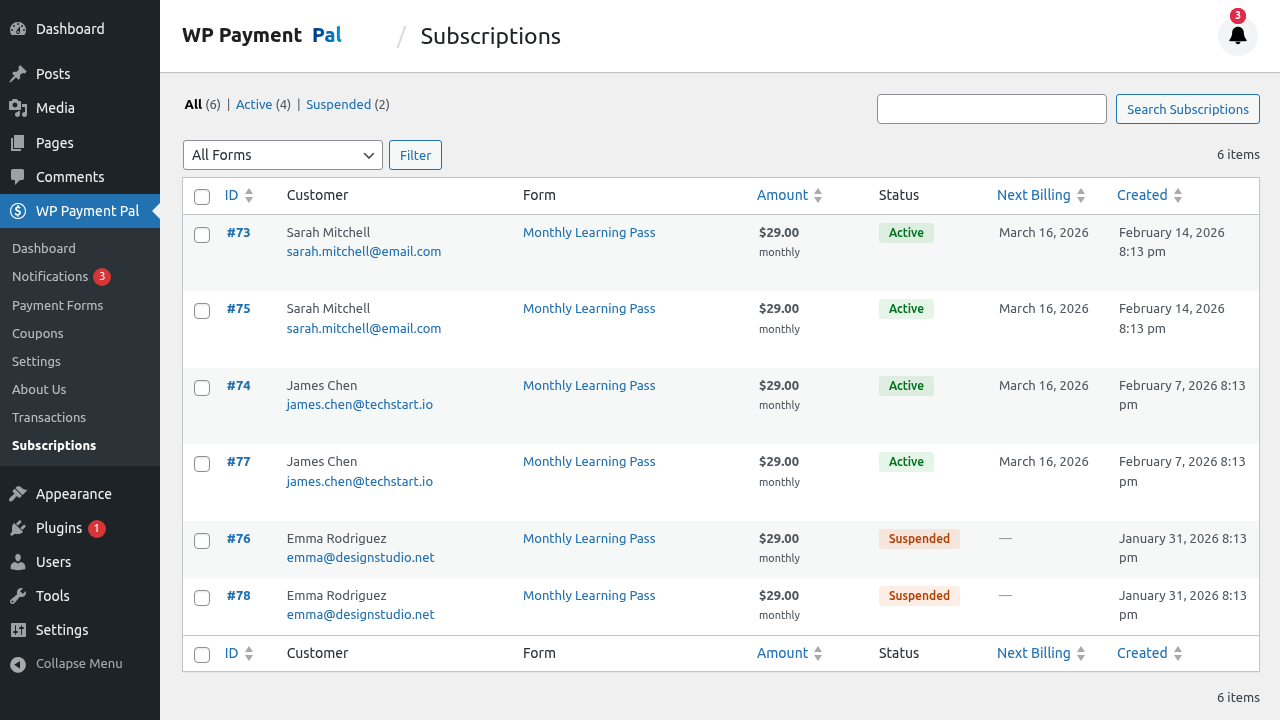
Viewing Subscriptions
After launch, view subscriptions at:
WP Payment Pal > Subscriptions
Editing Subscriptions
Important: You cannot change the billing amount or interval of an existing subscription. To change terms:
- Cancel the current subscription
- Have the customer subscribe to a new plan
Cancellation
Subscriptions can be cancelled:
- By admin in the Subscriptions panel
- By customer in the Customer Portal (if enabled)
- In PayPal directly
See Managing Subscriptions in Admin.
Best Practices
- Clear pricing – Show exactly what customers will pay
- Trial periods – Reduce friction for new subscribers
- Annual discounts – Offer savings for yearly commitments
- Easy cancellation – Build trust with simple cancellation
Troubleshooting
Subscription not created
- Verify PayPal connection is active
- Check you’re using a Business account
- Test in Sandbox mode first
Billing not occurring
- Check subscription status in PayPal
- Verify webhook configuration
- Check customer payment method
What’s Next?
- Configuring Trial Periods – Free trial setup
- Adding Setup Fees – One-time charges
- Managing Billing Cycles – Limit payments