Reading time: 3 minutes | Difficulty: Beginner
Overview
Control which payment forms accept a coupon code. This guide covers restricting coupons to specific forms.
Prerequisites
- At least one coupon created
- Multiple payment forms
Why Restrict Coupons?
Form restrictions let you:
- Create form-specific promotions
- Prevent discounts on certain products
- Target promotions to specific offerings
- Run A/B tests with different discounts
Accessing Form Restrictions
- Edit a coupon (or create new)
- Find the Allowed Forms section
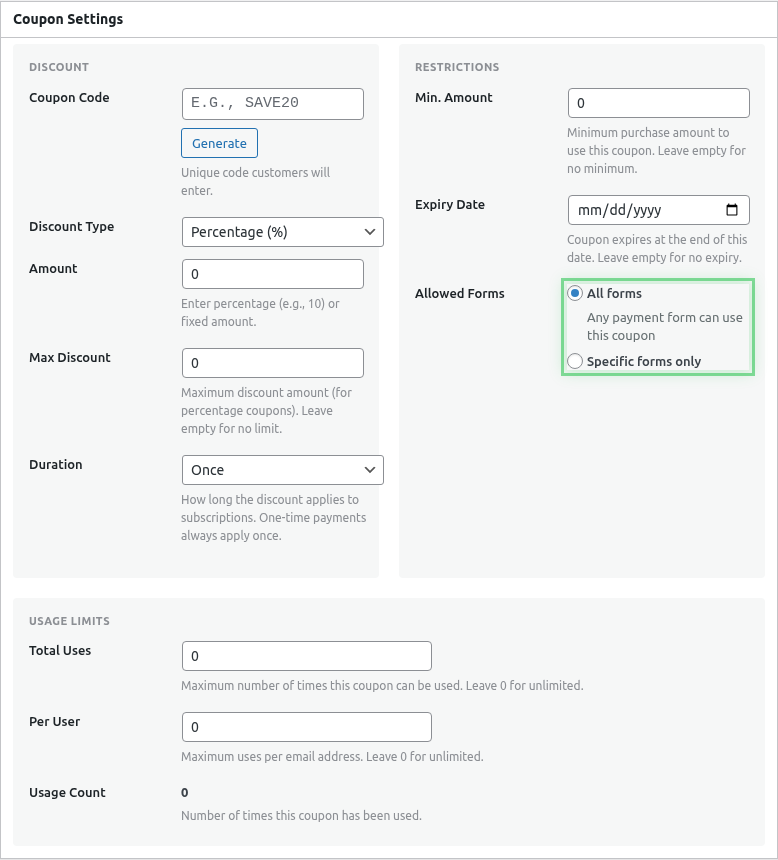
Step 1: Choose Restriction Type
All Forms (Default)
The coupon works on any form with coupons enabled:
- Maximum flexibility
- Good for site-wide promotions
- No configuration needed
Specific Forms
The coupon only works on selected forms:
- Targeted promotions
- Product-specific discounts
- Form-based campaigns
Step 2: Select Forms
When “Specific Forms” is selected:
- A list of your forms appears
- Check the forms that should accept this coupon
- Unchecked forms will reject the code
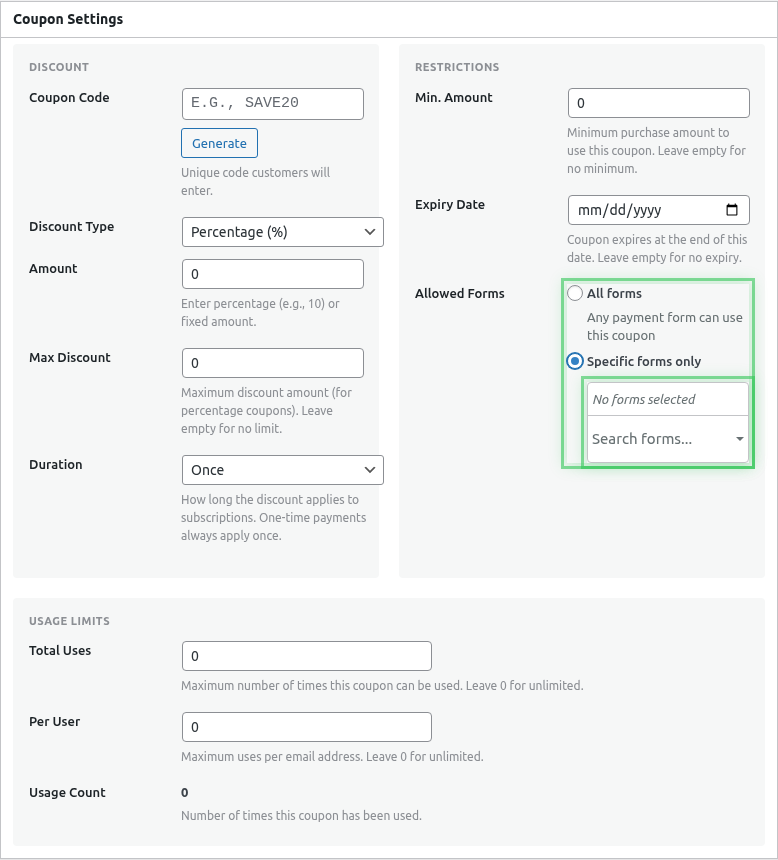
Example Scenarios
Product Launch Discount
Coupon: NEWPRODUCT25
Discount: 25% off
Allowed Forms: "New Widget Purchase" only

Result: 25% off only for the new product
Membership Discount
Coupon: MEMBERONLY
Discount: $10 off
Allowed Forms: Premium forms only

Result: Discount for premium products only
Exclude Sale Items
Coupon: REGULAR15
Discount: 15% off
Allowed Forms: All EXCEPT sale forms

Result: Discount only on regular-priced items
Customer Experience
Valid Form
When a coupon is used on an allowed form:
- Discount applies successfully
- Customer sees reduced total
- Order summary shows discount
Invalid Form
When a coupon is used on a restricted form:
- Error message displays
- “Coupon not valid for this form”
- Original price remains
Combining with Other Restrictions
Form restrictions work alongside:
- Usage limits – Maximum uses
- Expiration dates – Time limits
- Minimum amounts – Purchase thresholds
All conditions must be met for the coupon to apply.
Managing Multiple Coupons
Form-Specific Strategy
| Coupon | Discount | Forms |
|---|---|---|
| BASIC10 | 10% | Basic Plan form |
| PRO20 | 20% | Pro Plan form |
| BUNDLE25 | 25% | Bundle form |
Tiered Strategy
| Coupon | Discount | Forms |
|---|---|---|
| SAVE5 | $5 off | Low-tier products |
| SAVE15 | $15 off | Mid-tier products |
| SAVE30 | $30 off | High-tier products |
Viewing Form Assignments
From the Coupons list:
- View the coupon
- Check the Allowed Forms column/section
- See which forms are assigned
Changing Restrictions
To update form restrictions:
- Edit the coupon
- Change the form selection
- Save changes
Changes apply immediately to new uses.
Best Practices
- Clear naming – Name coupons to indicate their purpose
- Document restrictions – Note why certain forms are included/excluded
- Review periodically – Update restrictions when adding new forms
- Test thoroughly – Verify coupon works only on intended forms
- Communicate clearly – Tell customers which products/forms qualify
Common Questions
What if I add a new form later?
New forms are NOT automatically added to existing “Specific Forms” coupons. Update the coupon to include new forms.
Can a coupon have zero forms selected?
Yes, but it won’t work anywhere. This effectively disables the coupon.
Do form restrictions affect the admin view?
No, restrictions only affect frontend use. Admins can see all coupon details.
Troubleshooting
Coupon not working on expected form
- Edit the coupon
- Verify the form is selected
- Check that form has coupons enabled
- Verify no other restrictions block it
Coupon working on unexpected form
- Edit the coupon
- Check if “All Forms” is selected
- Or verify the form isn’t accidentally checked
What’s Next?
- Setting Coupon Usage Limits – Limit uses
- Adding Coupon Fields to Your Form – Enable input
- Creating Discount Coupons – Coupon basics