Reading time: 3 minutes | Difficulty: Beginner
Overview
Browse and search all payments processed through WP Payment Pal. This guide covers the transaction history interface.
Prerequisites
- WP Payment Pal installed
- Some payments processed (even test payments)
Accessing Transaction History
- Go to WP Payment Pal > Transactions in your admin menu
- View the transactions list
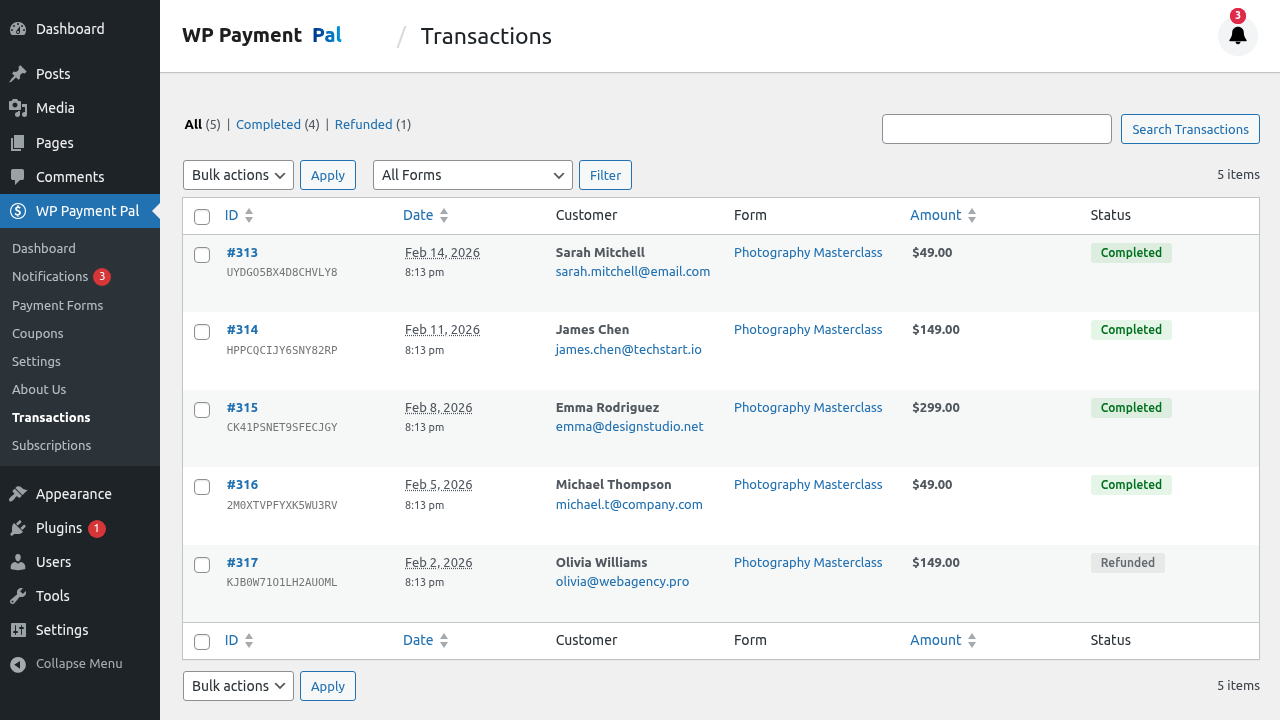
Understanding the List View
Column Information
| Column | Description |
|---|---|
| ID | Internal transaction ID |
| Customer | Payer name and email |
| Form | Payment form used |
| Amount | Payment amount |
| Status | Transaction status |
| Date | Payment timestamp |
Transaction Statuses
| Status | Meaning | Color |
|---|---|---|
| Completed | Payment successful | Green |
| Pending | Awaiting completion | Yellow |
| Refunded | Fully refunded | Gray |
| Partially Refunded | Partial refund issued | Orange |
| Denied | Payment rejected | Red |
Filtering Transactions
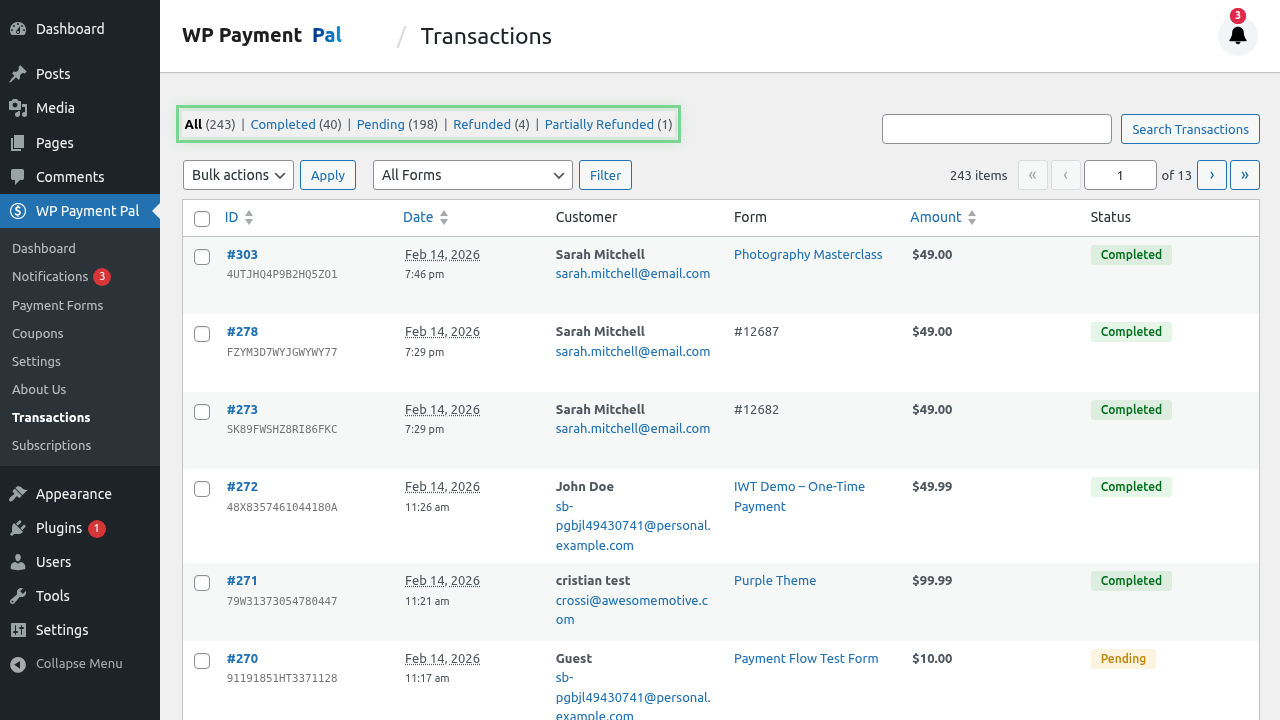
By Status
Use the status filter tabs:
- All – Every transaction
- Completed – Successful payments only
- Refunded – Refunded transactions
- Pending – Awaiting completion
By Date
Filter by date range:
- Use the date picker
- Select start and end dates
- Click Apply
By Form
Filter by payment form:
- Select form from dropdown
- View only that form’s transactions
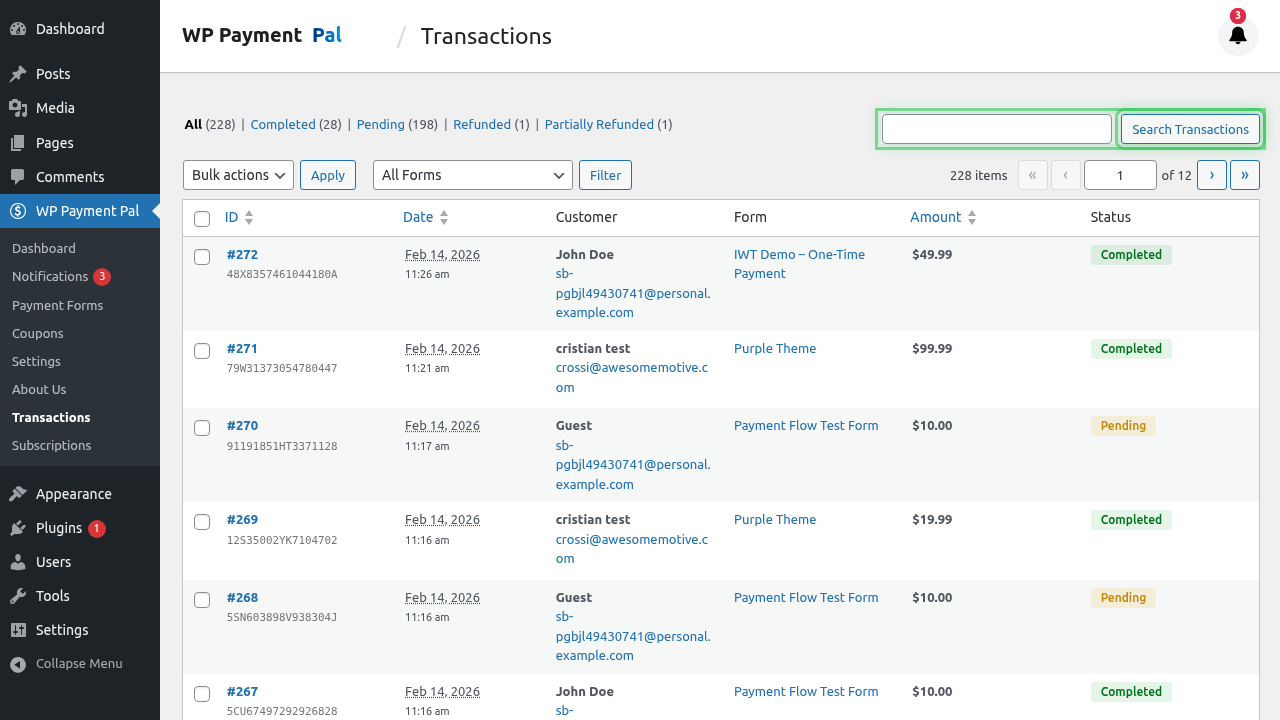
Searching Transactions
Use the search box to find specific transactions:
- Search by customer name
- Search by email
- Search by transaction ID
Sorting Transactions
Click column headers to sort:
- Date – Newest or oldest first
- Amount – Highest or lowest first
- Status – Group by status
Default: Newest transactions first.
Transaction Information
Each row shows:
#12345 | John Smith ([email protected]) | Donation Form | $50.00 | Completed | Jan 15, 2024Quick Actions
From the list view:
- Click row – View full details
- Hover – See quick action links
Viewing Details
Click any transaction to see:
- Complete customer information
- All form field values
- Payment details
- PayPal transaction info
- Refund history (if any)
See Understanding Transaction Details.
Pagination
For large transaction volumes:
- Navigate pages at bottom
- Adjust items per page
- Jump to specific page
Exporting Data
Currently, transaction data can be:
- Viewed in admin
- Referenced in PayPal dashboard
- Used for reporting purposes
Transaction Retention
Transactions are stored permanently:
- No automatic deletion
- Historical data preserved
- Audit trail maintained
Common Tasks
Find a Specific Payment
- Use search with customer email
- Or filter by date and form
- Click to view details
Review Daily Transactions
- Set date filter to today
- View all payments
- Check totals
Identify Refunds
- Filter by “Refunded” status
- Review refund reasons
- Check refund amounts
Troubleshoot Missing Payment
- Search by customer email
- Check pending status
- Review PayPal dashboard
- Check webhook logs
Understanding Payment Flow
Customer pays → PayPal processes → Webhook received → Transaction createdTransaction appears in list after webhook confirmation.
Sandbox vs Live
Transactions are separated by mode:
- Sandbox transactions visible in Sandbox mode
- Live transactions visible in Live mode
- Check your current mode in settings
Best Practices
- Regular review – Check transactions daily
- Quick resolution – Address pending items
- Document issues – Note any problems
- Reconcile – Compare with PayPal reports
- Monitor refunds – Track refund patterns
Troubleshooting
No transactions showing
- Verify payments were made
- Check payment mode (Sandbox vs Live)
- Confirm webhooks are working
Missing transaction
- Check date range filter
- Search by email or ID
- Look in PayPal dashboard
- Check webhook delivery
Wrong status
- Transaction may be updating
- Check PayPal for current status
- Webhook might be delayed
What’s Next?
- Understanding Transaction Details – Detailed view
- Processing Full Refunds – Refund payments
- Processing Partial Refunds – Partial refunds