Reading time: 3 minutes | Difficulty: Beginner
Overview
Let customers manage their subscriptions with the [wppal_subscriptions] shortcode. This guide covers setting up a customer subscription portal.
Prerequisites
- Active subscriptions in your system
- A page for the portal
- Understanding of customer self-service needs
Basic Shortcode
[wppal_subscriptions]No attributes required for basic usage.
What the Portal Shows
Customers see:
- List of their subscriptions
- Subscription status
- Billing information
- Cancel option (if enabled)
- Billing history
Setting Up the Portal
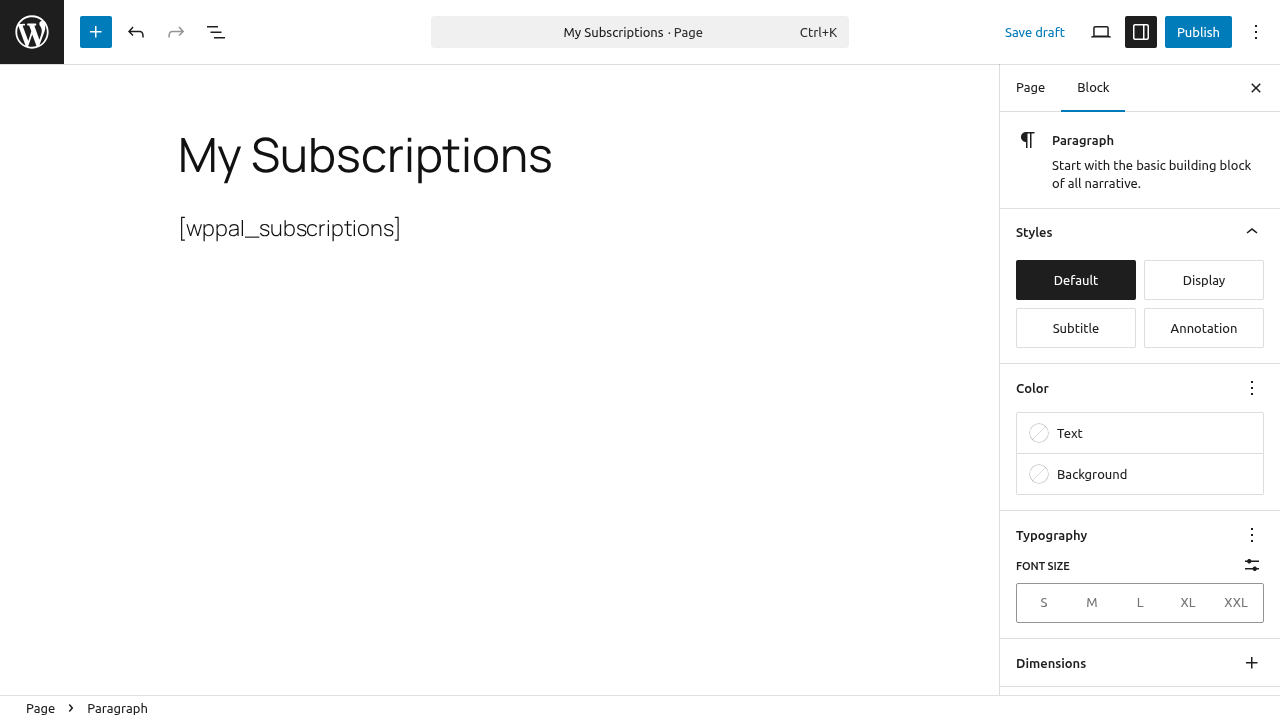
Step 1: Create a Page
- Go to Pages > Add New
- Title: “My Subscriptions” or “Manage Subscription”
- Add any intro text you want
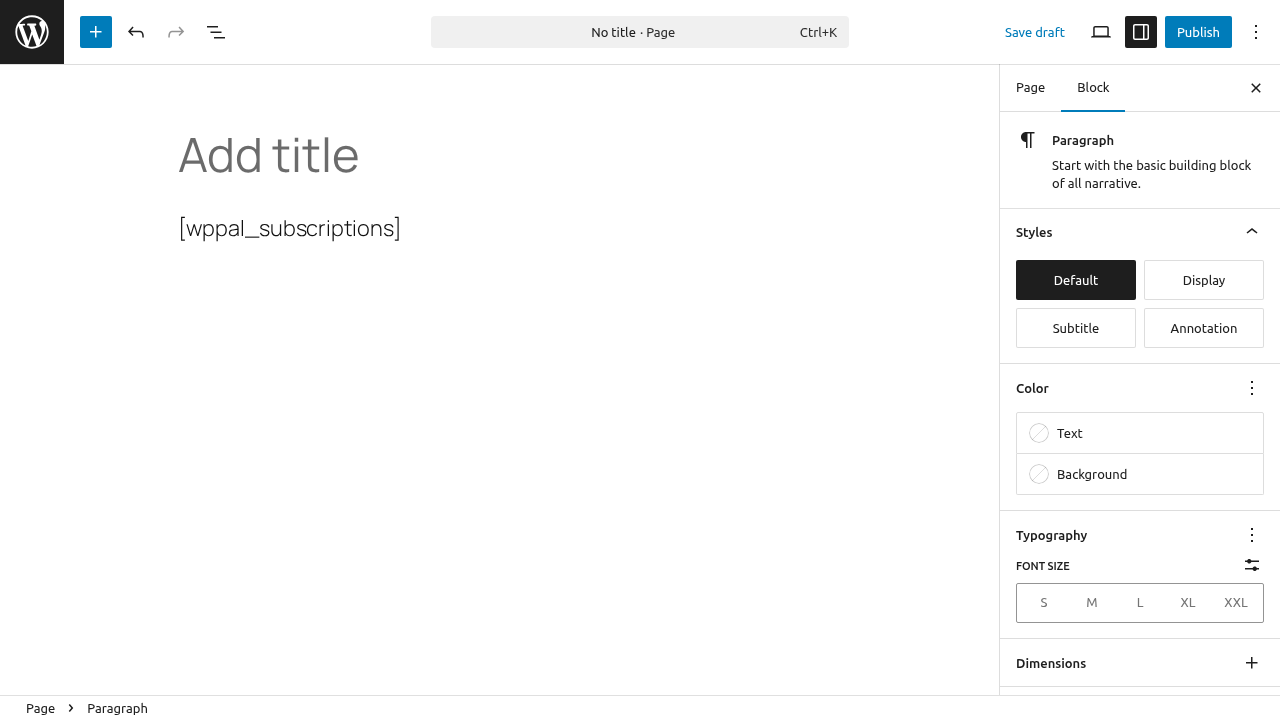
Step 2: Add the Shortcode
In the page content:
[wppal_subscriptions]Or use the Gutenberg block if available.
Step 3: Publish
- Click Publish
- Note the page URL
- Link to it from your site navigation
Portal Features
Subscription List
Displays all subscriptions for the logged-in user:
- Plan name
- Status (Active, Cancelled, etc.)
- Amount and billing cycle
- Next billing date
Subscription Details
Click a subscription to see:
- Complete plan details
- Start date
- Payment history
- Cancel button (if allowed)
Self-Service Cancellation
If enabled on the form:
- Cancel button visible
- Confirmation required
- Immediate cancellation
- Customer notified
Billing History
Past payments for each subscription:
- Payment date
- Amount
- Status
Login Requirement
The portal requires login:
- Logged out: Shows login prompt
- Logged in: Shows their subscriptions
- Only sees own subscriptions
Login Prompt
When not logged in:
Please log in to view your subscriptions.
[Login Link]
Matching Subscriptions to Users
Subscriptions are matched by email:
- WordPress user email
- PayPal payer email
- Emails must match
If customer used different email with PayPal, subscriptions won’t appear.
Linking to the Portal
In Navigation
- Go to Appearance > Menus
- Add the portal page
- Save menu
In Account Area
<a href="/my-subscriptions/">Manage Subscriptions</a>In Emails
Include in subscription emails:
Manage your subscription: https://yoursite.com/my-subscriptions/Page Content Example
<h1>My Subscriptions</h1>

<p>View and manage your active subscriptions below.</p>

[wppal_subscriptions]

<h3>Need Help?</h3>
<p>Contact us at [email protected] for subscription assistance.</p>
Empty State
When customer has no subscriptions:
- “No subscriptions found” message
- Consider adding link to subscribe
[wppal_subscriptions]

<p>Don't have a subscription? <a href="/pricing/">View our plans</a></p>
Controlling Cancellation
Allow Self-Cancellation
Edit each payment form:
- Go to subscription settings
- Enable “Allow Customer Cancel”
- Save form
Prevent Self-Cancellation
- Disable “Allow Customer Cancel”
- Cancel button hidden
- Customers must contact you
Styling the Portal
The portal uses CSS classes:
/* Portal container */
.wppal-subscriptions-portal {
    /* your styles */
}

/* Subscription cards */
.wppal-subscription-item {
    /* your styles */
}

/* Status badges */
.wppal-status-active {
    /* your styles */
}

/* Cancel button */
.wppal-cancel-btn {
    /* your styles */
}
Testing the Portal
- Create a test subscription (Sandbox)
- Log in as the test user
- Visit the portal page
- Verify subscription displays
- Test cancellation (if enabled)
Troubleshooting
“No subscriptions” but customer has one
- Check user is logged in
- Verify email addresses match
- Check subscription exists in admin
Cancel button not showing
- Verify cancellation allowed on form
- Check subscription is Active status
- Confirm user is logged in
Portal not displaying
- Check shortcode syntax
- Verify plugin is active
- Test in different browser
Wrong subscriptions showing
- Each user sees only their own
- Check logged-in user is correct
- Verify email matching
Best Practices
- Easy to find – Add to main navigation
- Clear instructions – Explain what they can do
- Support option – Provide contact for help
- Test thoroughly – Verify all features work
- Mobile-friendly – Check on phones
Security
The portal:
- Requires authentication
- Shows only user’s subscriptions
- Validates all actions
- Prevents cross-user access
What’s Next?
- Customer Subscription Portal – Detailed guide
- Managing Subscriptions in Admin – Admin side
- Creating a Subscription Plan – Subscription setup