Reading time: 4 minutes | Difficulty: Intermediate
Overview
Automatically notify customers about subscription events like activation, renewal, and cancellation. This guide covers subscription-specific email notifications.
Prerequisites
- Subscription forms created
- Email settings configured
- Understanding of subscription lifecycle
Subscription Email Types
| Trigger | Recipient | |
|---|---|---|
| Subscription Confirmation | Subscription activated | Customer |
| Subscription Renewal | Recurring payment succeeds | Customer |
| Payment Failed | Billing fails | Customer |
| Subscription Cancelled | Subscription ends | Customer |
| Admin Subscription Alert | Any subscription event | Admin |
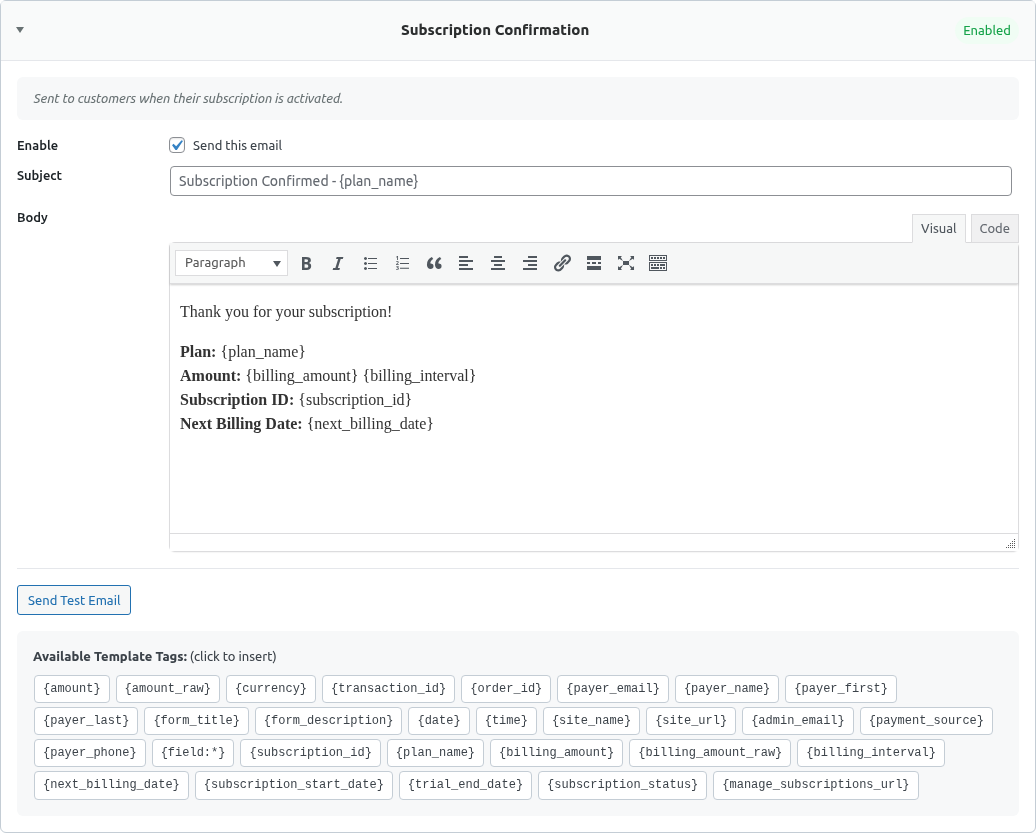
Accessing Subscription Email Settings
Global Settings
- Go to WP Payment Pal > Settings
- Click the Emails tab
- Find subscription-related sections

Per-Form Settings
- Edit a subscription form
- Click the Notifications tab
- Configure subscription notifications
Subscription Confirmation Email
Sent when a new subscription is created.
Template
Subject: Welcome to your {form_title} subscription!

Hi {payer_name},

Your subscription is now active!

SUBSCRIPTION DETAILS
────────────────────
Plan: {form_title}
Amount: {amount} per {billing_cycle}
Started: {date}
Next billing: {next_billing_date}
Subscription ID: {subscription_id}

WHAT'S NEXT
───────────
Your subscription benefits are now available.
Log in to access your account.

MANAGE YOUR SUBSCRIPTION
────────────────────────
View and manage your subscription anytime:
[Portal Link]

Questions? Reply to this email.

Welcome aboard!
[Company Name]
Subscription Renewal Email
Sent after each successful recurring payment.
Template
Subject: Payment received - {form_title} subscription

Hi {payer_name},

Your subscription payment was successful!

PAYMENT DETAILS
───────────────
Plan: {form_title}
Amount: {amount}
Date: {date}
Transaction ID: {transaction_id}

NEXT PAYMENT
────────────
Your next payment of {amount} will be charged
on {next_billing_date}.

Manage your subscription:
[Portal Link]

Thank you for your continued support!
[Company Name]
Payment Failed Email
Sent when a recurring payment fails.
Template
Subject: ⚠️ Payment failed - Action required

Hi {payer_name},

We were unable to process your subscription payment.

SUBSCRIPTION DETAILS
────────────────────
Plan: {form_title}
Amount: {amount}
Failed on: {date}

WHAT TO DO
──────────
Please update your payment method to continue
your subscription:
[Update Payment Link]

If you don't update within 7 days, your subscription
may be cancelled.

NEED HELP?
──────────
If you believe this is an error, please contact us
at [email protected].

[Company Name]
Subscription Cancelled Email
Sent when a subscription is cancelled.
Template
Subject: Your subscription has been cancelled

Hi {payer_name},

Your subscription to {form_title} has been cancelled.

CANCELLATION DETAILS
────────────────────
Plan: {form_title}
Cancelled on: {date}
Subscription ID: {subscription_id}

WHAT THIS MEANS
───────────────
- No further charges will be made
- Your access continues until [end date]
- You can resubscribe anytime

WE'D LOVE TO HAVE YOU BACK
──────────────────────────
If you change your mind, you can resubscribe here:
[Resubscribe Link]

Was there something we could have done better?
Reply and let us know.

Take care,
[Company Name]
Smart Tags for Subscriptions
| Tag | Description |
|---|---|
{subscription_id} |
PayPal subscription ID |
{billing_cycle} |
“Monthly”, “Yearly”, etc. |
{next_billing_date} |
Next charge date |
{amount} |
Recurring amount |
{payer_name} |
Subscriber name |
{payer_email} |
Subscriber email |
{form_title} |
Subscription plan name |
{date} |
Event date |
Admin Subscription Notifications
Get notified of subscription events:
New Subscription Alert
Subject: 🎉 New subscription: {form_title}

NEW SUBSCRIBER
──────────────
Name: {payer_name}
Email: {payer_email}
Plan: {form_title}
Amount: {amount} / {billing_cycle}
Date: {date}

Subscription ID: {subscription_id}
Cancellation Alert
Subject: ⚠️ Subscription cancelled: {payer_name}

CANCELLATION
────────────
Subscriber: {payer_name}
Email: {payer_email}
Plan: {form_title}
Date: {date}

Consider reaching out to understand why.
Email Timing
| Event | Email Sent |
|---|---|
| Signup | Immediately after activation |
| Renewal | After successful charge |
| Failure | After PayPal notifies of failure |
| Cancellation | Immediately after cancellation |
Trial Period Emails
For subscriptions with trials:
Trial Start
Subject: Your free trial has started!

Hi {payer_name},

Your {trial_days}-day free trial of {form_title}
has begun!

TRIAL DETAILS
─────────────
Plan: {form_title}
Trial ends: {trial_end_date}
First charge: {amount} on {first_billing_date}

Explore everything included in your trial...
Trial Ending Reminder
Consider sending a reminder before trial ends:
- 3 days before
- 1 day before
Enabling/Disabling Emails
For each email type:
- Go to Settings > Emails
- Find the email type
- Toggle On or Off
- Save changes
Customization Per Form
Each subscription form can have:
- Different email content
- Different notification settings
- Unique branding
Override global settings in form Notifications tab.
Best Practices
Confirmation Emails
- Welcome warmly
- Explain what’s included
- Provide access instructions
- Include support contact
Renewal Emails
- Keep it brief
- Confirm the charge
- Show next billing date
- Provide management link
Failed Payment Emails
- Urgent but not alarming
- Clear call-to-action
- Easy way to fix
- Support contact
Cancellation Emails
- Be graceful
- Thank them
- Explain what happens
- Offer to return
Testing Subscription Emails
- Create a test subscription (Sandbox)
- Verify confirmation email
- Trigger a test renewal (via PayPal Sandbox)
- Test cancellation flow
Troubleshooting
Emails not sending
- Check email type is enabled
- Verify webhook receiving events
- Test email server connection
Wrong timing
- Emails depend on PayPal webhooks
- Verify webhooks are configured
- Check for delays in processing
Missing information
- Verify Smart Tags
- Check data is captured
- Test with known values
What’s Next?
- Creating a Subscription Plan – Setup subscriptions
- Managing Subscriptions in Admin – Admin management
- Using Smart Tags in Emails – Dynamic content