Reading time: 3 minutes | Difficulty: Beginner
Overview
Display payment forms anywhere shortcodes are supported using [wppal_form]. This guide covers shortcode usage and options.
Prerequisites
- At least one payment form created
- Understanding of where to use shortcodes
Basic Shortcode
The simplest form of the shortcode:
[wppal_form id="123"]Replace 123 with your actual form ID.
Finding Your Form ID
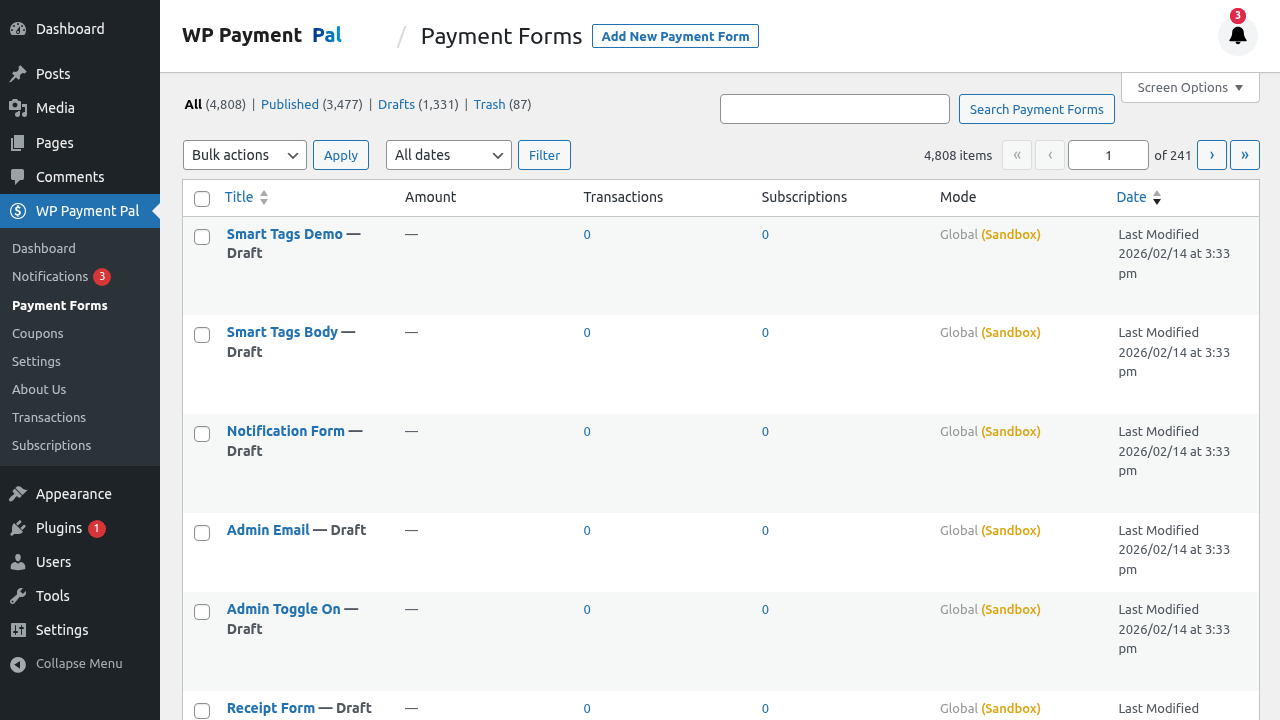
From Forms List
- Go to Payment Forms
- Look at the ID column
- Or hover over form title and check URL
From Form Editor
- Edit your form
- Check the URL:
post.php?post=123&action=edit - The number is your form ID
From Shortcode Column
The forms list shows the shortcode:
- Copy directly from the Shortcode column
Where to Use Shortcodes
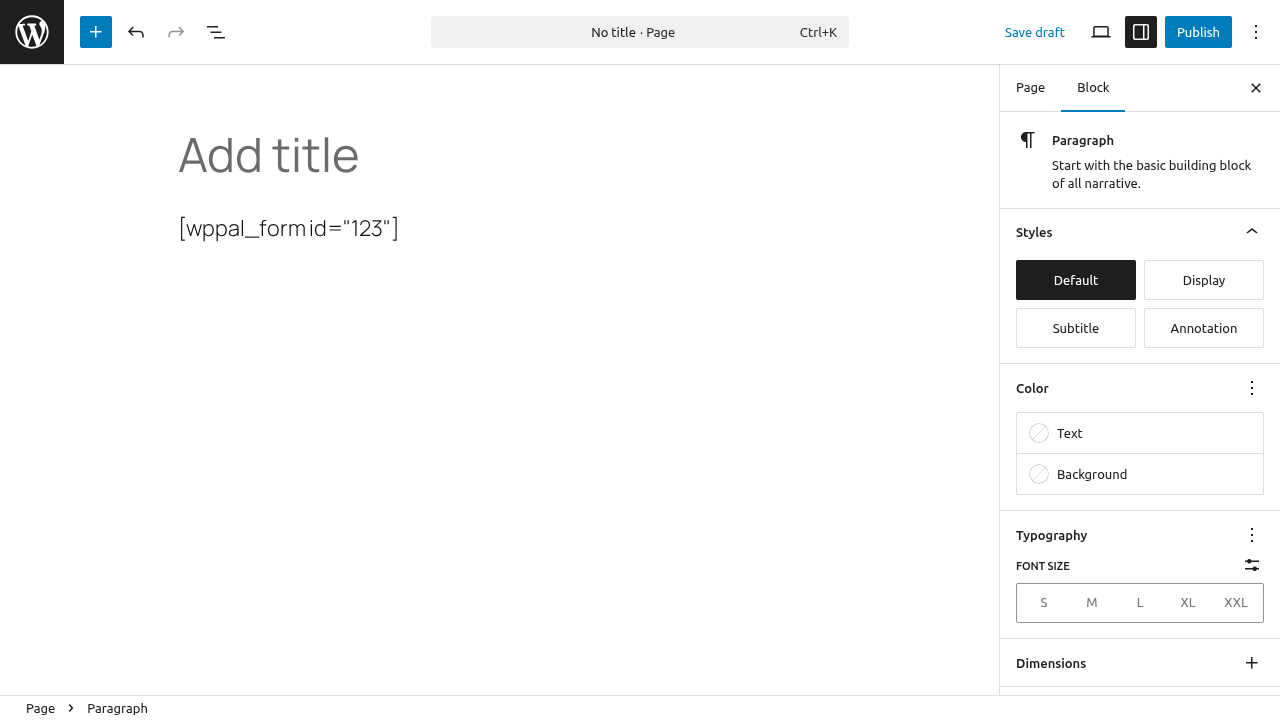
Pages and Posts
- Edit a page or post
- Add a Shortcode block (Gutenberg)
- Or paste in Classic Editor
- Paste your shortcode
- Update/publish
Text Widgets
- Go to Appearance > Widgets
- Add a Text widget
- Paste the shortcode
- Save
Theme Files
<?php echo do_shortcode('[wppal_form id="123"]'); ?>Page Builders
Most page builders support shortcodes:
- Elementor: Shortcode widget
- Divi: Code module
- Beaver Builder: HTML module
Shortcode Attributes
Form ID (Required)
[wppal_form id="123"]The only required attribute.
Display Behavior
Embedded Forms
Shows the full form inline.
Overlay Forms
Shows a button that opens the form:
- Button appears where shortcode is placed
- Click opens modal with form
Payment Page Forms
If form has Payment Page enabled:
- Still shows embedded version via shortcode
- Payment Page URL is separate
Multiple Forms on One Page
You can add multiple forms:
[wppal_form id="123"]

[wppal_form id="456"]

[wppal_form id="789"]
Each form operates independently.
Alternative Shortcode
You can also use:
[wppal_checkout form_id="123"]Both shortcodes work the same way.
Shortcode Examples
Single Product
[wppal_form id="42"]Donation Section
<h2>Support Our Mission</h2>
<p>Your donation helps us continue our work.</p>
[wppal_form id="55"]
Multiple Options
<div class="pricing-options">
  <div class="basic">
    <h3>Basic Plan</h3>
    [wppal_form id="10"]
  </div>
  <div class="premium">
    <h3>Premium Plan</h3>
    [wppal_form id="11"]
  </div>
</div>
Styling the Container
Wrap shortcode for styling:
<div class="my-payment-form" style="max-width: 500px; margin: 0 auto;">
  [wppal_form id="123"]
</div>
Form Not Displaying
If the shortcode shows as text:
- Verify shortcode format is correct
- Check form is published (not draft)
- Ensure form ID exists
- Clear any caching
If nothing shows:
- Form may have restrictions active
- Check schedule, inventory, login requirements
- Verify form ID is correct
Shortcode in Templates
For theme developers:
// In template file
if ( shortcode_exists( 'wppal_form' ) ) {
    echo do_shortcode( '[wppal_form id="123"]' );
}
Conditional Display
Show form only to logged-in users:
<?php if ( is_user_logged_in() ) : ?>
    [wppal_form id="123"]
<?php else : ?>
    <p>Please <a href="/login">log in</a> to make a payment.</p>
<?php endif; ?>
Note: Use form’s built-in login restriction for proper handling.
Common Mistakes
Wrong Quotes
❌ [wppal_form id="123"] (curly quotes)
✓ [wppal_form id="123"] (straight quotes)
Missing ID
❌ [wppal_form]
✓ [wppal_form id="123"]
Wrong Attribute
❌ [wppal_form form="123"]
✓ [wppal_form id="123"]
Troubleshooting
Shortcode displays as text
- Check for typos
- Verify shortcode format
- Ensure plugin is active
Form not loading
- Check form ID is correct
- Verify form is published
- Check browser console for errors
Multiple forms conflict
- Each form should work independently
- Check for JavaScript errors
- Test forms individually
Best Practices
- Copy from admin – Use the generated shortcode
- Test after adding – Verify it displays
- Check restrictions – Form may be unavailable
- Use preview – Before publishing
- Cache clear – After changes
What’s Next?
- Quick Checkout Shortcode – Alternative shortcode
- Using the Gutenberg Block – Block editor
- Embedding Forms on Your Website – All methods