Reading time: 3 minutes | Difficulty: Beginner
Overview
Require customers to be logged in to their WordPress account before they can make a purchase. This guide covers setting up login requirements.
Prerequisites
- A payment form created
- WordPress user registration enabled (if needed)
Accessing Login Settings
- Edit your payment form
- Click the Restrictions tab
- Find the Login Required section
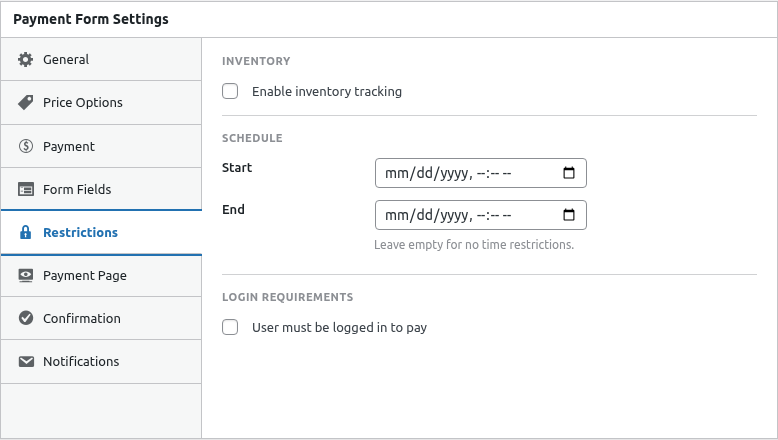
Step 1: Enable Login Requirement
- Toggle Require Login on
- Save the form
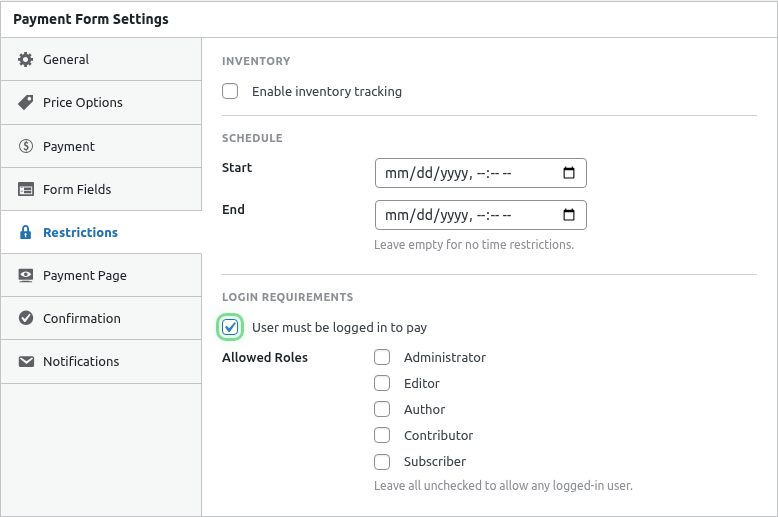
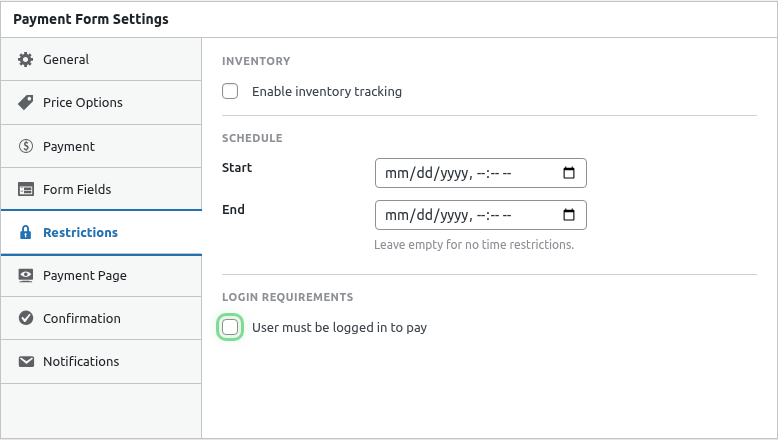
Customer Experience
Logged Out Visitors
When a logged-out visitor views the form:
- Form is hidden
- Login prompt displays
- Link to login/register page
Logged In Users
When a logged-in user views the form:
- Form displays normally
- Full checkout functionality
- User info may auto-populate
Login Message
Customize the message shown to logged-out visitors:
- Find Login Message setting
- Enter your custom message
- Save the form
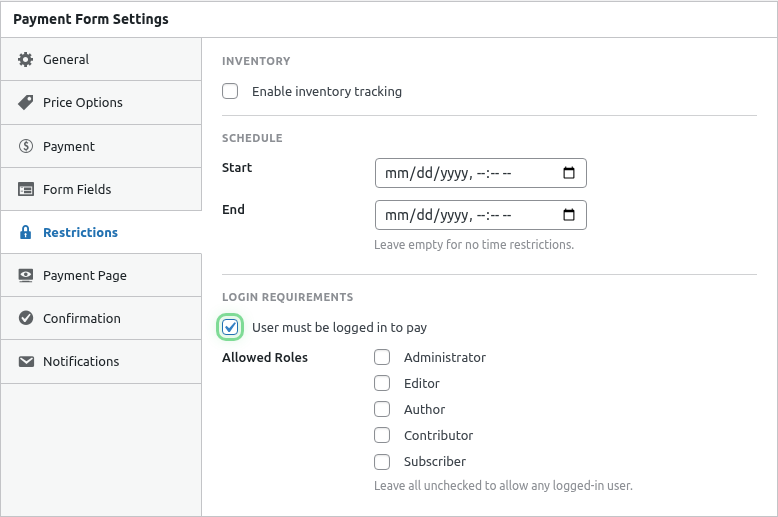
Example messages:
- “Please log in to continue with your purchase.”
- “Members only. Log in to access this offer.”
- “Sign in to your account to complete checkout.”
Common Use Cases
Member-Only Pricing
Form: Member Discount Store
Login: Required
Purpose: Special prices for registered members
Subscription Management
Form: Manage Subscription
Login: Required
Purpose: Users must identify themselves
Returning Customer Discount
Form: Loyalty Rewards
Login: Required
Purpose: Track purchase history
B2B Portal
Form: Wholesale Orders
Login: Required
Purpose: Business customer verification
Course Enrollment
Form: Course Registration
Login: Required
Purpose: Link enrollment to user account
Benefits of Login Requirement
For You
- Customer tracking – Know who’s purchasing
- Purchase history – Link transactions to accounts
- Communication – Verified email addresses
- Fraud reduction – Additional verification layer
For Customers
- Auto-fill – Pre-populated information
- Order history – View past purchases
- Account management – Manage subscriptions
Field Auto-Population
When logged in, fields can auto-fill from user profile:
- Customer Name → WordPress display name
- Email → WordPress email
- Phone → User meta (if stored)
Use Smart Tags for default values:
{user-email}{user-first-name}{user-last-name}
WordPress Registration
If you require login, ensure users can register:
- Go to Settings > General
- Check “Anyone can register” (if desired)
- Set default user role
Or use a membership plugin for more control.
Combining with Role Restrictions
Login required + role restriction:
- Enable Require Login
- Enable Role Restriction
- Select allowed roles
User must be:
- Logged in AND
- Have an allowed role
Guest Checkout Alternative
If you want to allow both:
Option 1: Separate Forms
- Form A: Login required (member pricing)
- Form B: No login (guest pricing)
Option 2: No Requirement
- Don’t require login
- Logged-in users still get auto-fill benefits
- Guests can checkout without account
Payment Pages and Login
For Payment Pages with login required:
- Page is accessible
- Form area shows login prompt
- User logs in, page refreshes with form
Shortcodes and Login
[wppal_checkout form_id="123"]Behavior:
- Shows login prompt if required and not logged in
- Shows form if logged in (or not required)
Testing Login Requirement
Test as Logged Out
- Log out of WordPress
- Visit form page
- Verify login prompt appears
Test as Logged In
- Log in to WordPress
- Visit form page
- Verify form displays normally
Test Login Flow
- Start logged out
- Click login link
- Log in
- Verify redirect back to form
Best Practices
- Easy registration – Don’t make it hard to sign up
- Clear messaging – Explain why login is required
- Quick login – Consider social login options
- Guest option – Offer alternative if appropriate
- Mobile-friendly – Test login on mobile devices
Troubleshooting
Form not showing after login
- Check for redirect issues
- Clear browser cache
- Verify user has appropriate role (if role-restricted)
Login prompt not appearing
- Verify Require Login is enabled
- Save form and refresh
- Check for caching
Auto-fill not working
- Verify Smart Tags in field defaults
- Check user profile has the information
- Ensure fields are configured for auto-fill
What’s Next?
- Restricting by User Role – Role-based access
- Scheduling Payment Availability – Time limits
- Configuring Form Fields – Auto-fill setup