Reading time: 4 minutes | Difficulty: Beginner
Overview
Learn the different ways to add your payment forms to pages, posts, and other areas of your WordPress site.
Prerequisites
- At least one payment form created
- Form is published (not draft)
Method 1: Shortcode (Classic Editor)
The shortcode works in the Classic Editor, text widgets, and anywhere shortcodes are supported.
Find Your Shortcode
- Go to Payment Forms
- Find your form in the list
- Copy the shortcode from the Shortcode column
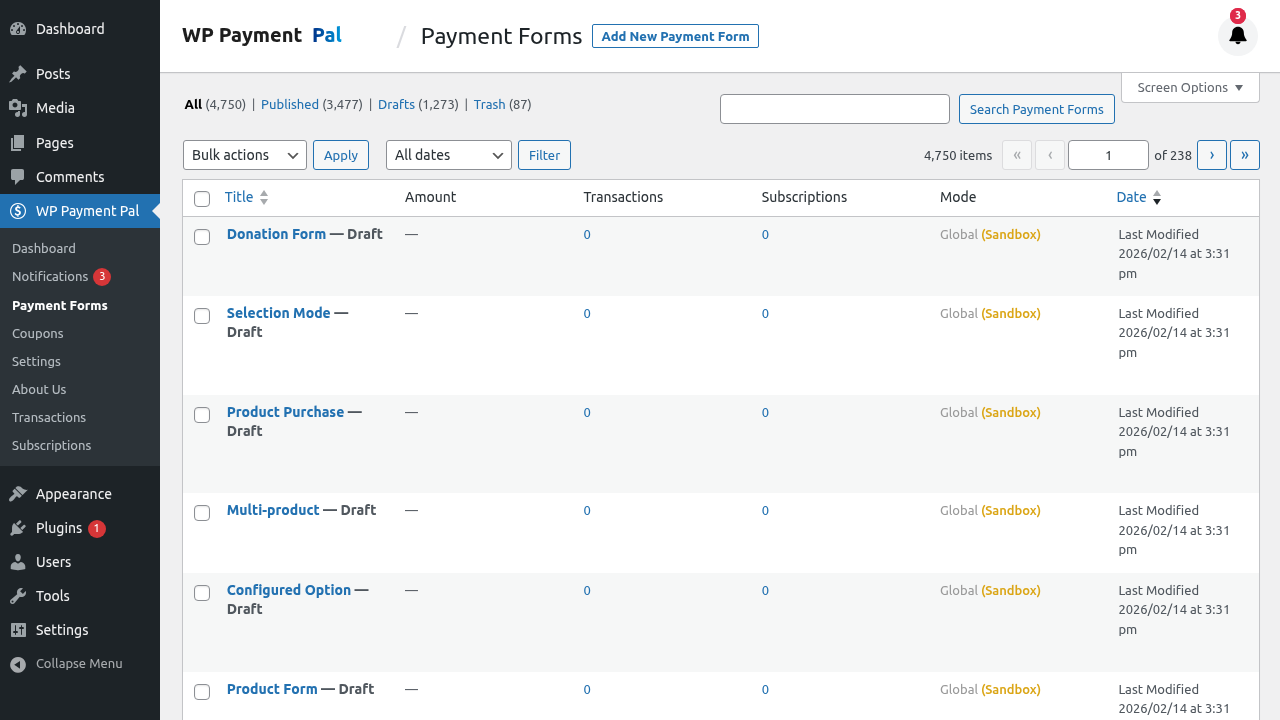
Or from the form editor:
- Edit your form
- Look in the sidebar for the shortcode
Use the Shortcode
Paste the shortcode into any page or post:
[wppal_checkout form_id="123"]Replace 123 with your actual form ID.
Shortcode in Widgets
- Go to Appearance > Widgets
- Add a Text or Custom HTML widget
- Paste the shortcode
- Save the widget
Method 2: Gutenberg Block (Block Editor)
For sites using the WordPress Block Editor:
Add the Block
- Edit a page or post
- Click the + button to add a block
- Search for “WP Payment Pal” or “Payment Form”
- Select the WP Payment Pal Checkout block
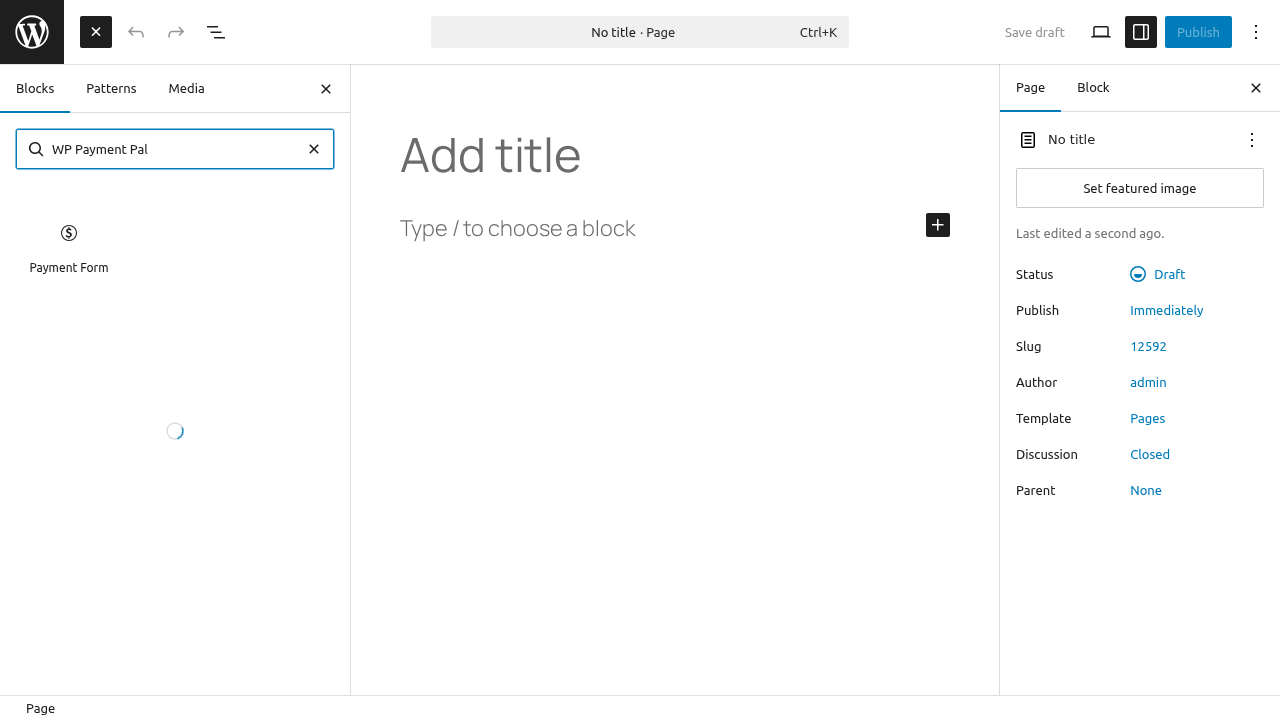
Configure the Block
- Click on the block
- Use the dropdown to select your form
- The form preview appears in the editor
Method 3: Payment Page URL
For forms with Payment Page enabled, share a direct URL.
Enable Payment Page
- Edit your form
- Go to the Payment Page tab
- Toggle Enable Payment Page on
- Set a URL Slug (e.g., “donate”)
- Save the form
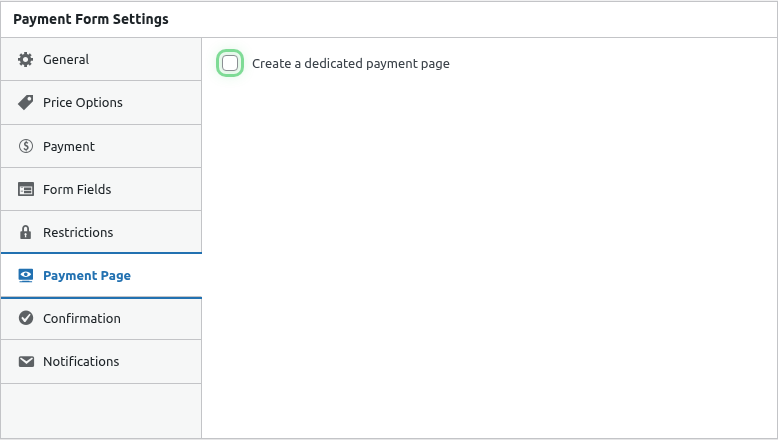
Share the URL
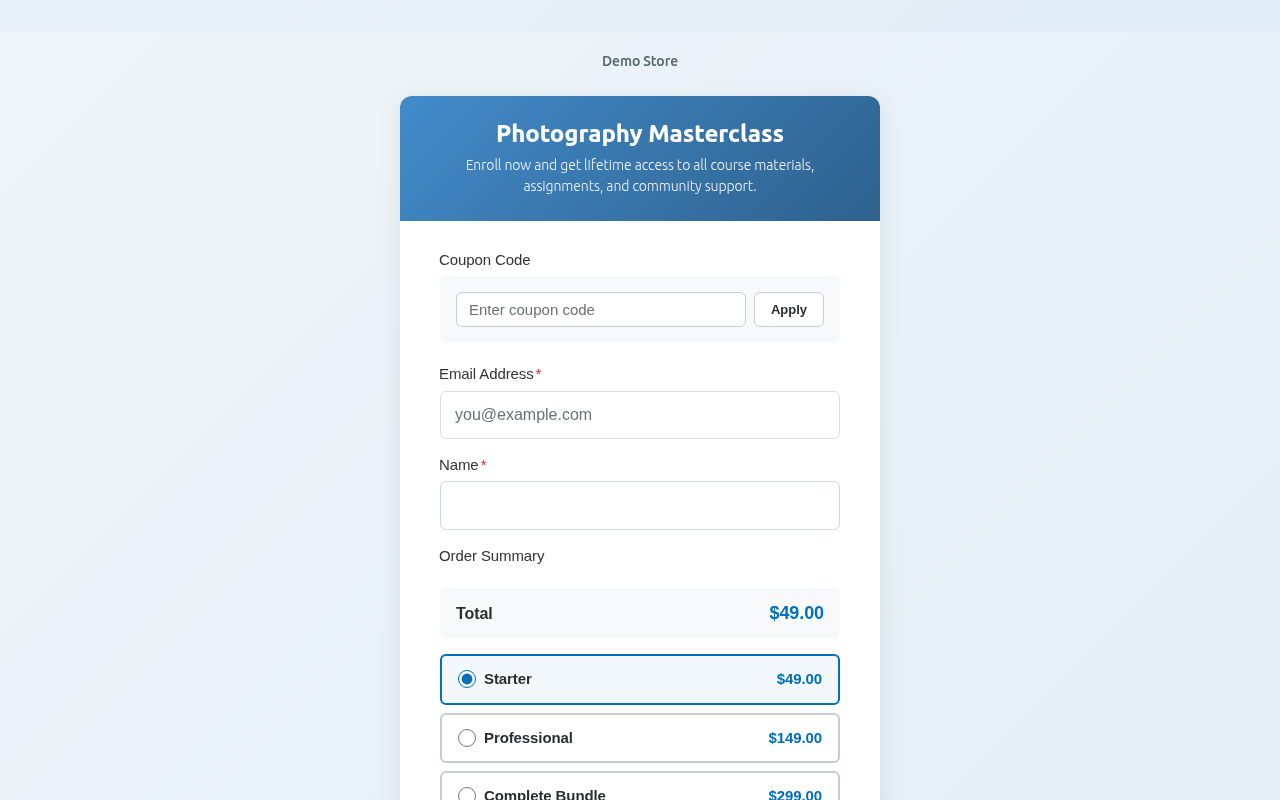
Your form is now available at:
https://yoursite.com/pay/your-slug/This creates a standalone, branded payment page perfect for:
- Sharing on social media
- Including in emails
- QR codes
- Payment links
Method 4: PHP Template
For theme developers, embed forms directly in templates:
<?php echo do_shortcode('[wppal_checkout form_id="123"]'); ?>Display Options by Form Type
How the form appears depends on its Form Type setting:
Embedded Forms
Display inline where you place them:
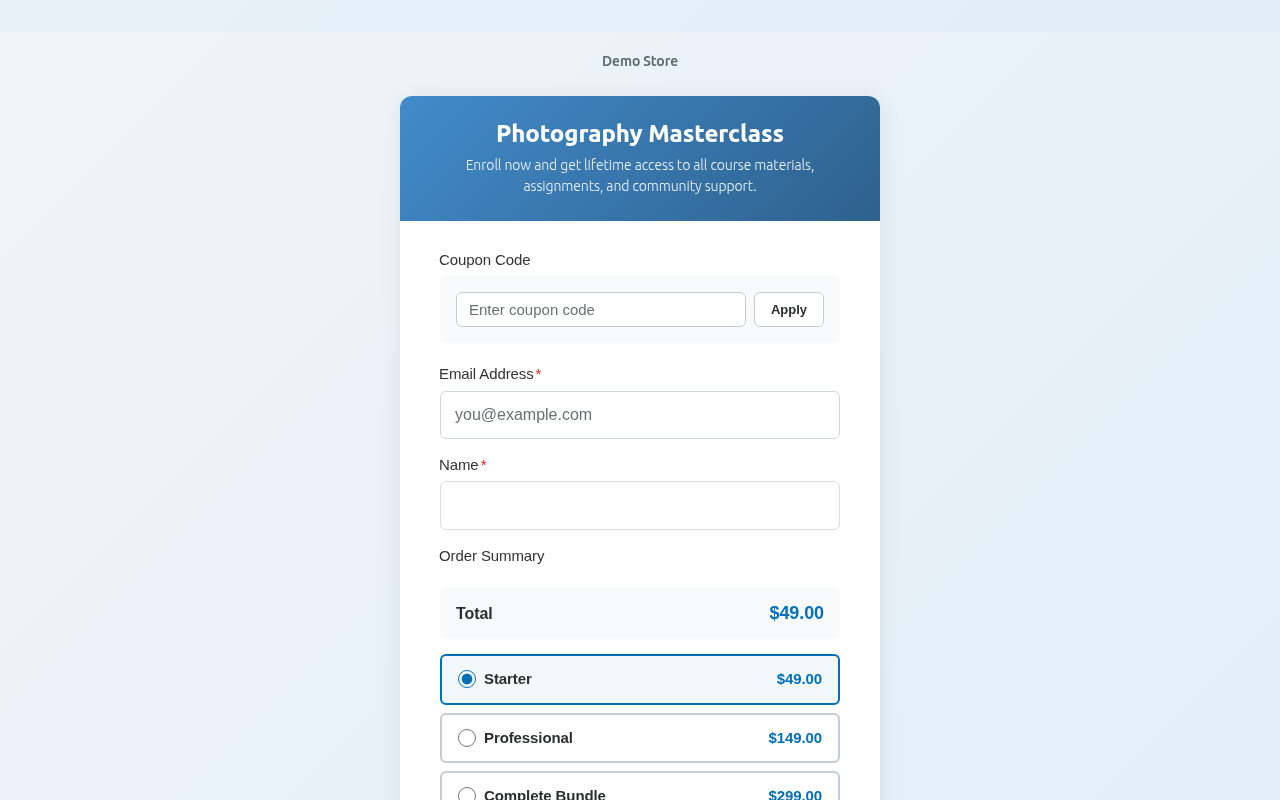
Best for:
- Product pages
- Checkout pages
- Donation sections
Overlay Forms
Show a button that opens the form in a popup:
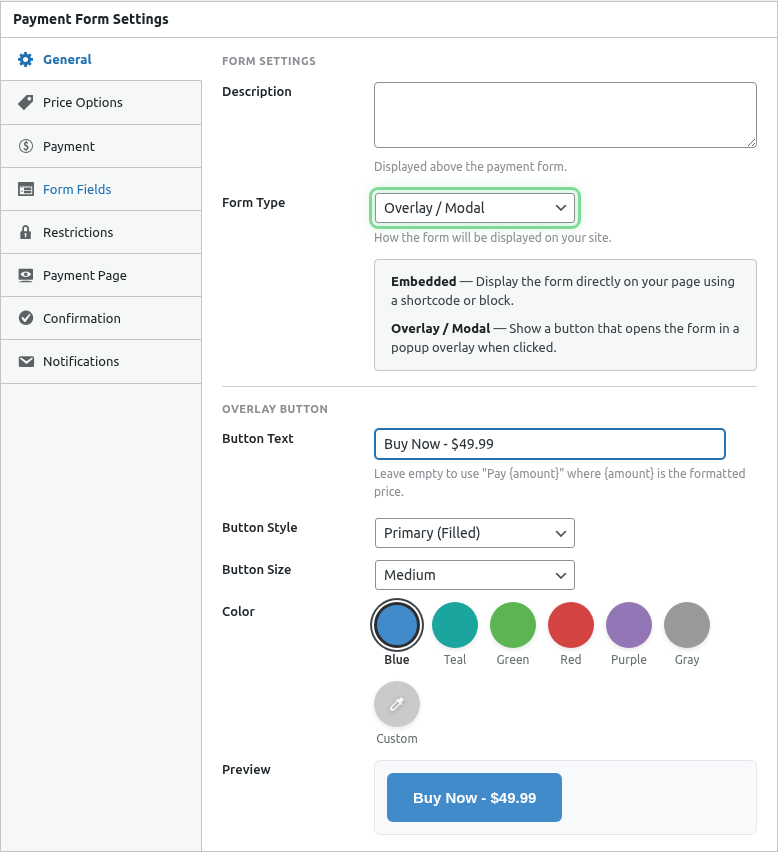
Best for:
- Call-to-action buttons
- Space-limited areas
- Multiple forms on one page
Payment Page Forms
Full-page checkout experience:
Best for:
- Shareable payment links
- Standalone checkouts
- Branded payment experiences
Multiple Forms on One Page
You can add multiple forms to a single page:
[wppal_checkout form_id="123"]
[wppal_checkout form_id="456"]
Each form operates independently.
Styling Considerations
Form Width
Embedded forms adapt to their container width. Control width with:
<div style="max-width: 500px;">
    [wppal_checkout form_id="123"]
</div>
Theme Compatibility
WP Payment Pal forms are designed to work with any properly-coded WordPress theme. The forms inherit some styles from your theme while maintaining consistent payment UI.
Troubleshooting
Form doesn’t appear
- Verify the form is Published (not Draft)
- Check the form ID is correct
- Ensure no JavaScript errors on the page
Form appears but PayPal buttons don’t load
- Check PayPal connection in Settings
- Verify SSL is active (https://)
- Check browser console for errors
Shortcode shows as text
- Your theme or page builder may not support shortcodes in that area
- Try a different widget or content block
What’s Next?
- Understanding Form Types – Detailed form type comparison
- Enabling Standalone Payment Pages – Payment page setup
- Using the Gutenberg Block – Block editor details