Reading time: 4 minutes | Difficulty: Beginner
Overview
Create coupon codes to offer discounts on your payment forms. This guide covers creating percentage and fixed-amount coupons.
Prerequisites
- WP Payment Pal installed
- At least one payment form created
Accessing the Coupon Editor
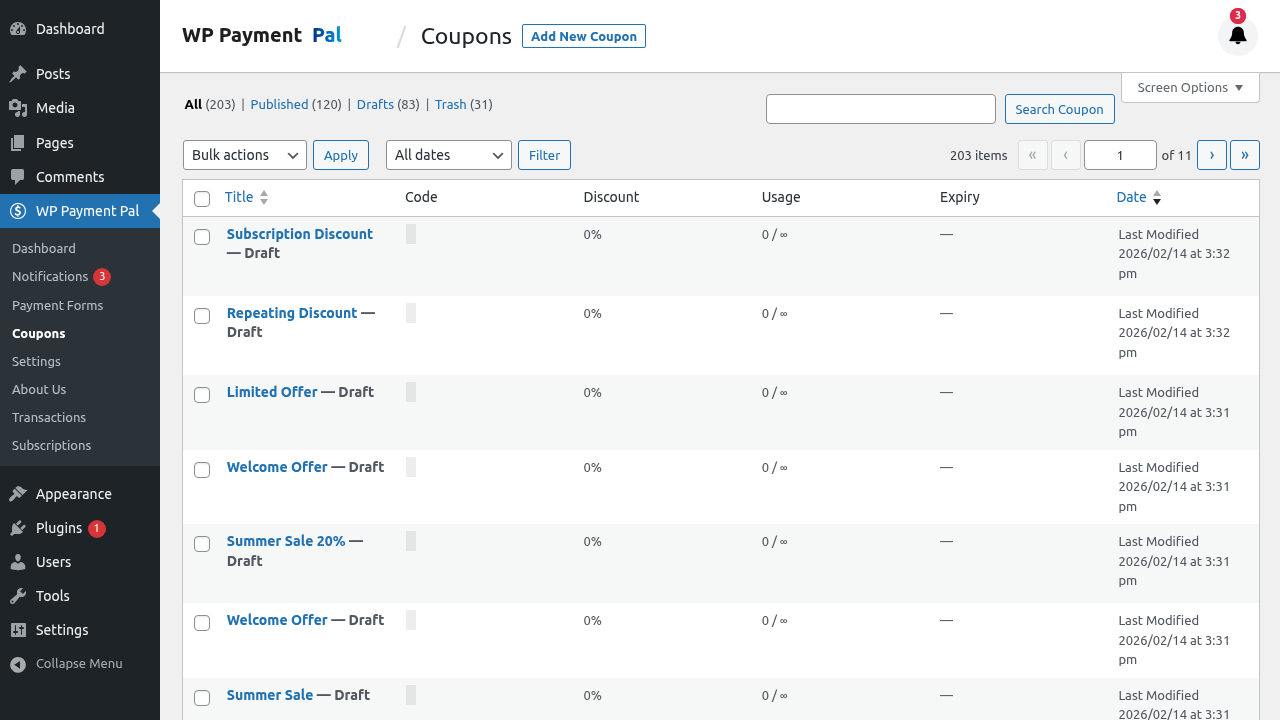
- Go to WP Payment Pal > Coupons in your admin menu
- Click Add New to create a coupon
Step 1: Basic Coupon Settings
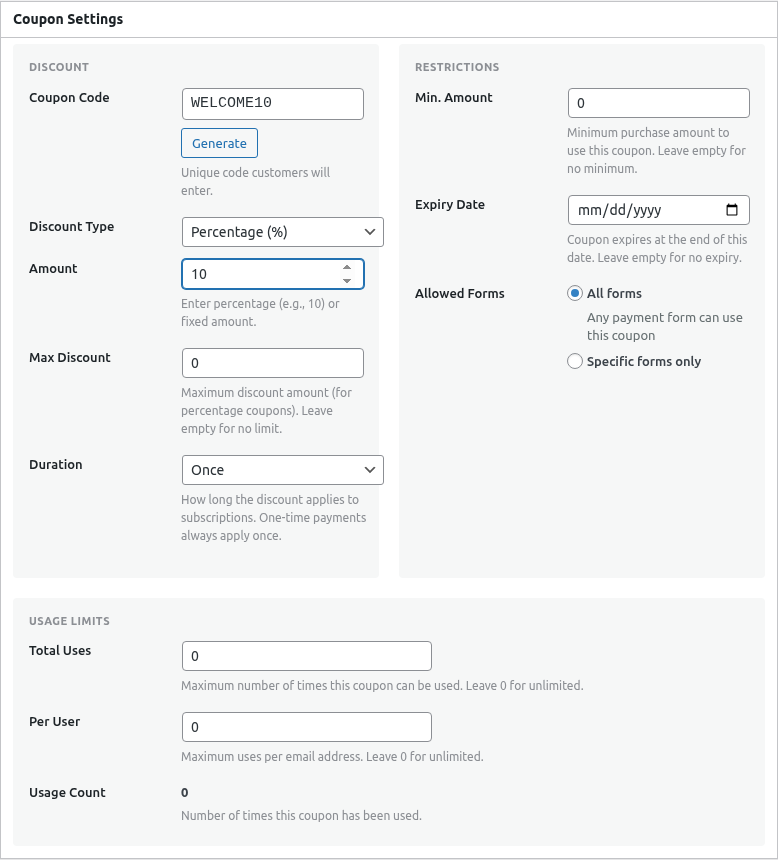
Enter the fundamental coupon information:
| Setting | Description |
|---|---|
| Coupon Code | The code customers enter (e.g., SAVE20) |
| Description | Internal note about the coupon purpose |
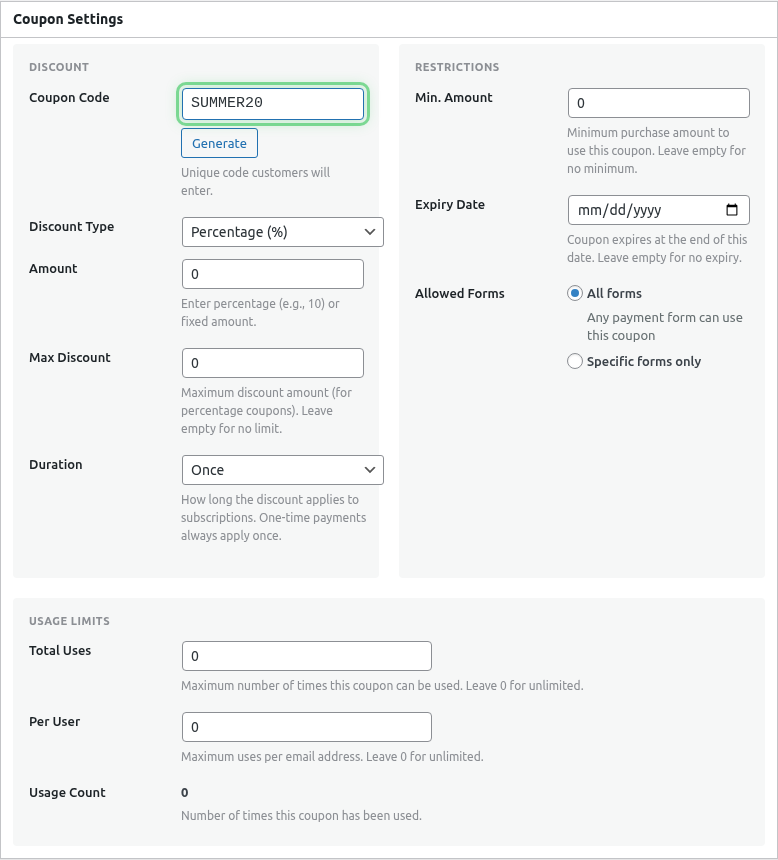
Coupon Code Tips
- Use memorable codes:
WELCOME,SUMMER2024,VIP50 - Keep codes short and easy to type
- Avoid confusing characters (0/O, 1/l)
- Consider ALL CAPS for clarity
Step 2: Choose Discount Type
Select how the discount is calculated:
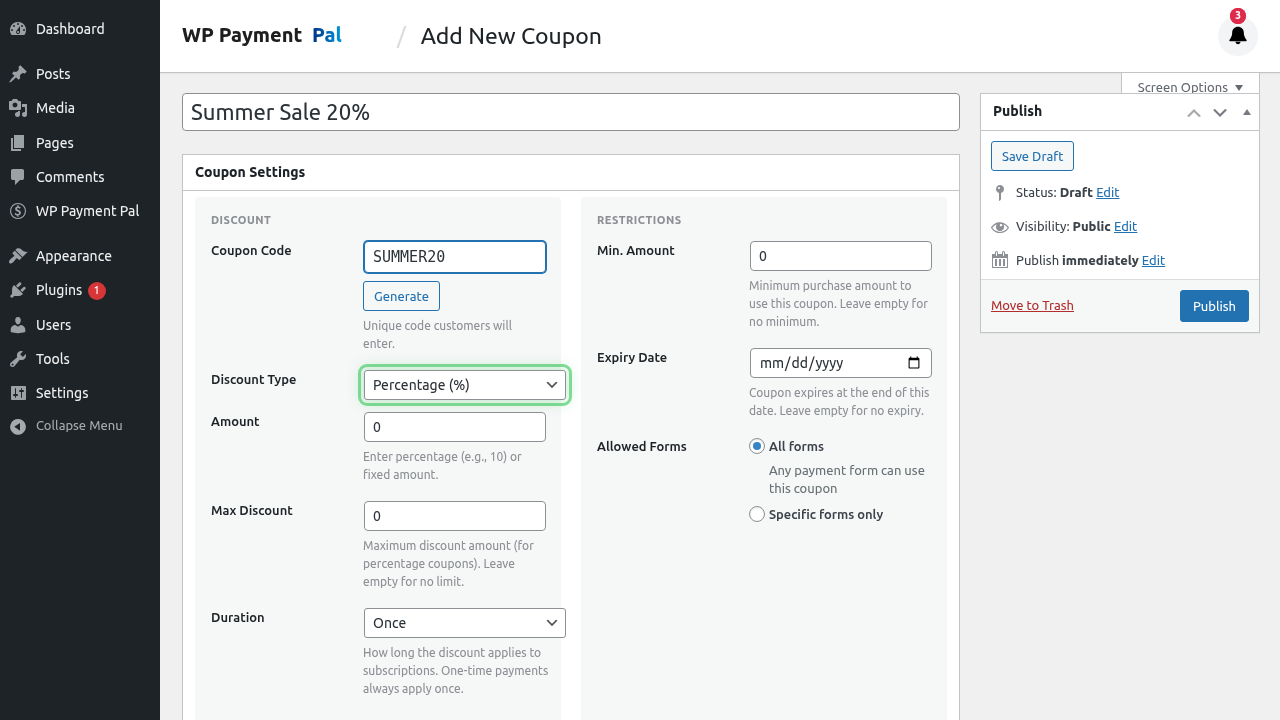
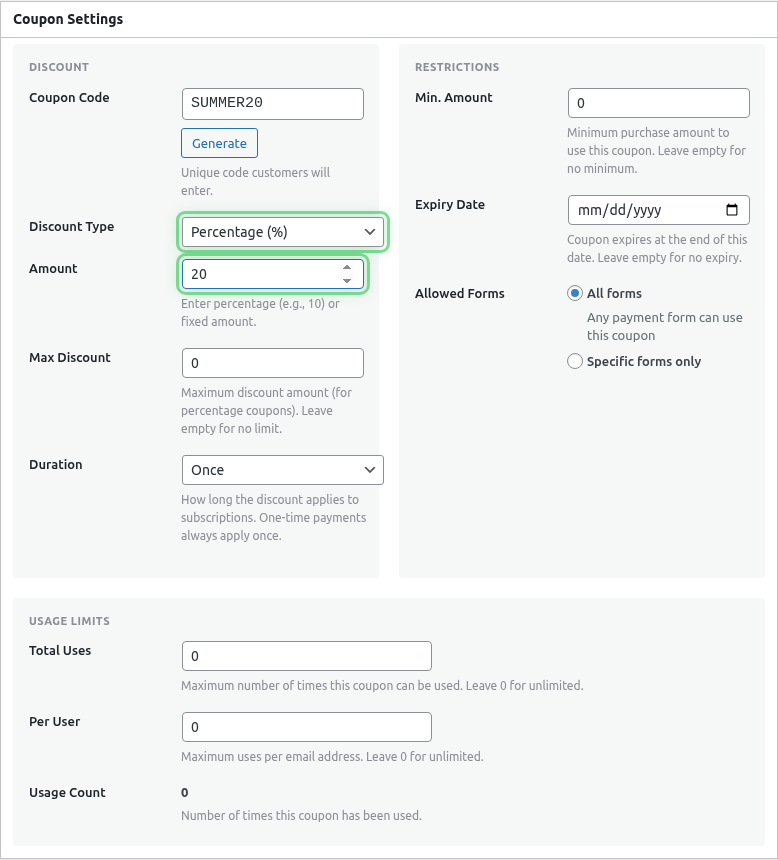
Percentage Discount
Reduces the total by a percentage.
| Setting | Example |
|---|---|
| Type | Percentage |
| Amount | 20 |
| Result | 20% off total |
Best for:
- Flexible discounts across price points
- Sales and promotions
- Percentage-based incentives
Fixed Amount Discount
Reduces the total by a specific amount.
| Setting | Example |
|---|---|
| Type | Fixed |
| Amount | 10.00 |
| Result | $10 off total |
Best for:
- Dollar-off promotions
- Gift certificates
- Fixed discount amounts
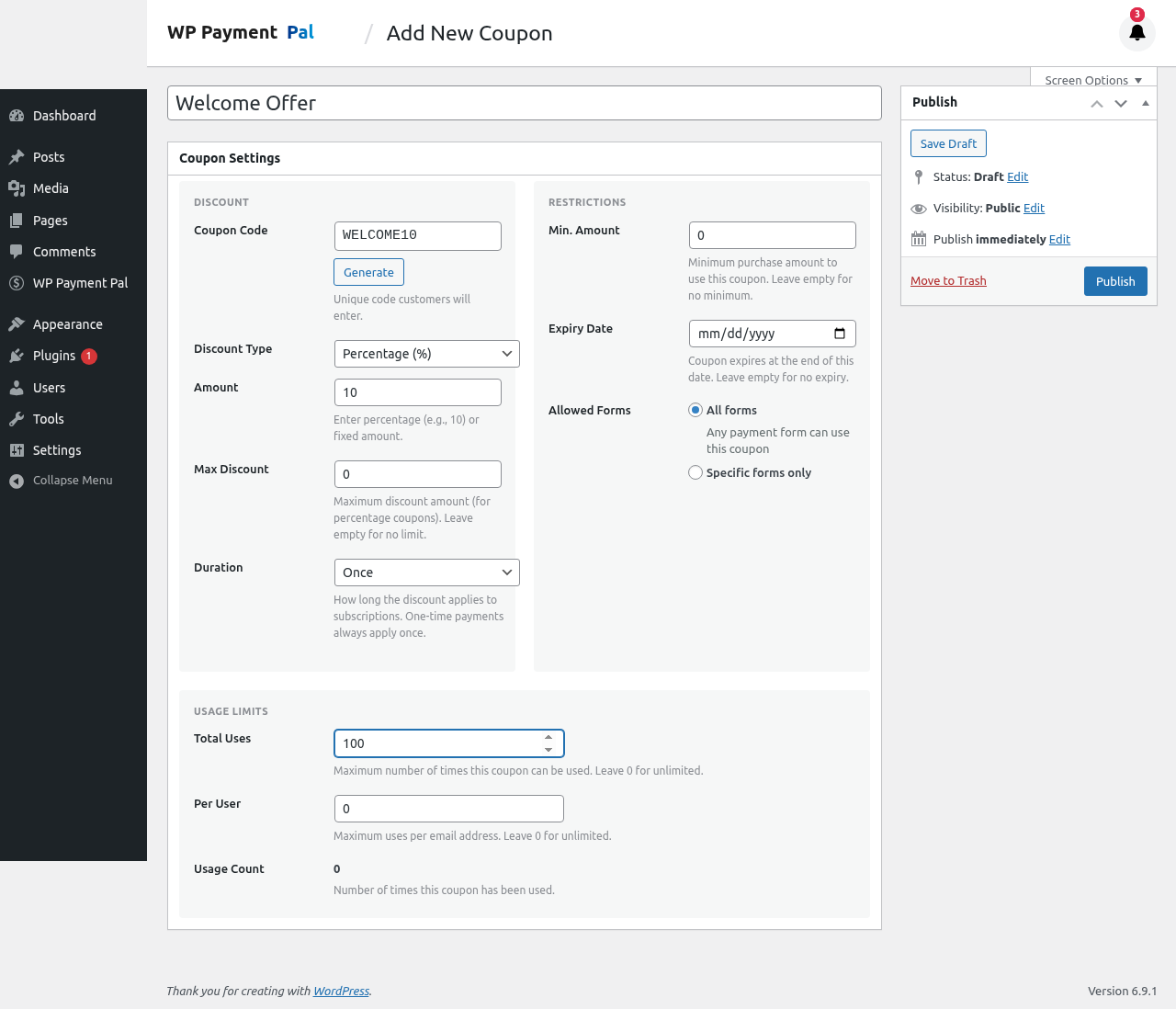
Step 3: Save the Coupon
- Review your settings
- Click Publish
- The coupon is now active
Testing Your Coupon
- Ensure a form has coupons enabled (see Adding Coupon Fields)
- Go to the form on your website
- Enter the coupon code
- Verify the discount applies
Common Coupon Types
Welcome Discount
Code: WELCOME15
Type: Percentage
Amount: 15%
Purpose: First-time customers
Dollar-Off Promotion
Code: SAVE10
Type: Fixed
Amount: $10
Purpose: Simple discount
Major Sale
Code: BLACKFRIDAY
Type: Percentage
Amount: 30%
Purpose: Seasonal promotion
Free Shipping Equivalent
Code: FREESHIP
Type: Fixed
Amount: $5.99
Purpose: Offset shipping cost
Percentage vs Fixed: Which to Choose?
| Scenario | Recommendation |
|---|---|
| Variable cart values | Percentage |
| Gift card/credit | Fixed |
| Sales promotion | Either |
| Low-value items | Fixed |
| High-value items | Percentage |
Example Comparison
For a $50 purchase:
- 20% off = $10 discount
- $15 off = $15 discount
For a $200 purchase:
- 20% off = $40 discount
- $15 off = $15 discount
Coupon Stacking
Customers can only apply ONE coupon per purchase. Multiple coupons cannot be combined.
Discount Calculations
Percentage Discount
Original Total × (1 - Discount%) = Final Total

$100 × (1 - 0.20) = $80
Fixed Discount
Original Total - Discount Amount = Final Total

$100 - $15 = $85
With Subscriptions
- Setup fees: Discount applies
- First payment: Discount applies
- Recurring payments: Controlled by the coupon’s Duration setting (see Coupon Duration for Subscriptions)
Editing Coupons
- Go to WP Payment Pal > Coupons
- Click on the coupon to edit
- Make changes
- Click Update
Changes apply to future uses; past transactions are unaffected.
Deleting Coupons
- Go to WP Payment Pal > Coupons
- Hover over the coupon
- Click Trash
Or edit the coupon and click Move to Trash.
Deleted coupons no longer work for customers.
Deactivating vs Deleting
To temporarily disable a coupon without deleting:
- Set expiration date to past
- Or reduce usage limit to 0
- Or restrict to no forms
This preserves the coupon for later reactivation.
Best Practices
- Descriptive codes – Make purpose clear (SUMMER30, NEWCUSTOMER)
- Track usage – Monitor which coupons perform best
- Set limits – Prevent over-use with usage limits
- Expiration dates – Create urgency and prevent eternal discounts
- Test first – Verify discounts before promoting
What’s Next?
- Limiting Coupons to Specific Forms – Form restrictions
- Setting Coupon Usage Limits – Usage and expiration
- Adding Coupon Fields to Your Form – Enable coupon input
- Coupon Duration for Subscriptions – Control how long discounts apply to recurring payments