Reading time: 3 minutes | Difficulty: Beginner
Overview
Enable customers to enter coupon codes on your payment forms. This guide covers adding the coupon field and enabling coupon acceptance.
Prerequisites
- At least one coupon created
- A payment form to add the field to
Two-Step Process
Adding coupons requires:
- Enable coupons on the form (Payment tab)
- Add coupon field to collect the code (Form Fields tab)
Step 1: Enable Coupons on the Form
- Edit your payment form
- Click the Payment tab
- Find Enable Coupons setting
- Toggle it On
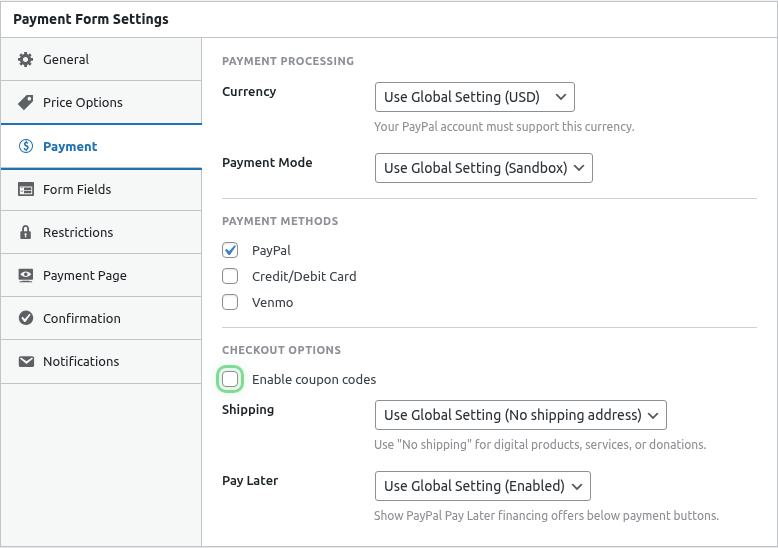
Without this step, the coupon field won’t validate codes.
Step 2: Add the Coupon Field
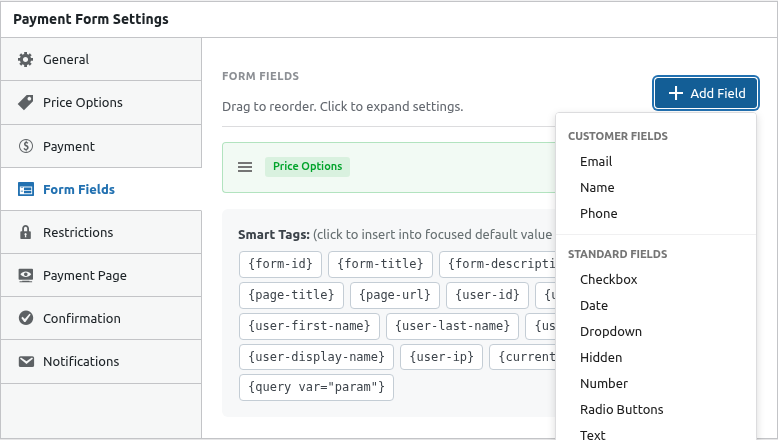
- Click the Form Fields tab
- Click Add Field
- Select Coupon from the dropdown
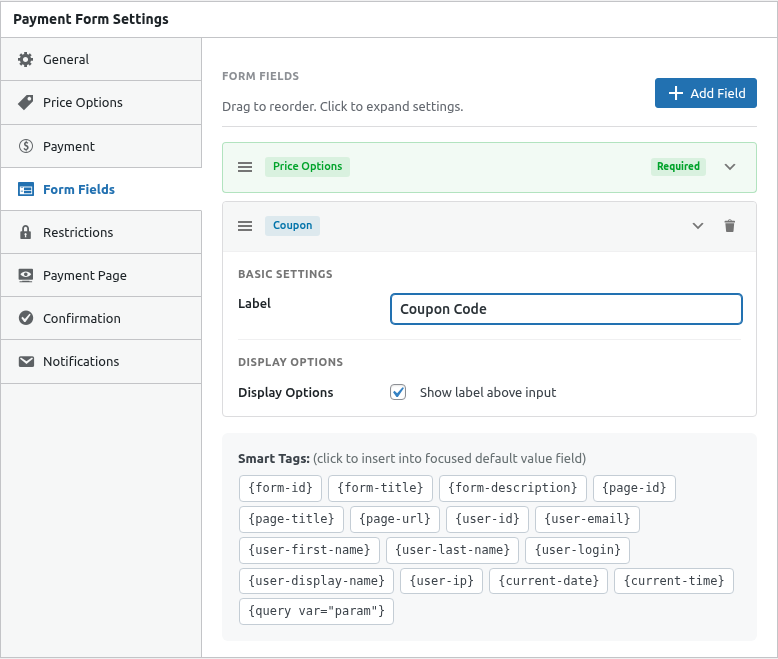
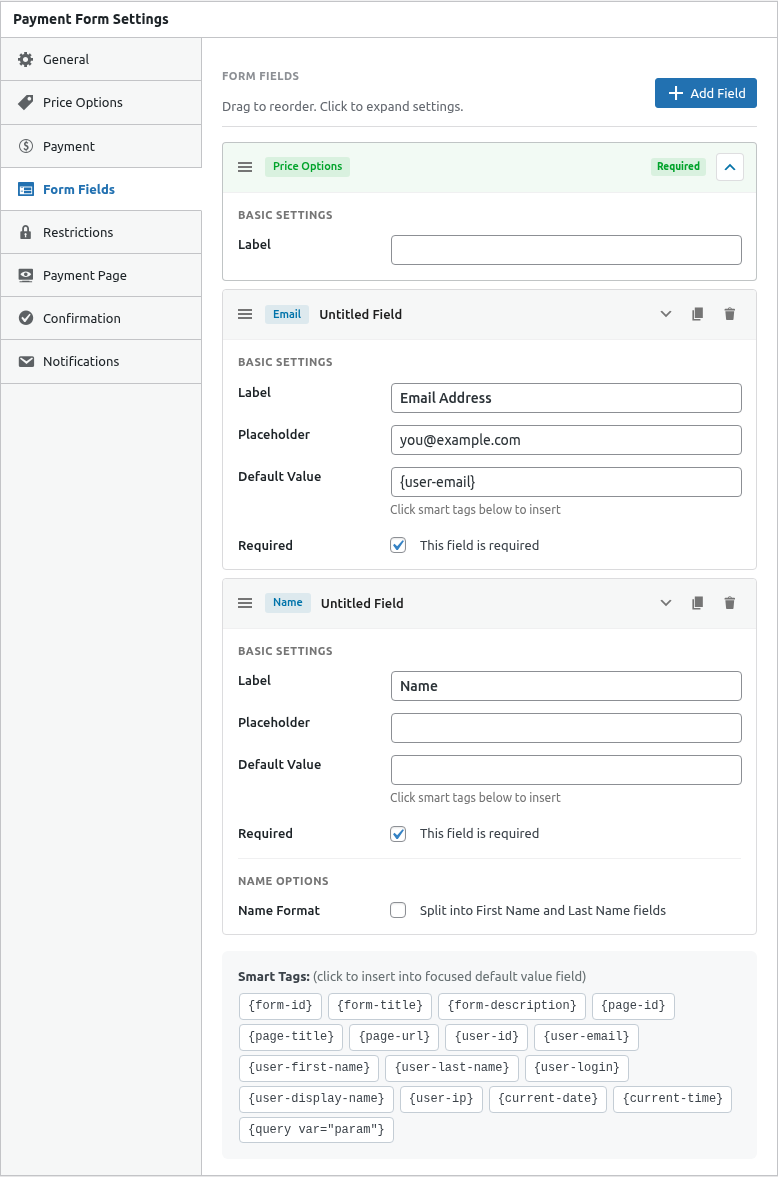
- Position the field where you want it
Recommended Position
Place the coupon field:
- After price selection
- Before or near order summary
- Above the payment button
Step 3: Configure the Field
Expand the coupon field to configure:
| Setting | Description | Example |
|---|---|---|
| Label | Field label | “Coupon Code” |
| Placeholder | Hint text | “Enter code” |
Label Options
- “Coupon Code”
- “Discount Code”
- “Promo Code”
- “Gift Code”
Step 4: Add Order Summary (Recommended)
Show customers their discount:
- Add Order Summary field
- Enable Show Discounts
- Position after coupon field
Frontend Experience
Coupon Field Display

Customers see:
- Input field for code
- Apply button
- Validation feedback
Successful Application
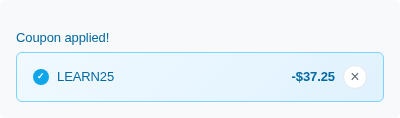
After applying:
- Success message appears
- Discount reflected in total
- Code can be removed
Order Summary with Discount

Shows:
- Original subtotal
- Discount amount
- Final total
Common Configurations
Standard Setup
1. Payment Tab: Enable Coupons = On
2. Form Fields: Add Coupon field
3. Form Fields: Add Order Summary field
4. Position: Coupon above Order Summary
Minimal Setup
1. Payment Tab: Enable Coupons = On
2. Form Fields: Add Coupon field
(Order summary optional but recommended)
Error Messages
| Situation | Message |
|---|---|
| Invalid code | “Invalid coupon code” |
| Expired | “This coupon has expired” |
| Wrong form | “Coupon not valid for this form” |
| Limit reached | “Coupon limit reached” |
| Already used | “You’ve already used this coupon” |
Testing Coupons
- Create a test coupon
- Enable coupons on a form
- Add the coupon field
- Save and view the form
- Enter the test code
- Verify discount applies
Without Coupon Field
If coupons are enabled but no field is added:
- Customers can’t enter codes
- Form works without discounts
- Useful if applying coupons programmatically
Conditional Display
The coupon field always displays if added. To conditionally show it:
- Use different forms (one with coupon, one without)
- Or enable/disable coupons per form
Multiple Forms
Each form needs its own setup:
- Enable coupons independently
- Add coupon field to each form
- Same coupon can work on multiple forms (if not restricted)
Removing Coupon Support
To stop accepting coupons on a form:
Option 1: Disable Coupons
- Edit form
- Payment tab
- Toggle Enable Coupons Off
The field remains but codes won’t validate.
Option 2: Remove Field
- Edit form
- Form Fields tab
- Delete the Coupon field
Customers can’t enter codes at all.
Best Practices
- Always add Order Summary – Show the discount clearly
- Test thoroughly – Verify coupons work before promoting
- Clear labeling – Use familiar terms like “Promo Code”
- Good placeholder – Hint like “Enter your code”
- Visible feedback – Ensure success/error messages are clear
Troubleshooting
Coupon field not showing
- Verify field is added in Form Fields tab
- Save form and refresh page
- Check for JavaScript errors
Codes not validating
- Verify coupons enabled in Payment tab
- Check coupon exists and is active
- Verify form is in coupon’s allowed forms
- Check usage limits and expiration
Discount not showing
- Add Order Summary field
- Enable “Show Discounts” option
- Refresh the page after applying code
What’s Next?
- Creating Discount Coupons – Create coupons
- Limiting Coupons to Specific Forms – Form restrictions
- Setting Coupon Usage Limits – Control usage