Reading time: 4 minutes | Difficulty: Beginner
Overview
Configure global plugin settings including license, currency, and defaults. This guide covers the General settings tab.
Prerequisites
- WP Payment Pal installed and activated
- Administrator access
Accessing General Settings
- Go to WP Payment Pal > Settings
- The General tab is shown by default
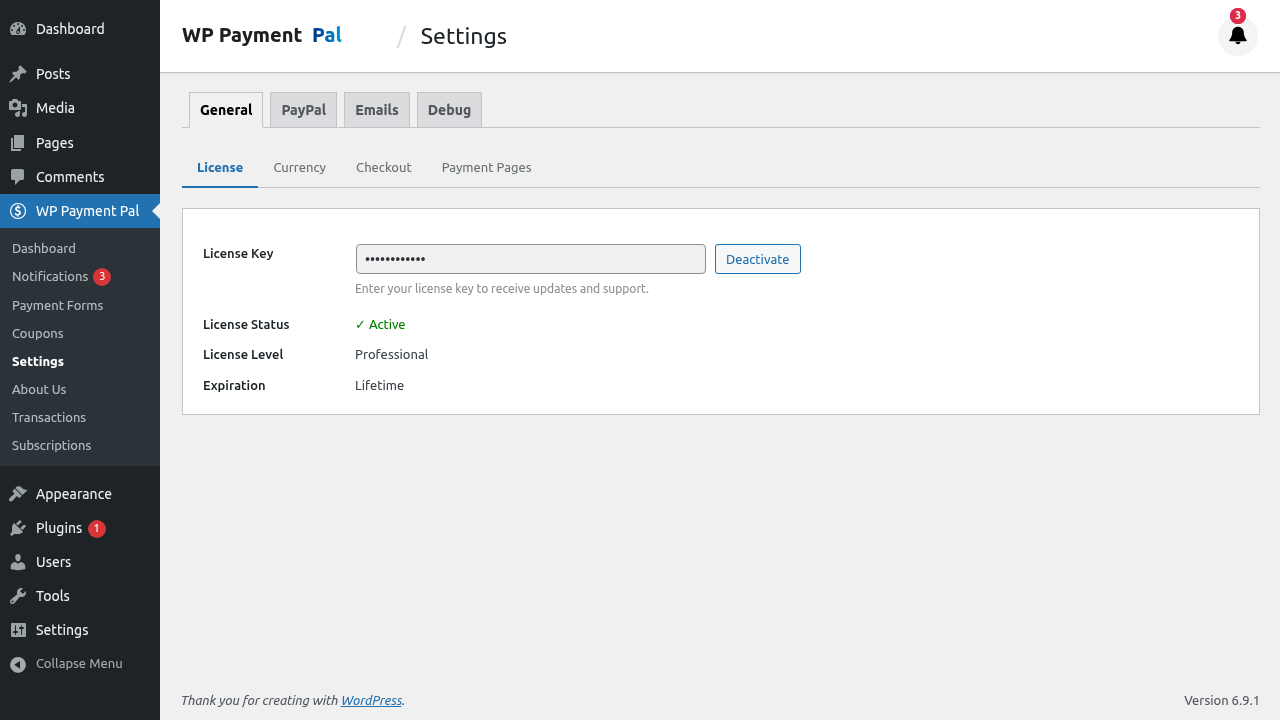
License Key
Entering Your License
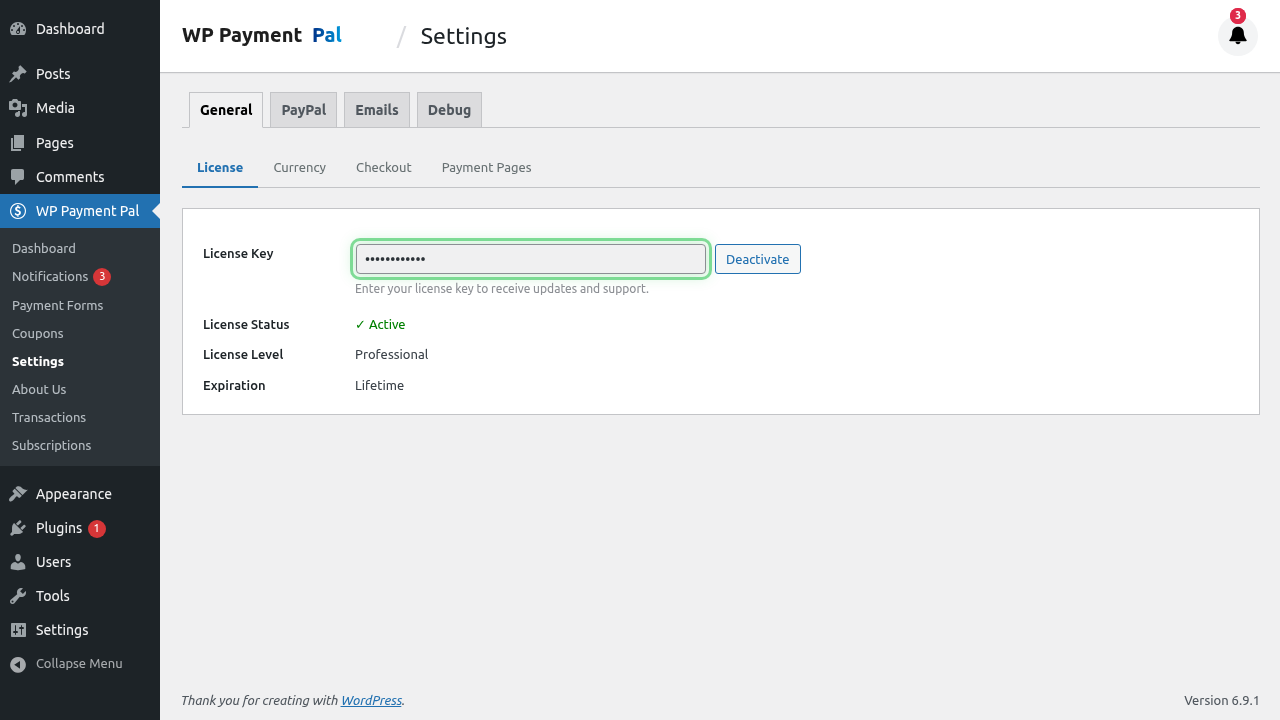
- Find the License Key field
- Enter your license key from purchase email
- Click Save Changes
- License validates automatically
License Benefits
- Automatic plugin updates
- Premium support access
- Feature unlocks (if applicable)
License Status
| Status | Meaning |
|---|---|
| Active | License valid and working |
| Expired | Renewal needed for updates |
| Invalid | Check key and retry |
Currency Settings
Default Currency
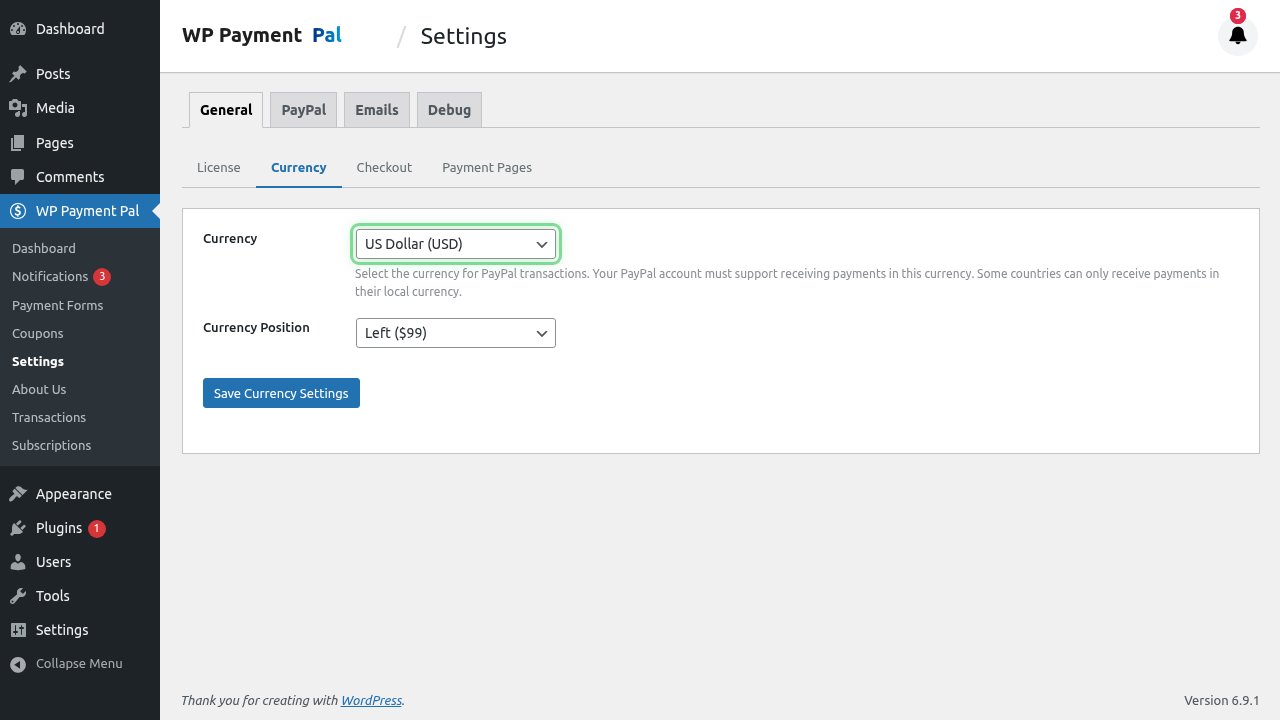
Set the currency for all payment forms:
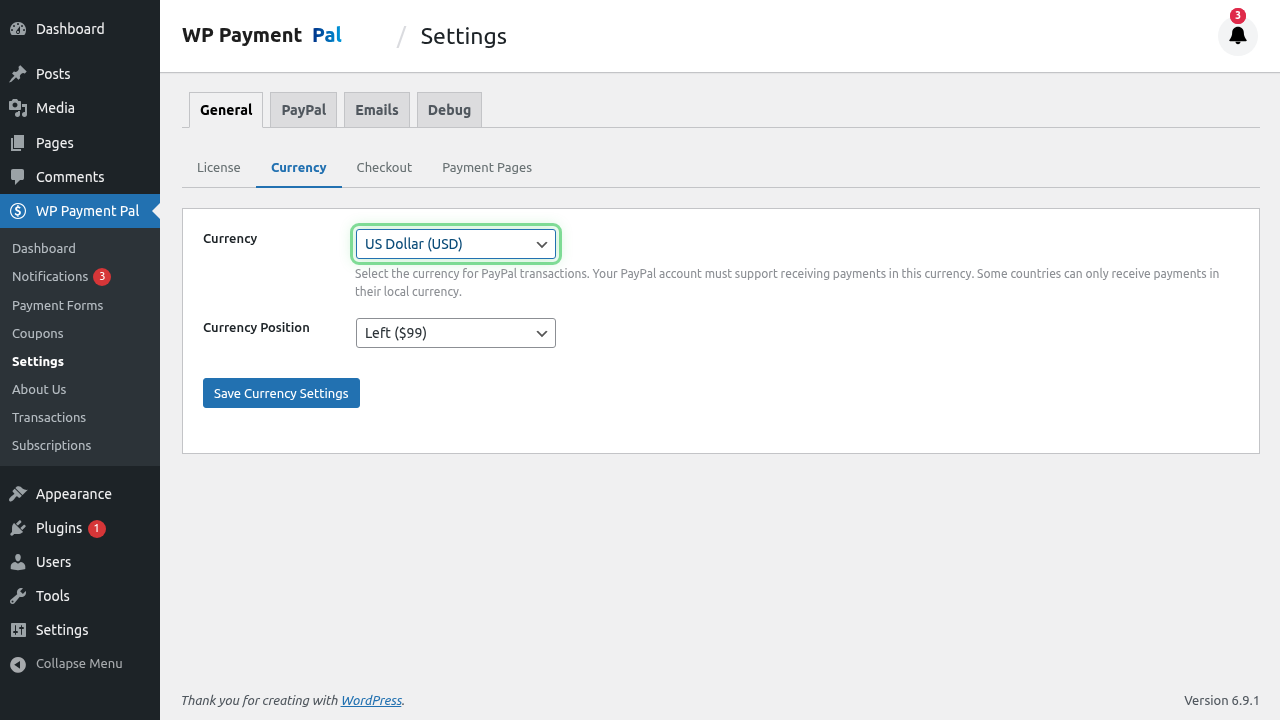
- Find Currency dropdown
- Select your currency (e.g., USD, EUR, GBP)
- Save changes
Supported Currencies
Common currencies:
- USD – US Dollar ($)
- EUR – Euro (€)
- GBP – British Pound (£)
- CAD – Canadian Dollar (C$)
- AUD – Australian Dollar (A$)
PayPal supports 25+ currencies.
Currency Position
Choose symbol placement:
- Left: $100.00
- Right: 100.00$
Currency Formatting
Set number formatting:
- Decimal separator: . or ,
- Thousands separator: , or .
- Decimal places: 2 (standard)
Payment Page Settings
Payment Page Prefix
Set the URL prefix for payment pages:
Default: pay
https://yoursite.com/pay/form-slug/Custom example: checkout
https://yoursite.com/checkout/form-slug/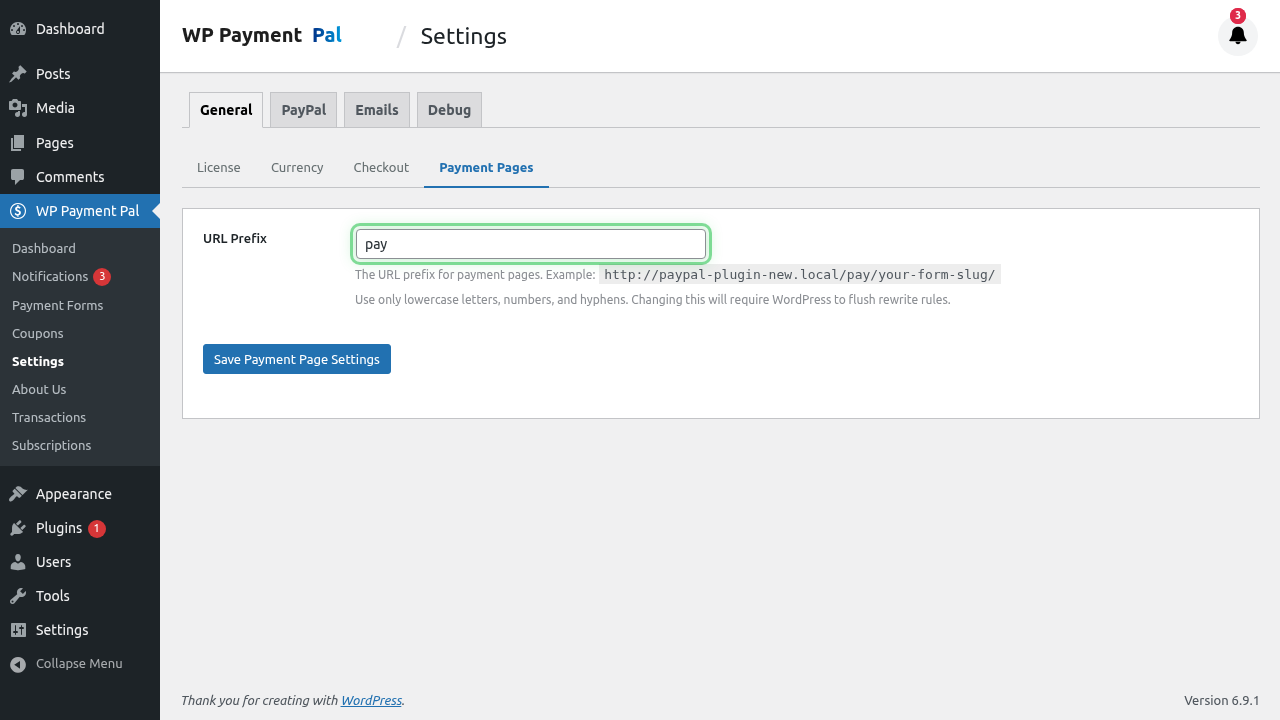
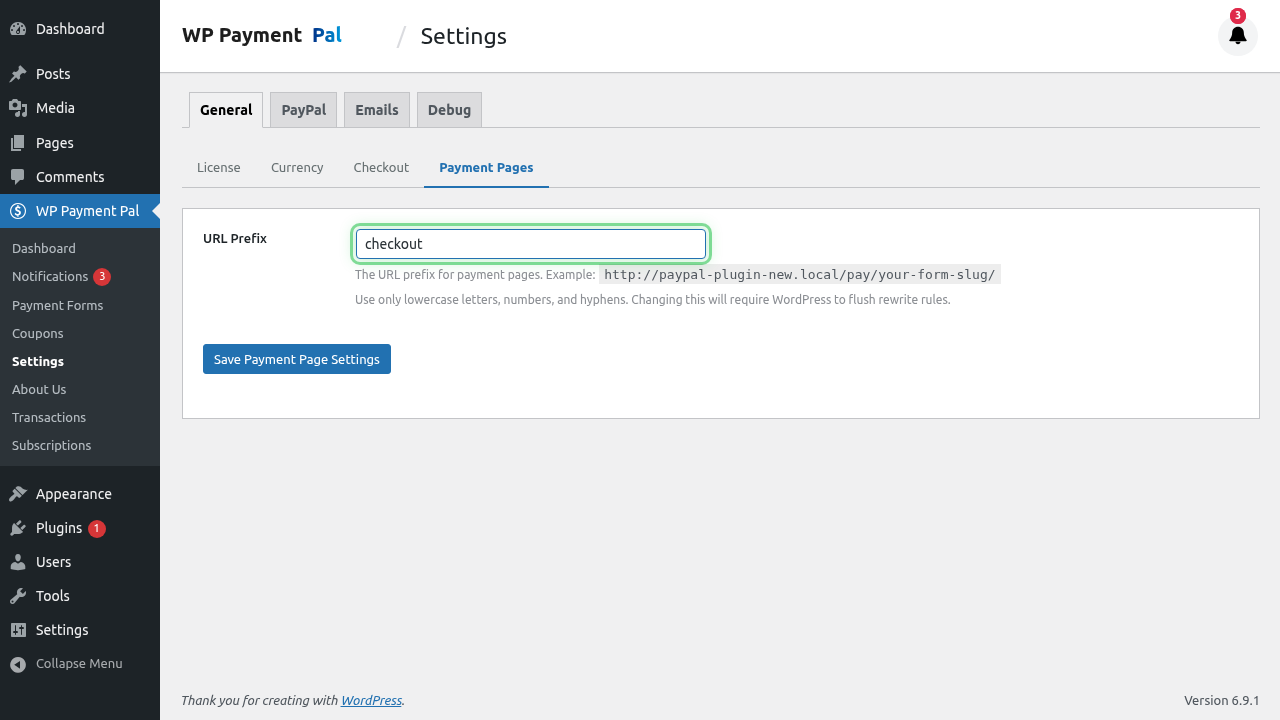
Changing the Prefix
- Enter new prefix
- Save settings
- Flush permalinks (Settings > Permalinks > Save)
Form Defaults
Set default values for new forms:
Default Form Type
Choose default when creating new forms:
- Embedded
- Overlay
- Payment Page
Default Payment Mode
- Sandbox – For development/testing
- Live – For production
Permalink Settings
Flushing Permalinks
After changing the payment page prefix:
- Go to Settings > Permalinks
- Click Save Changes (no changes needed)
- This rebuilds URL rules
Troubleshooting URLs
If payment pages return 404:
- Flush permalinks
- Check prefix is valid (letters, numbers, hyphens)
- Avoid reserved WordPress slugs
Global Defaults Table
| Setting | Purpose | Recommendation |
|---|---|---|
| Currency | Default payment currency | Match your business location |
| Currency Position | Symbol placement | Regional preference |
| Payment Page Prefix | URL structure | Keep short, memorable |
| Default Mode | Sandbox/Live | Live for production |
Settings Inheritance
Global settings provide defaults:
- Individual forms can override
- Per-form settings take precedence
- Global settings = fallback
Saving Changes
After modifying settings:
- Review all changes
- Click Save Changes
- Settings apply immediately
- Test affected features
Common Configurations
E-commerce (US)
Currency: USD
Position: Left ($100)
Prefix: checkout
Mode: Live
European Business
Currency: EUR
Position: Right (100€) or Left (€100)
Prefix: pay
Mode: Live
Development/Testing
Currency: USD (match production)
Prefix: pay
Mode: Sandbox
Best Practices
- Set currency once – Changing later affects existing forms
- Test in Sandbox first – Before going live
- Keep prefix simple – Easy to share
- Regular backups – Before major changes
- Document settings – Note what you configured
Settings Don’t Change
These can’t be changed per-form:
- Currency (global only)
- Payment page prefix (global only)
Plan these carefully before launching.
Troubleshooting
Currency not changing
- Save settings
- Clear cache
- Check new forms vs existing
Prefix not working
- Flush permalinks
- Check for conflicts
- Try different prefix
License not validating
- Check key is correct
- Verify internet connection
- Contact support if persistent
Security Note
Settings page requires Administrator role. Non-admins cannot access plugin settings.
What’s Next?
- Configuring Email Settings – Email configuration
- Debug Mode and Logging – Troubleshooting
- Connecting Your PayPal Account – PayPal setup