Reading time: 3 minutes | Difficulty: Beginner
Overview
Issue complete refunds for payments directly from your WordPress admin. This guide covers processing full refunds.
Prerequisites
- A completed transaction to refund
- PayPal account connected
- Understanding of your refund policy
When to Issue Full Refunds
- Customer requests cancellation
- Order cannot be fulfilled
- Duplicate payment
- Service not delivered
- Product return
Step 1: Find the Transaction
- Go to WP Payment Pal > Transactions
- Search or filter for the transaction
- Click to view details
Step 2: Verify Refund Eligibility
Check that:
- Status is Completed (or Partially Refunded)
- Transaction has a valid PayPal Capture ID
- Refundable balance exists
Not Refundable If:
- Already fully refunded
- Transaction was Denied/Pending
- Too old (PayPal limit: 180 days)
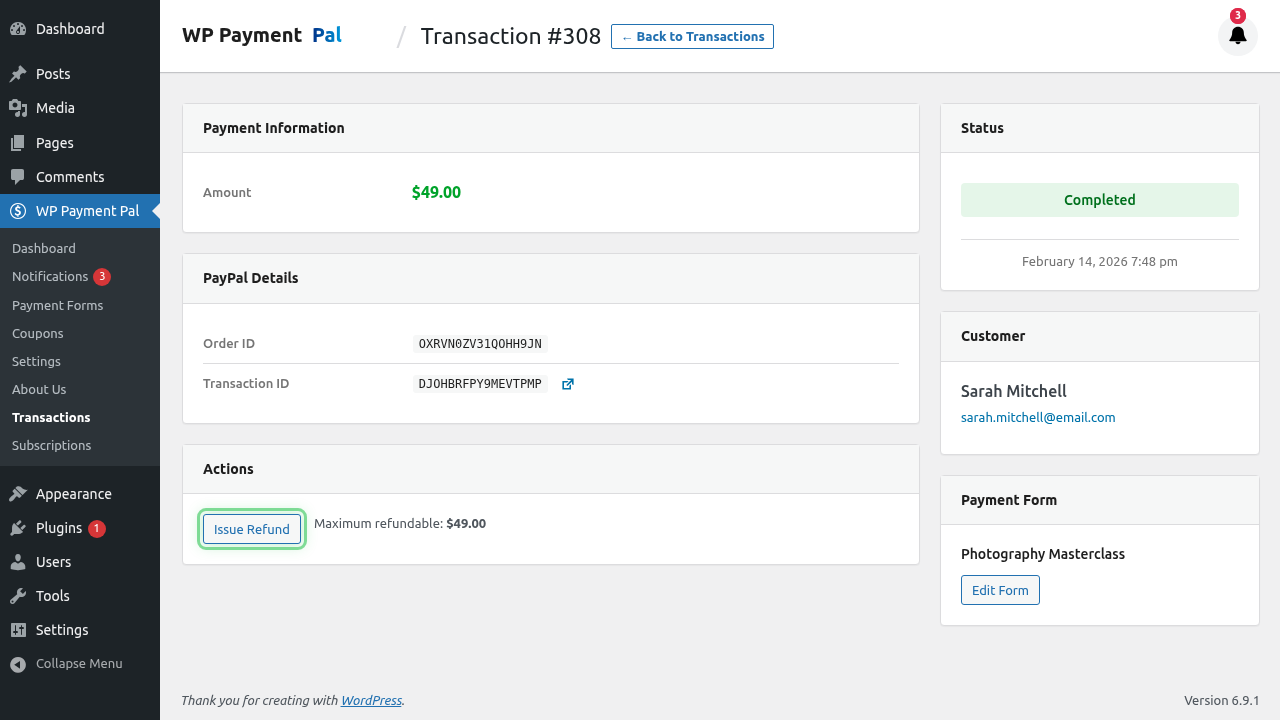
Step 3: Click Refund
- Find the Refund button
- Click to open refund dialog
Step 4: Process Full Refund
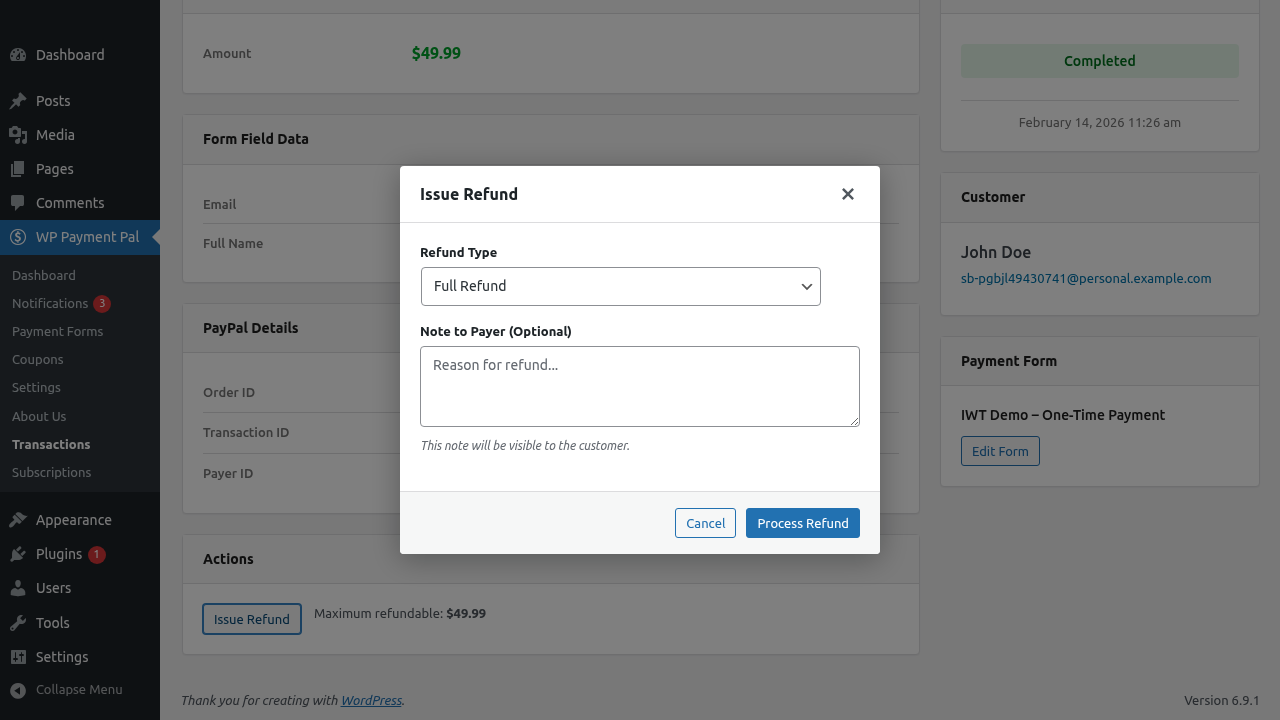
- Select Full Refund
- Optionally add a Note to Payer
- Click Process Refund
Note to Payer
Add a message the customer sees:
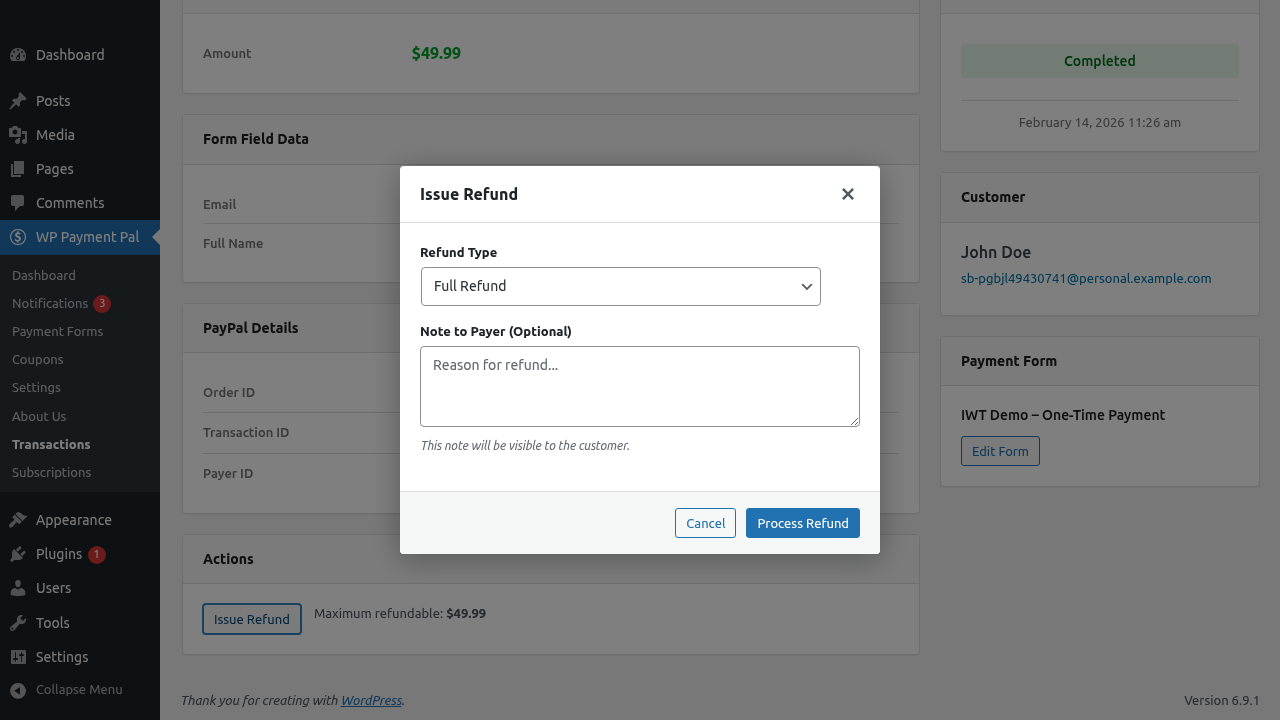
Refund for cancelled orderPer your request on [date]Duplicate payment refundedStep 5: Confirm Refund
- Review the refund details
- Confirm the action
- Wait for processing
After the Refund
Transaction Status
Changes from Completed to Refunded
Customer Notification
Customer receives:
- PayPal refund notification
- Your refund email (if configured)
Funds Transfer
- Refund appears in customer’s PayPal
- Or refunds to original payment method
- Processing time: Immediate to 5-10 days
Refund Timeline
| Event | Timing |
|---|---|
| Refund submitted | Immediate |
| PayPal processes | Seconds to minutes |
| Status updates | After PayPal confirms |
| Customer sees funds | Immediate to 10 days |
What Gets Refunded
Full refund includes:
- Original payment amount
- Does NOT include PayPal fees (PayPal’s policy)
PayPal Fee Note
PayPal retains their processing fee on refunds:
- Original payment: $100
- PayPal fee: ~$3.49
- Refund to customer: $100
- Your net refund: -$100 (fee not returned)
Documenting Refunds
Keep records of:
- Why refund was issued
- Who approved it
- Date processed
- Customer communication
Communicating with Customers
Before refunding, consider:
- Confirming refund request
- Setting expectations on timing
- Providing refund reference
After refunding:
- Confirm refund processed
- Provide PayPal reference
- Explain when to expect funds
Refund Policies
Establish clear policies:
- Timeframe for refund requests
- Conditions for refunds
- Who authorizes refunds
- Documentation requirements
Multiple Transactions
If customer has multiple payments:
- Refund each separately
- Verify correct transaction
- Don’t accidentally refund wrong one
Subscription Refunds
For subscription payments:
- Refund is for ONE payment only
- Subscription may still be active
- Consider cancelling subscription too
See Managing Subscriptions in Admin.
Undoing Refunds
Refunds cannot be reversed.
If refund was a mistake:
- Contact customer
- Request new payment
- Document the error
Troubleshooting
Refund button not showing
- Transaction may already be refunded
- Status may not be Completed
- Check PayPal Capture ID exists
Refund fails
- Check PayPal connection
- Verify capture ID is valid
- Try again later
- Check PayPal for issues
Wrong amount refunded
- Ensure you selected Full Refund
- Check original transaction amount
- Contact PayPal support if needed
Customer hasn’t received funds
- Confirm refund was processed
- Check PayPal shows refund
- Advise customer to check PayPal
- Credit card refunds take longer
Best Practices
- Verify before refunding – Confirm correct transaction
- Document everything – Keep refund records
- Communicate clearly – Tell customer what to expect
- Have a policy – Consistent refund criteria
- Review regularly – Monitor refund patterns
What’s Next?
- Processing Partial Refunds – Refund specific amounts
- Understanding Transaction Details – Transaction info
- Viewing Transaction History – Find transactions