Reading time: 4 minutes | Difficulty: Beginner
Overview
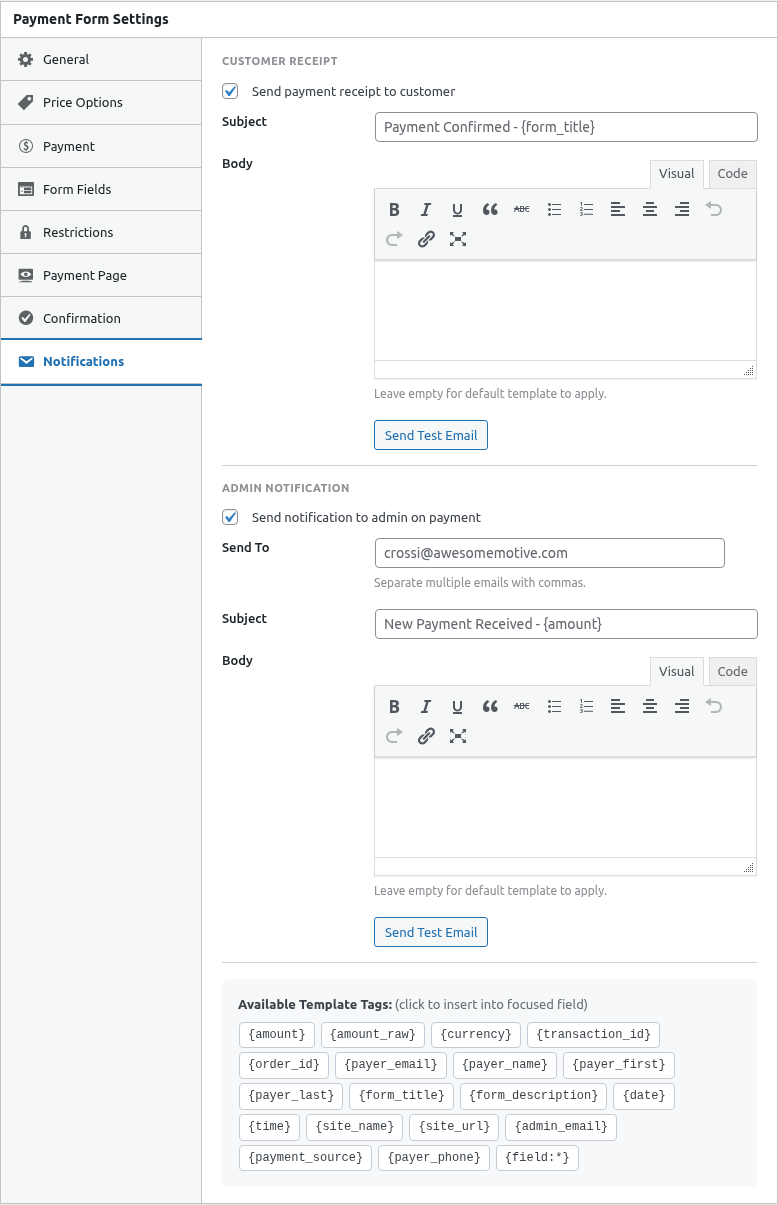
Smart Tags let you add dynamic content to emails, confirmations, and notifications. This guide covers all available tags and how to use them.
Prerequisites
- Understanding of email notifications
- A payment form with notifications enabled
What Are Smart Tags?
Smart Tags are placeholders that get replaced with actual data:
Hi {payer_name}, thank you for paying {amount}!Becomes:
Hi John Smith, thank you for paying $50.00!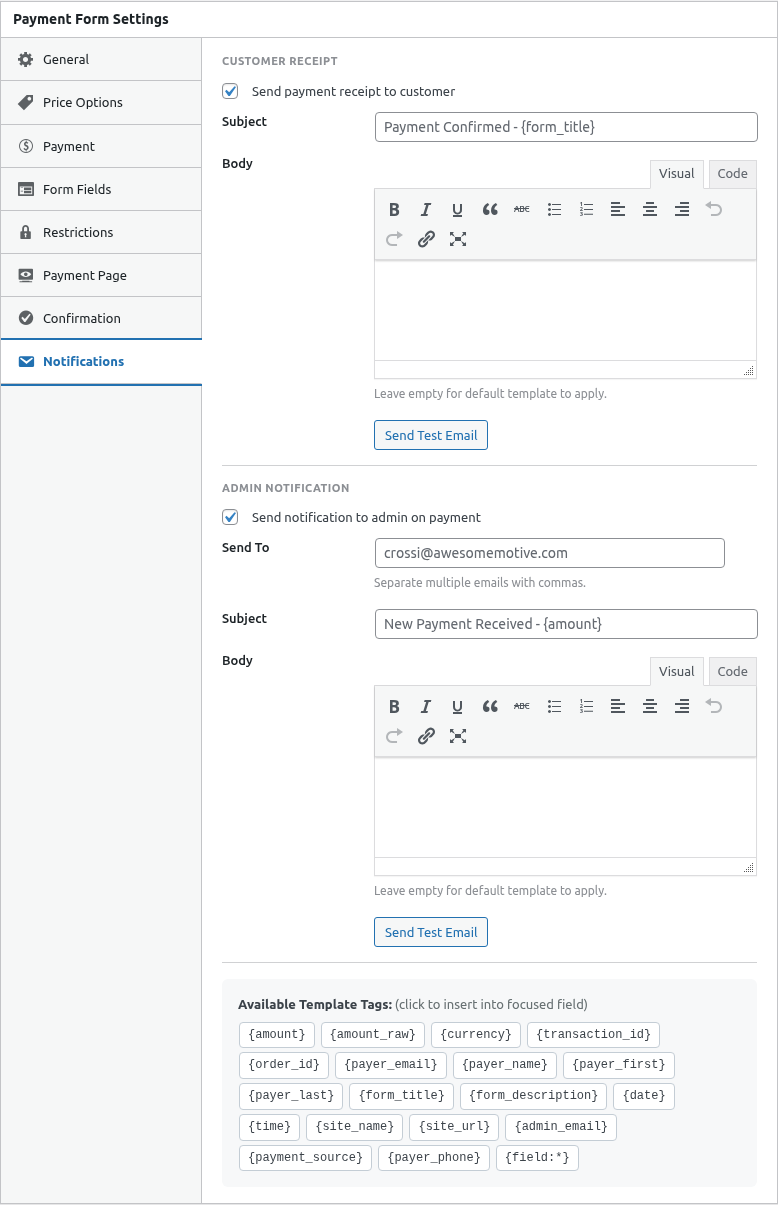
Basic Syntax
Smart Tags use curly braces:
{tag_name}For custom fields:
{field:field_name}Available Smart Tags
Payment Information
| Tag | Description | Example Output |
|---|---|---|
{amount} |
Payment amount with currency | $50.00 |
{transaction_id} |
Unique transaction ID | TXN_ABC123 |
{date} |
Payment date | January 15, 2024 |
{payment_status} |
Transaction status | Completed |
Customer Information
| Tag | Description | Example Output |
|---|---|---|
{payer_name} |
Customer’s full name | John Smith |
{payer_email} |
Customer’s email | [email protected] |
{payer_first_name} |
First name only | John |
{payer_last_name} |
Last name only | Smith |
Form Information
| Tag | Description | Example Output |
|---|---|---|
{form_title} |
Form name | Premium Membership |
{form_id} |
Form ID number | 123 |
Custom Fields
| Tag | Description |
|---|---|
{field:field_name} |
Value of specific field |
{all_fields} |
All field values formatted |
Subscription Tags
| Tag | Description | Example Output |
|---|---|---|
{subscription_id} |
PayPal subscription ID | SUB_XYZ789 |
{billing_cycle} |
Billing frequency | Monthly |
{next_billing_date} |
Next charge date | February 15, 2024 |
Cart Abandonment Tags
| Tag | Description |
|---|---|
{recovery_url} |
Link to complete checkout |
{cart_age} |
Time since abandonment |
{abandoned_date} |
When checkout started |
Using Field Tags
Finding Field Names
- Edit your form
- Go to Form Fields tab
- Expand a field
- Note the field name/key
Field Tag Format
{field:your_field_name}Examples
| Field | Tag |
|---|---|
| Phone | {field:phone} |
| Company | {field:company} |
| Address | {field:address} |
| Comments | {field:comments} |
All Fields Tag
The {all_fields} tag outputs all form responses:
Name: John Smith
Email: [email protected]
Phone: 555-123-4567
Comments: Please rush my order
Great for admin notifications when you want complete information.
Email Templates with Smart Tags
Customer Receipt
Subject: Receipt for your {amount} payment

Hi {payer_name},

Thank you for your purchase!

Order Details:
- Item: {form_title}
- Amount: {amount}
- Date: {date}
- Transaction ID: {transaction_id}

Questions? Just reply to this email.

Thanks,
[Company Name]
Admin Notification
Subject: New payment: {amount} from {payer_name}

New Payment Received
────────────────────

Customer: {payer_name}
Email: {payer_email}
Amount: {amount}
Date: {date}

All Form Data:
{all_fields}
Subscription Confirmation
Subject: Welcome to your {form_title} subscription!

Hi {payer_name},

Your subscription is now active!

Subscription Details:
- Plan: {form_title}
- Amount: {amount} / {billing_cycle}
- Next billing: {next_billing_date}
- Subscription ID: {subscription_id}

Manage your subscription anytime in your account.

Welcome aboard!
Cart Abandonment
Subject: You left something behind!

Hi {payer_name},

You started checkout {cart_age} but didn't complete it.

Your cart is still waiting for you:

{form_title} - {amount}

Complete your purchase now:
{recovery_url}

Questions? We're here to help!
Smart Tags in Confirmations
Use in confirmation messages too:
Thank you, {payer_name}!

Your payment of {amount} has been received.
Transaction ID: {transaction_id}

A receipt has been sent to {payer_email}.
Smart Tags in URLs
Pass data to redirect URLs:
/thank-you/?transaction={transaction_id}&email={payer_email}Note: URL-encode values if they contain special characters.
Conditional Display
If a Smart Tag has no value, it displays empty:
Company: {field:company}If no company provided:
Company:Plan content accordingly.
Formatting
Currency Formatting
{amount} includes currency symbol and formatting:
- USD: $50.00
- EUR: €50.00
- GBP: £50.00
Date Formatting
{date} uses WordPress date format from Settings > General.
Testing Smart Tags
- Include various tags in your email
- Make a test payment
- Check the resulting email
- Verify all tags replaced correctly
Common Mistakes
Wrong Tag Name
❌ {customer_name}
✓ {payer_name}
Missing Field Prefix
❌ {phone} (for custom field)
✓ {field:phone}
Typos
❌ {trasaction_id}
✓ {transaction_id}
Extra Spaces
❌ { payer_name }
✓ {payer_name}
Troubleshooting
Tag displays literally
- Check spelling exactly
- Verify tag exists
- Remove extra spaces
Tag shows empty
- Ensure data was collected
- Check field name is correct
- Verify field was filled out
Wrong value
- Confirm correct tag name
- Check field mapping
- Test with known data
Best Practices
- Test all tags – Verify before launch
- Use fallback text – For optional fields
- Keep it readable – Don’t overuse tags
- Check spelling – Tags must be exact
- Document custom fields – Know your field names
What’s Next?
- Configuring Customer Receipt Emails – Use in receipts
- Setting Up Admin Notifications – Admin emails
- Cart Abandonment Emails – Recovery emails