Reading time: 3 minutes | Difficulty: Beginner
Overview
Adjust the layout and positioning of your standalone payment pages. This guide covers layout customization options.
Prerequisites
- A payment form with Payment Page enabled
- Basic understanding of desired layout
Accessing Layout Settings
- Edit your payment form
- Click the Payment Page tab
- Find layout-related settings
Default Layout
The default payment page layout includes:
┌─────────────────────────────────────┐
│         [Background Color]          │
│                                     │
│            [Your Logo]              │
│                                     │
│      ┌─────────────────────┐        │
│      │    Payment Form     │        │
│      │                     │        │
│      │   [Form Fields]     │        │
│      │                     │        │
│      │   [PayPal Button]   │        │
│      └─────────────────────┘        │
│                                     │
│          [Footer Text]              │
│                                     │
└─────────────────────────────────────┘
Layout Elements
Logo Area
Position: Top center
- Your uploaded logo
- Or form title if no logo
- Appropriate spacing from form
Form Card
Position: Center
- White background card
- Contains all form fields
- Rounded corners
- Subtle shadow
Footer
Position: Bottom center
- Optional footer text
- Links or disclaimers
- Copyright notices
Footer Text
Add text below the form:
- Find Footer Text setting
- Enter your content
- Save the form
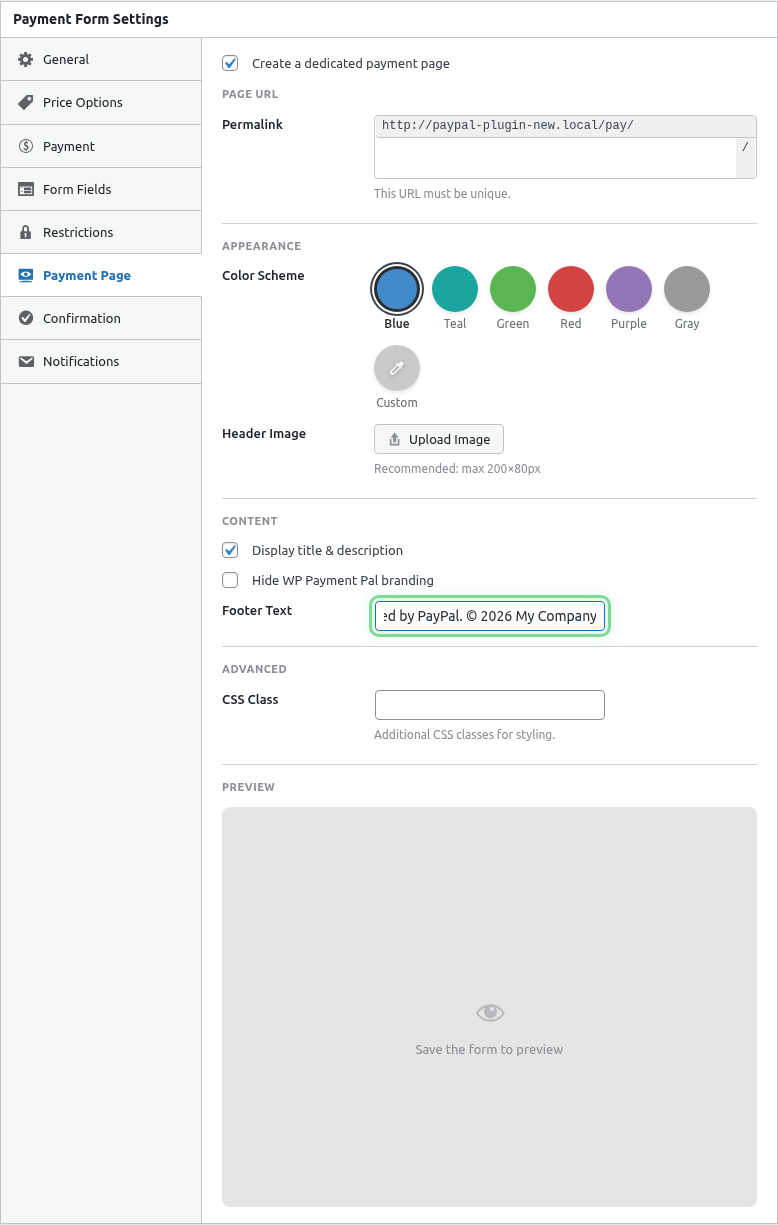
Example with footer text filled in:
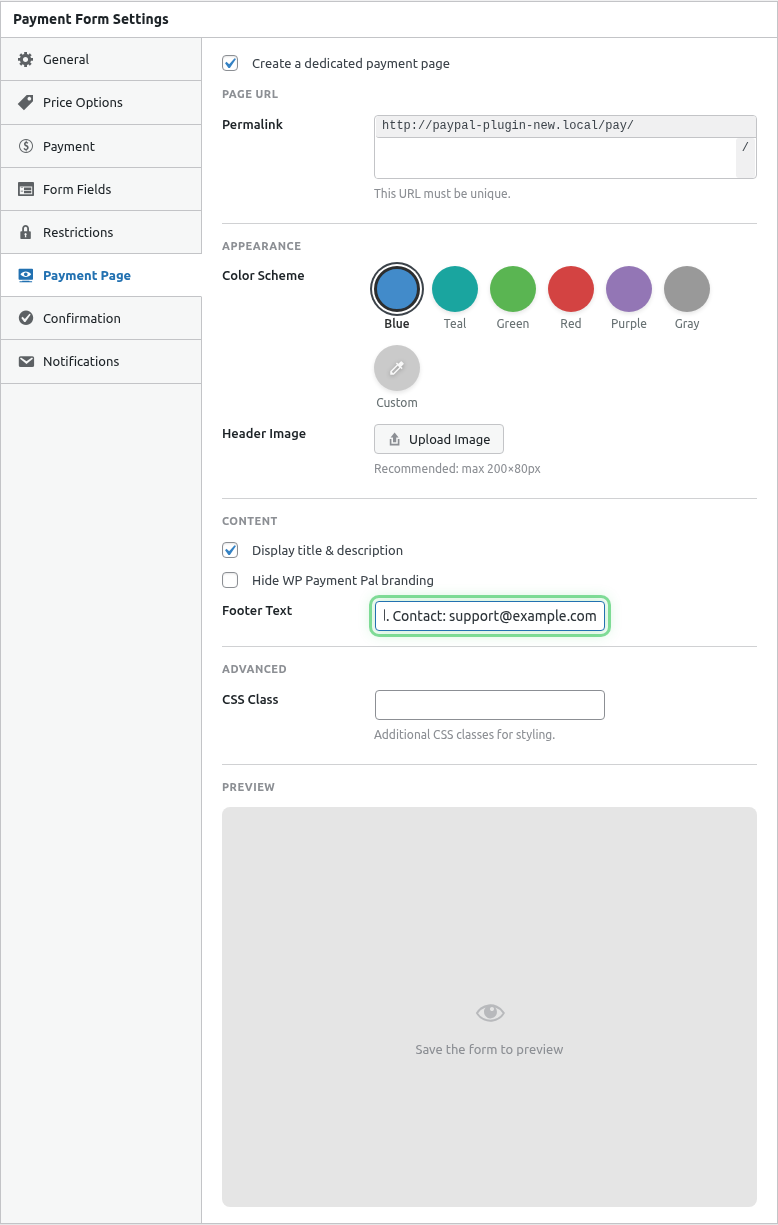
Footer Uses
- Copyright notice
- Privacy policy link
- Terms of service link
- Contact information
- Trust badges text
Footer Example
© 2024 Your Company | Privacy Policy | Terms of ServiceForm Width
The form card width:
- Adapts to content
- Maximum width for readability
- Centered on page
- Responsive on mobile
Responsive Behavior
Desktop (1200px+)
- Form card centered with margins
- Full logo display
- Comfortable spacing
Tablet (768px – 1199px)
- Form card with less margin
- Logo scales down
- Adjusted spacing
Mobile (< 768px)
- Form card nearly full-width
- Logo scales for mobile
- Compact but usable
- Touch-friendly inputs
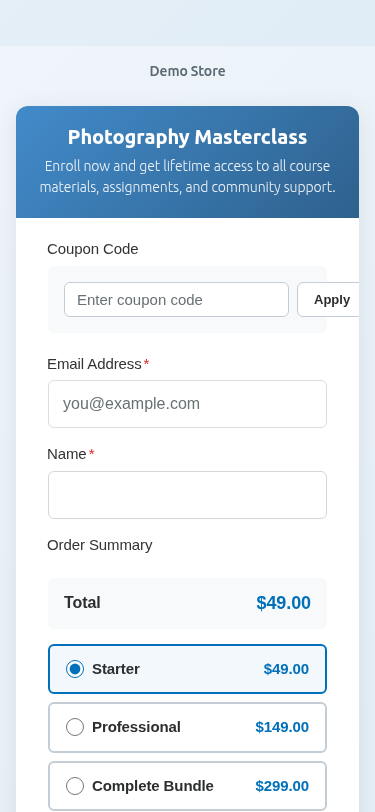
Content Order
From top to bottom:
- Logo (if set)
- Form title
- Form description
- Form fields
- Price/Order summary
- PayPal button
- Footer (if set)
Spacing and Padding
The layout includes:
- Generous padding around elements
- Clear visual hierarchy
- Comfortable reading experience
- Space for interaction
Background Coverage
The background color:
- Fills entire viewport
- Extends behind all content
- Scrolls with content if needed
- Consistent on all pages
Form Description
Add context above the form fields:
- Go to General tab
- Add Description text
- Shows on payment page
Description Uses
- Explain the payment
- List what’s included
- Add urgency
- Provide context
Page Title
The form title appears:
- In browser tab
- Above the form (if no logo)
- For SEO purposes
Color Presets
Choose from pre-configured color combinations for quick branding:
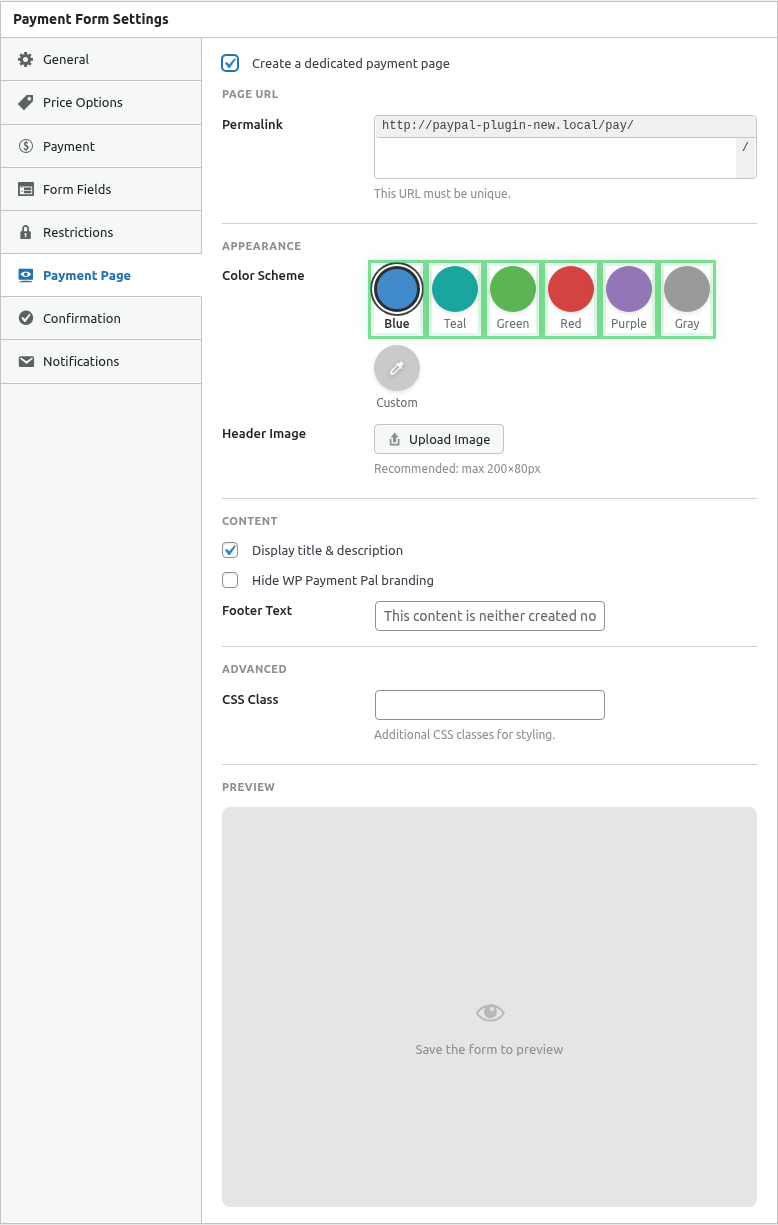
Combining Elements
Full Branding
✓ Logo
✓ Custom color
✓ Description
✓ Footer with links
Minimal
✓ Form title only
✓ Default or simple color
✗ No logo
✗ No footer
Professional
✓ Logo
✓ Brand color
✓ Brief description
✓ Footer with legal links
Mobile Optimization
Payment pages are automatically optimized:
- Touch-friendly form fields
- Mobile-sized buttons
- Readable text sizes
- Easy scrolling
Print Considerations
If customers might print:
- Background color may not print
- Form content remains readable
- Logo should print clearly
Custom CSS
For advanced customization, add custom CSS:
- Use your theme’s custom CSS
- Or a custom CSS plugin
- Target
.wppal-payment-pageclasses
Note: Custom CSS requires CSS knowledge and may need updates after plugin changes.
Testing Layout
Desktop Testing
- View on full-size monitor
- Check element alignment
- Verify spacing looks good
- Test form interaction
Mobile Testing
- Use browser developer tools
- Or view on actual device
- Check touch targets
- Verify scrolling works
Tablet Testing
- Test at tablet widths
- Check intermediate sizes
- Verify breakpoints work
Best Practices
- Keep it simple – Don’t overcrowd
- Test responsively – Check all sizes
- Clear hierarchy – Logo, form, action
- Readable content – Good font sizes
- Fast loading – Optimize images
Troubleshooting
Layout looks broken
- Clear cache
- Check for CSS conflicts
- Try without custom CSS
- Test in different browser
Mobile layout issues
- Check viewport meta tag
- Test on actual device
- Clear mobile cache
Elements overlapping
- Reduce content length
- Check image sizes
- Simplify layout
What’s Next?
- Enabling Standalone Payment Pages – Full setup guide
- Customizing Payment Page Colors – Color options
- Adding a Logo to Payment Pages – Logo setup