Reading time: 4 minutes | Difficulty: Beginner
Overview
Give customers a self-service portal to view and manage their subscriptions. This guide covers setting up and configuring the customer portal.
Prerequisites
- WP Payment Pal installed
- Active subscriptions in your system
- A WordPress page for the portal
What is the Customer Portal?
The Customer Portal lets subscribers:
- View their active subscriptions
- See billing history
- Cancel subscriptions (if permitted)
- View subscription details
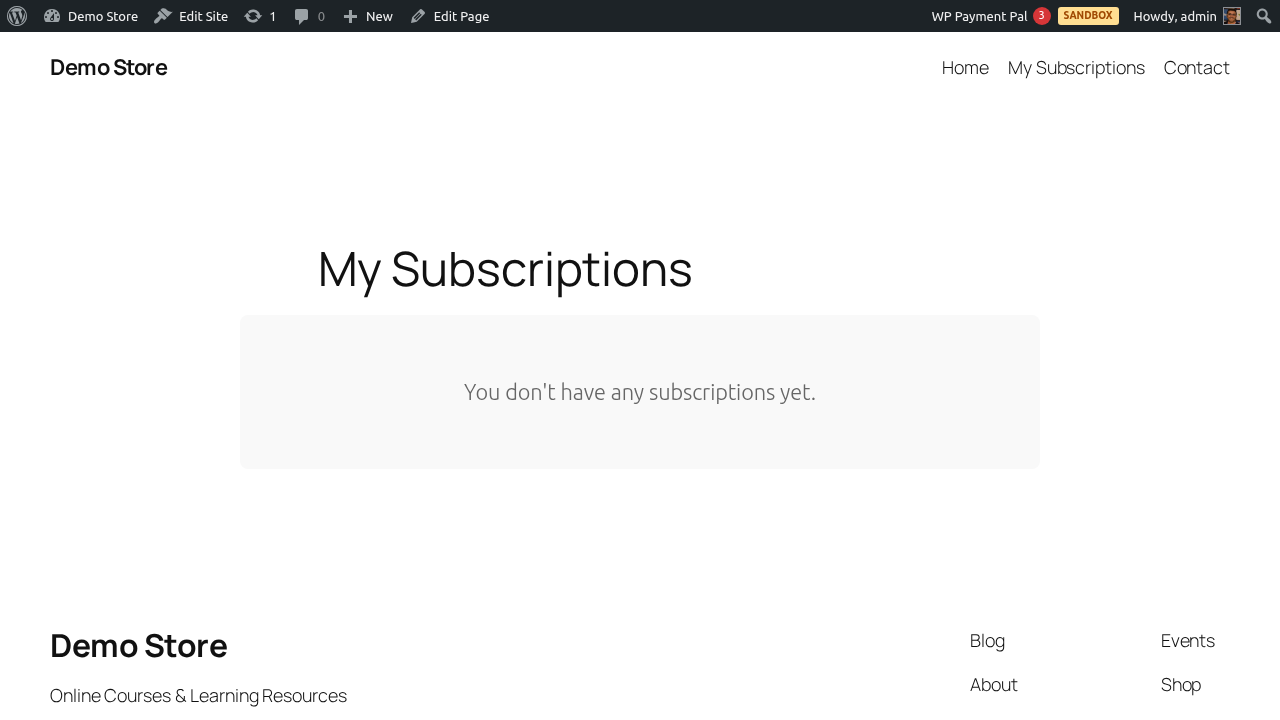
Setting Up the Portal
Step 1: Create a Page
- Go to Pages > Add New
- Title it “My Subscriptions” or similar
- Choose a template (optional)
Step 2: Add the Shortcode
Add this shortcode to the page content:
[wppal_subscriptions]Step 3: Publish
- Click Publish
- Note the page URL
- Test the portal (logged in as a subscriber)
Portal Features
Subscription List
Customers see all their subscriptions:
| Information | Displayed |
|---|---|
| Plan name | Yes |
| Status | Yes |
| Amount | Yes |
| Next billing date | Yes |
| Start date | Yes |
Subscription Details
Clicking a subscription shows:
- Full plan details
- Billing history
- Payment dates
- Cancel button (if enabled)
Self-Service Cancellation
If enabled, customers can cancel their own subscriptions:
- Cancel button visible
- Confirmation required
- Immediate effect
- Cancellation email sent
Controlling Cancellation Access
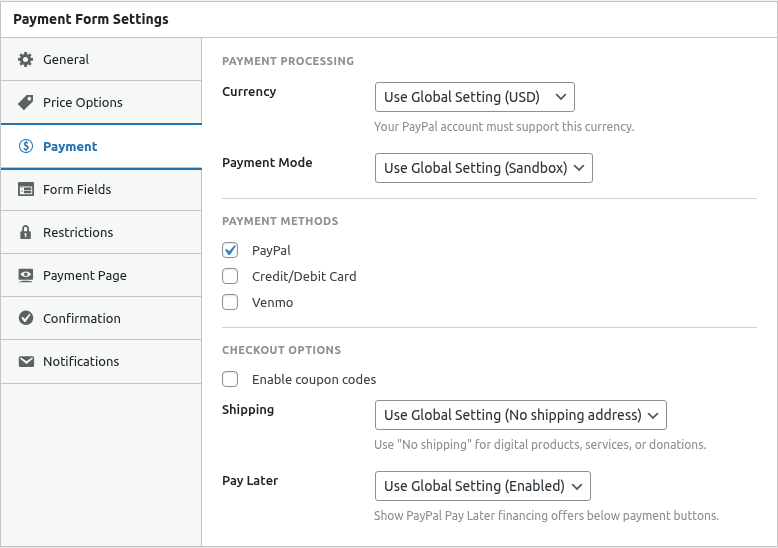
Allow or prevent customer self-cancellation per form.
Enable Customer Cancellation
- Edit the payment form
- Go to subscription settings
- Enable Allow Customer Cancel
- Save the form
Disable Customer Cancellation
- Edit the payment form
- Disable Allow Customer Cancel
- Save the form
When disabled:
- Cancel button hidden from customers
- Customers must contact you to cancel
- Admin can still cancel
Linking to the Portal
Navigation Menu
Add the portal to your site menu:
- Go to Appearance > Menus
- Add the portal page to your menu
- Save the menu
Account Area
Link from your account/profile area:
<a href="/my-subscriptions/">Manage Subscriptions</a>Email Links
Include in subscription emails:
Manage your subscription: {portal_link}Login Requirement
The portal requires users to be logged in:
- Logged out users see a login prompt
- After login, they see their subscriptions
- Each user only sees their own subscriptions
Matching Subscriptions to Users
Subscriptions are matched by:
- WordPress user email
- PayPal payer email
Emails must match for subscriptions to appear.
Portal Display Options
Using Gutenberg Block
Instead of shortcode, use the block:
- Edit the portal page
- Add a block
- Search for “WP Payment Pal”
- Select “Subscriptions Portal”
Styling
The portal inherits your theme’s styles. For custom styling:
/* Portal container */
.wppal-subscriptions-portal { }

/* Subscription cards */
.wppal-subscription-card { }

/* Status badges */
.wppal-subscription-status { }

/* Cancel button */
.wppal-cancel-subscription { }
Empty State
When a customer has no subscriptions:
- Friendly “no subscriptions” message
- Optional link to subscribe
Customer Experience
Viewing Subscriptions
- Customer visits portal page
- Logs in (if not already)
- Sees list of their subscriptions
- Can click for details
Cancelling a Subscription
- Customer views subscription
- Clicks “Cancel Subscription”
- Confirms the cancellation
- Receives confirmation message
- Gets cancellation email
Testing the Portal
- Create a test subscription (Sandbox mode)
- Log in as the test customer
- Visit the portal page
- Verify subscription appears
- Test cancellation flow
Security Considerations
The portal automatically:
- Requires authentication
- Shows only the user’s subscriptions
- Validates cancellation requests
- Prevents cross-user access
Common Questions
Can customers update payment methods?
Payment method updates happen through PayPal. Link customers to their PayPal account settings.
Can customers upgrade/downgrade plans?
Not directly. They would need to:
- Cancel current subscription
- Subscribe to new plan
Or contact you for assistance.
Why doesn’t my subscription appear?
Check that:
- User is logged in
- Email addresses match (WordPress and PayPal)
- Subscription exists in the system
Can I customize the portal design?
Yes, use CSS. The portal uses standard WordPress classes plus wppal- prefixed classes.
Best Practices
- Prominent link – Make portal easy to find
- Clear naming – “My Subscriptions” or “Subscription Management”
- Email reminders – Include portal link in subscription emails
- Support fallback – Provide contact option for issues
- Test regularly – Ensure portal works after updates
Troubleshooting
Portal shows “No subscriptions”
- Verify customer is logged in
- Check email addresses match
- Sync subscriptions with PayPal
Cancel button not working
- Check JavaScript console for errors
- Verify nonce is valid
- Test in incognito mode
Portal not displaying
- Verify shortcode is correct
- Check for theme conflicts
- Try a default theme temporarily
What’s Next?
- Subscriptions Portal Shortcode – Shortcode options
- Managing Subscriptions in Admin – Admin management
- Subscription Email Notifications – Customer emails