Reading time: 5 minutes | Difficulty: Intermediate
Overview
Create a checkout form where customers can select and purchase multiple products or services in a single transaction using multi-select mode.
Prerequisites
- WP Payment Pal installed
- Understanding of price options
What is Multi-Select Mode?
By default, customers select ONE price option. Multi-select mode allows them to select MULTIPLE options, creating a cart-like experience.
| Single Select | Multi-Select |
|---|---|
| Radio buttons | Checkboxes |
| One selection | Multiple selections |
| One price | Sum of selected prices |
Step 1: Create the Form
- Go to Payment Forms > Add New
- Enter a title describing your products/services
- Choose your preferred form type
Step 2: Enable Multi-Select Mode
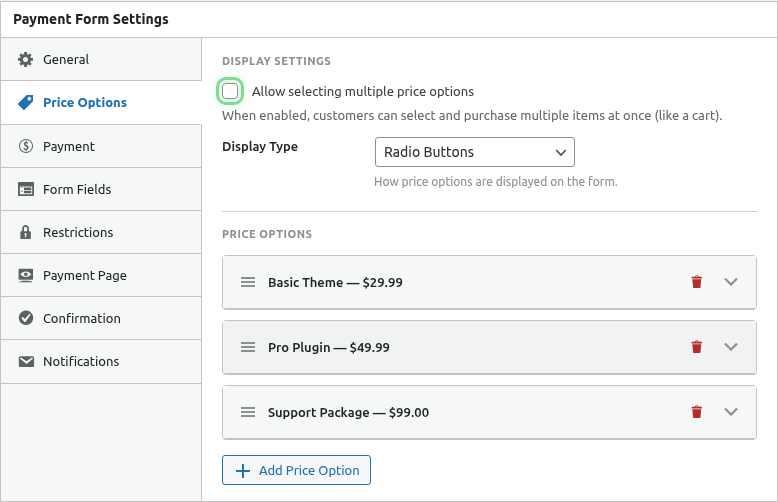
- Click the Price Options tab
- Find the Selection Mode setting
- Select Multiple
Step 3: Add Your Products
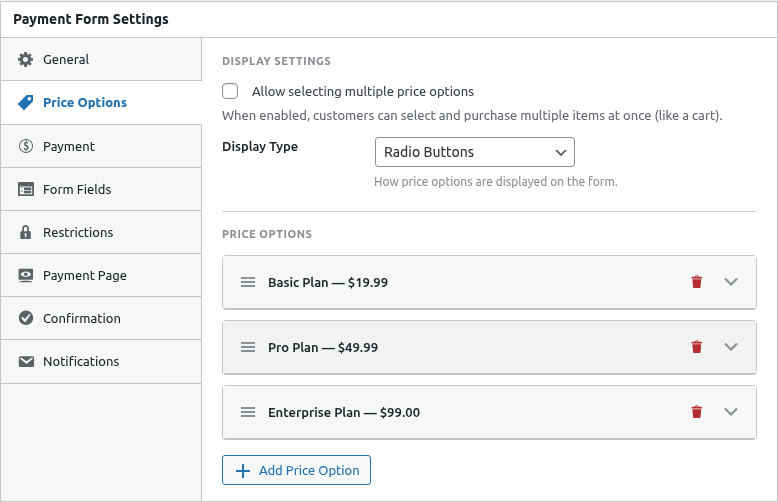
Add a price option for each product:
- Click Add Price Option
- Set the Label (product name)
- Set the Amount
- Add a Description (optional but recommended)
- Repeat for each product
Example Product Setup
| Label | Amount | Description |
|---|---|---|
| Basic Theme | $29 | Clean, minimal design |
| Premium Theme | $59 | Advanced features included |
| Support Package | $99 | 1 year priority support |
| Installation Service | $49 | We set it up for you |
Step 4: Configure Quantity (Optional)
Allow customers to purchase multiple units of each item:
- Expand a price option
- Enable Allow Quantity
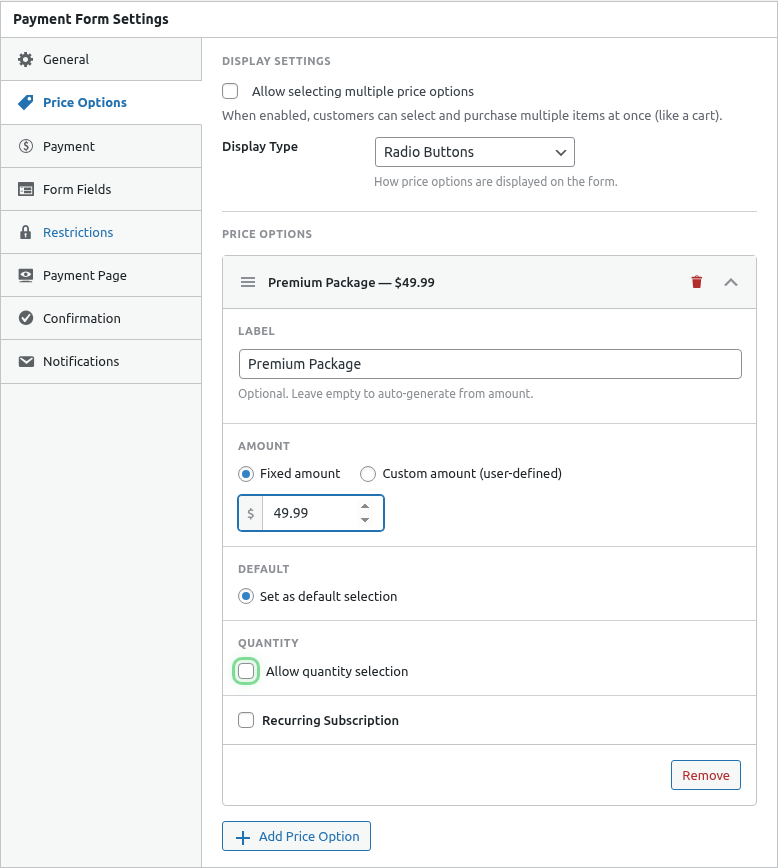
- Set minimum and maximum quantities

Step 5: Add Order Summary Field
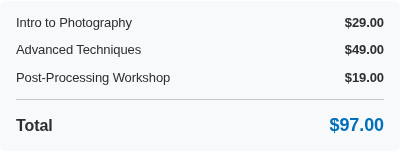
Show customers their selections and total:
- Click the Form Fields tab
- Add the Order Summary field
- Enable Show Line Items
Step 6: Add Customer Fields
Add fields for customer information:
- Customer Name
- Email (required)
- Any additional fields you need
Step 7: Configure Confirmation
Click the Confirmation tab and set up your post-purchase experience:
- Message: Thank you with order details
- Redirect: Send to download or account page
Frontend Experience
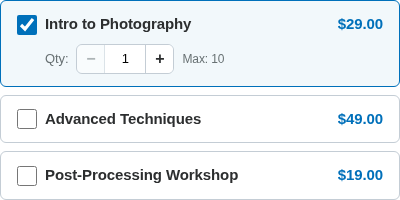
Product Selection
Customers see checkboxes for each option:
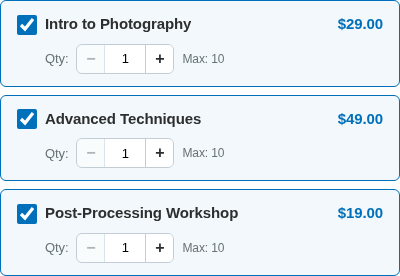
Selected Items
As customers select items, selections are highlighted:
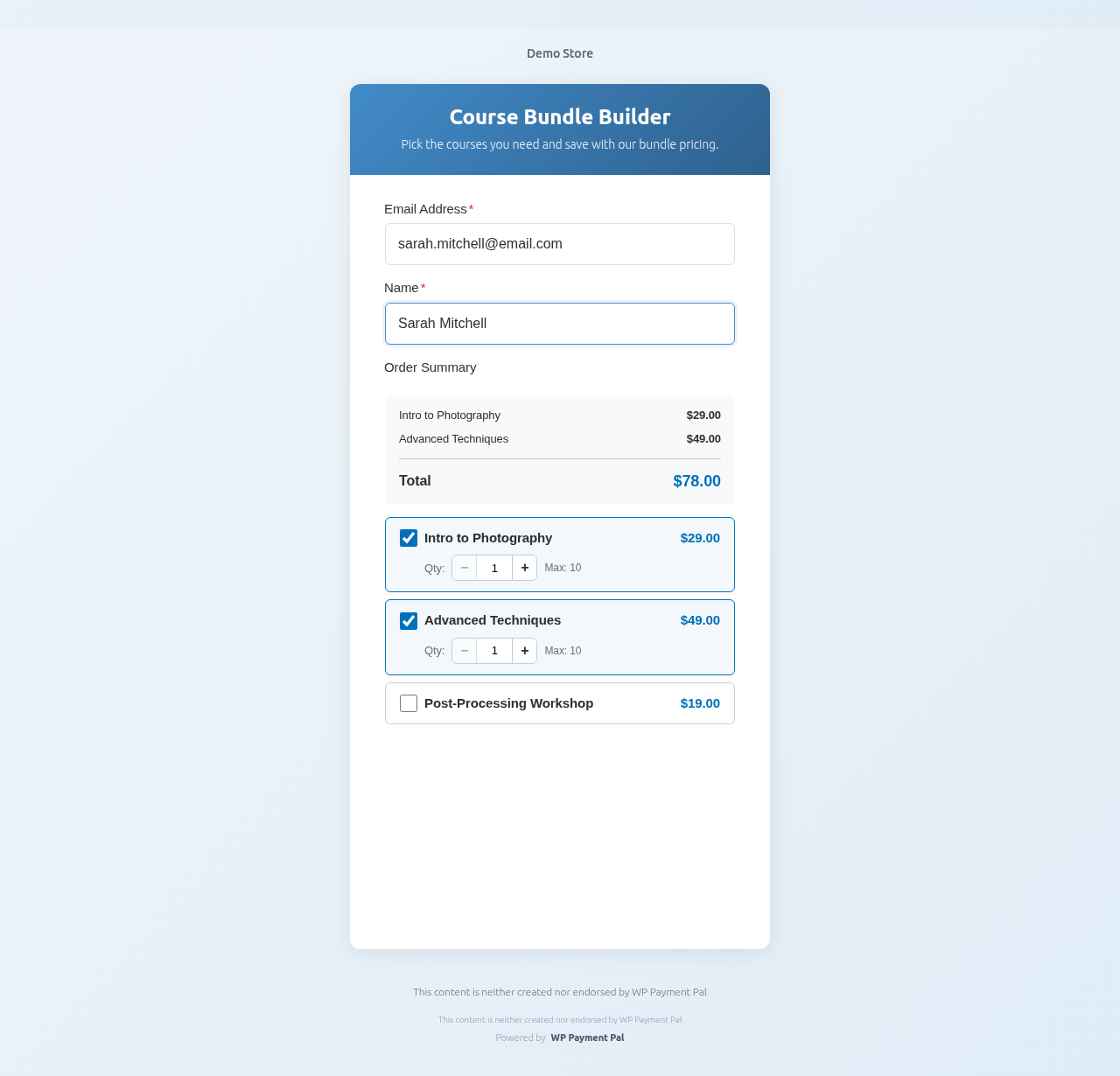
Complete Form
The full checkout experience:
Use Cases
Digital Products Bundle
| Item | Price |
|---|---|
| E-book | $19 |
| Video Course | $49 |
| Templates Pack | $29 |
| Coaching Session | $99 |
Customers can purchase any combination.
Service Add-Ons
| Item | Price |
|---|---|
| Base Service | $100 |
| Rush Delivery | $50 |
| Extended Warranty | $25 |
| Premium Support | $75 |
Base service is always selected; add-ons are optional.
Event Tickets
| Item | Price |
|---|---|
| General Admission | $50 |
| VIP Access | $150 |
| Parking Pass | $20 |
| Dinner Ticket | $75 |
With quantity enabled for multiple tickets.
Donation Tiers + Add-Ons
| Item | Price |
|---|---|
| Bronze Sponsor | $100 |
| Silver Sponsor | $250 |
| Gold Sponsor | $500 |
| Add Name to Wall | $50 |
Adding Coupons
Enable coupons to offer discounts on the total:
- Click the Payment tab
- Enable Allow Coupons
- Add a Coupon field in Form Fields

The discount applies to the entire order total.
Minimum Selection Requirements
To require at least one selection:
- The Price Options field should be marked as required
- Customers must select at least one option to proceed
Maximum Selection Limits
Currently, there’s no built-in maximum selection limit. All options can be selected if desired.
Calculation Examples
Without Quantity
| Selected | Price |
|---|---|
| Item A | $29 |
| Item C | $49 |
| Total | $78 |
With Quantity
| Selected | Qty | Price |
|---|---|---|
| Item A | 2 | $58 |
| Item C | 1 | $49 |
| Total | $107 |
With Coupon (20% off)
| Selected | Price |
|---|---|
| Item A | $29 |
| Item C | $49 |
| Subtotal | $78 |
| Discount | -$15.60 |
| Total | $62.40 |
Best Practices
- Clear descriptions – Help customers understand each option
- Logical ordering – Put most popular items first
- Price transparency – Show individual and total prices
- Order summary – Always include for multi-select forms
- Reasonable options – Don’t overwhelm with too many choices (5-8 is ideal)
Troubleshooting
Total not updating
- Ensure JavaScript is enabled
- Check for theme conflicts
- Test in an incognito window
Can’t select multiple items
- Verify Selection Mode is set to “Multiple”
- Save and refresh the form editor
What’s Next?
- Adding Quantity Selection – Quantity controls
- Creating Discount Coupons – Add discounts
- Configuring Form Fields – All field options