Reading time: 4 minutes | Difficulty: Beginner
Overview
WP Payment Pal supports two payment modes: Sandbox for testing and Live for real payments. This guide explains when and how to use each mode.
Prerequisites
- WP Payment Pal installed
- PayPal accounts connected (see Connecting Your PayPal Account)
What is Sandbox Mode?
Sandbox mode is PayPal’s test environment. It lets you:
- Process fake payments with test credit cards
- Test your entire checkout flow
- Verify emails and notifications work correctly
- Debug issues without affecting real customers
No real money is ever charged in Sandbox mode.
What is Live Mode?
Live mode connects to PayPal’s production environment:
- Processes real payments from real customers
- Charges actual credit cards and PayPal accounts
- Sends real confirmation emails
- Records actual transactions
When to Use Each Mode
| Use Sandbox When… | Use Live When… |
|---|---|
| Building new payment forms | Your site is ready for customers |
| Testing price changes | You’ve tested everything in Sandbox |
| Debugging payment issues | Processing real orders |
| Training staff | Accepting actual payments |
| Developing new features | Running promotions |
Step 1: Check Your Current Mode
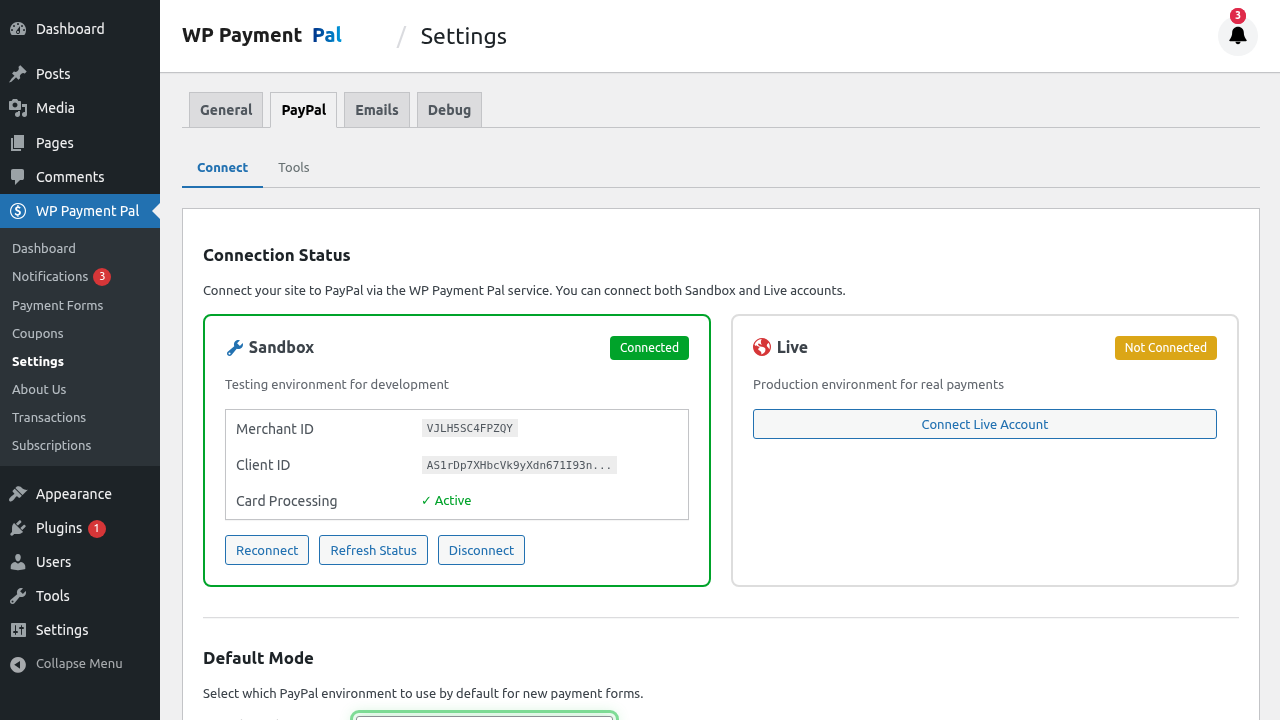
- Go to WP Payment Pal > Settings
- Click the PayPal tab
- Look at the Default Mode setting
Step 2: Switch Modes
Change the Default Mode
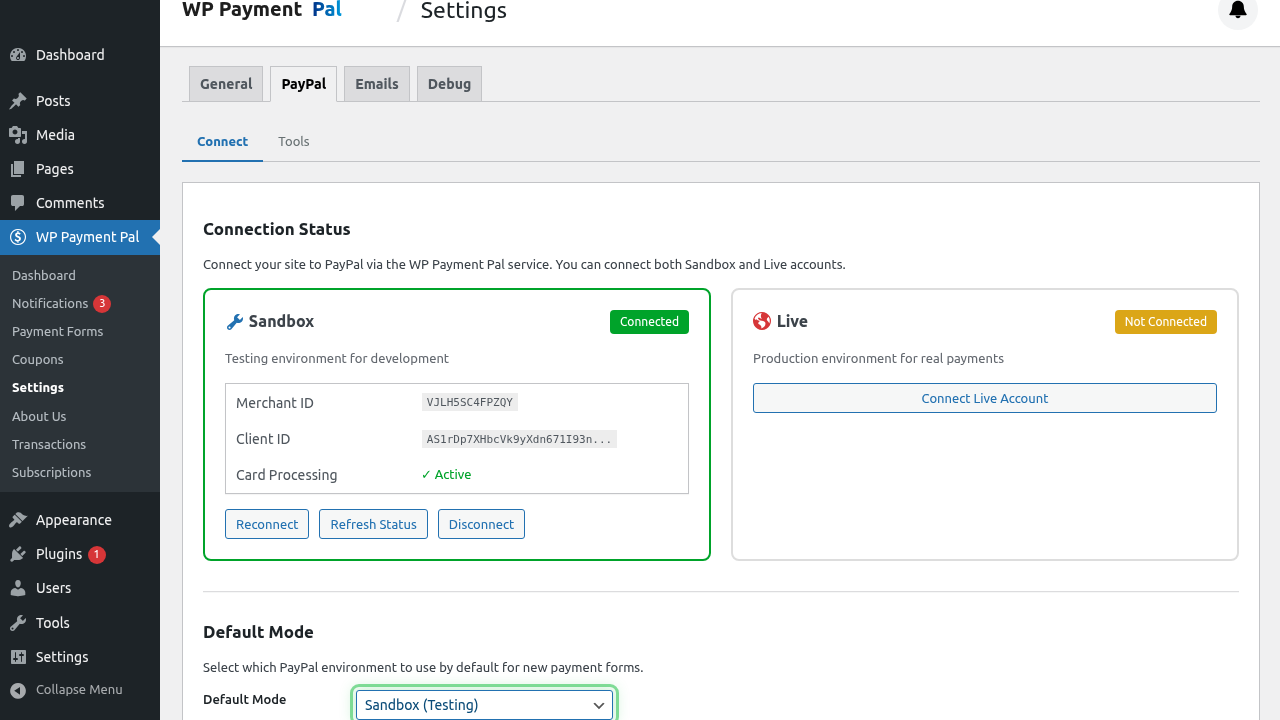
- In PayPal settings, find Default Mode
- Select Sandbox or Live
3. Click Save Changes
All forms will use this mode unless individually overridden.
Override Mode Per Form
Individual forms can use a different mode:
- Edit the payment form
- Go to the Payment tab
- Find the Payment Mode setting
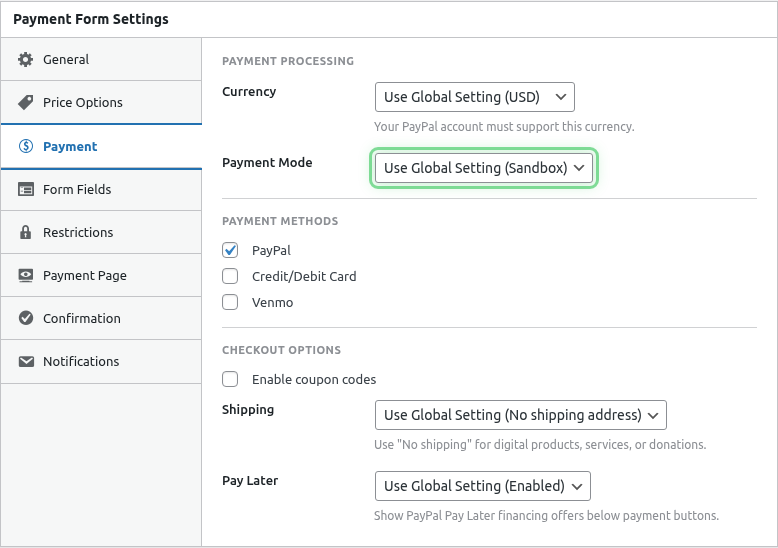
- Choose Use Default, Sandbox, or Live
- Save the form
Testing in Sandbox Mode
Test Credit Card Numbers
Use these fake card numbers in Sandbox:
| Card Type | Number | Expiry | CVV |
|---|---|---|---|
| Visa | 4111111111111111 | Any future date | Any 3 digits |
| Mastercard | 5555555555554444 | Any future date | Any 3 digits |
| Amex | 378282246310005 | Any future date | Any 4 digits |
Test PayPal Accounts
Create test buyer accounts at developer.paypal.com:
- Log in to PayPal Developer
- Go to Sandbox > Accounts
- Create a Personal (buyer) account
- Use those credentials to test PayPal payments
Going Live Checklist
Before switching to Live mode, verify:
- All forms tested successfully in Sandbox
- Email notifications working correctly
- Prices and currencies are correct
- Confirmation messages/redirects configured
- Live PayPal account connected
- SSL certificate active on your site (https://)
Common Questions
Can I have some forms in Sandbox and others in Live?
Yes! Override the mode on individual forms in their Payment tab settings.
Will Sandbox transactions appear in my reports?
Sandbox and Live transactions are kept completely separate. Sandbox transactions only appear when viewing Sandbox mode data.
How do I know which mode a form is using?
Check the form’s Payment tab. The active mode is displayed clearly.
Troubleshooting
Payments fail in Live but work in Sandbox
- Verify your Live PayPal account is connected
- Check that your Live account is fully verified
- Ensure your PayPal account can accept the currency
Test payments are being charged
- You’re in Live mode – switch to Sandbox
- Check the form’s Payment tab for mode override
What’s Next?
- Creating Your First Payment Form – Build a form to test
- Testing Webhooks – Verify PayPal communication