Reading time: 5 minutes | Difficulty: Beginner
Overview
Learn how to connect your PayPal Business account to WP Payment Pal to start accepting payments. You’ll connect both Sandbox (test) and Live (production) accounts.
Prerequisites
- WP Payment Pal installed and activated
- A PayPal Business account (Create one here)
Step 1: Access PayPal Settings
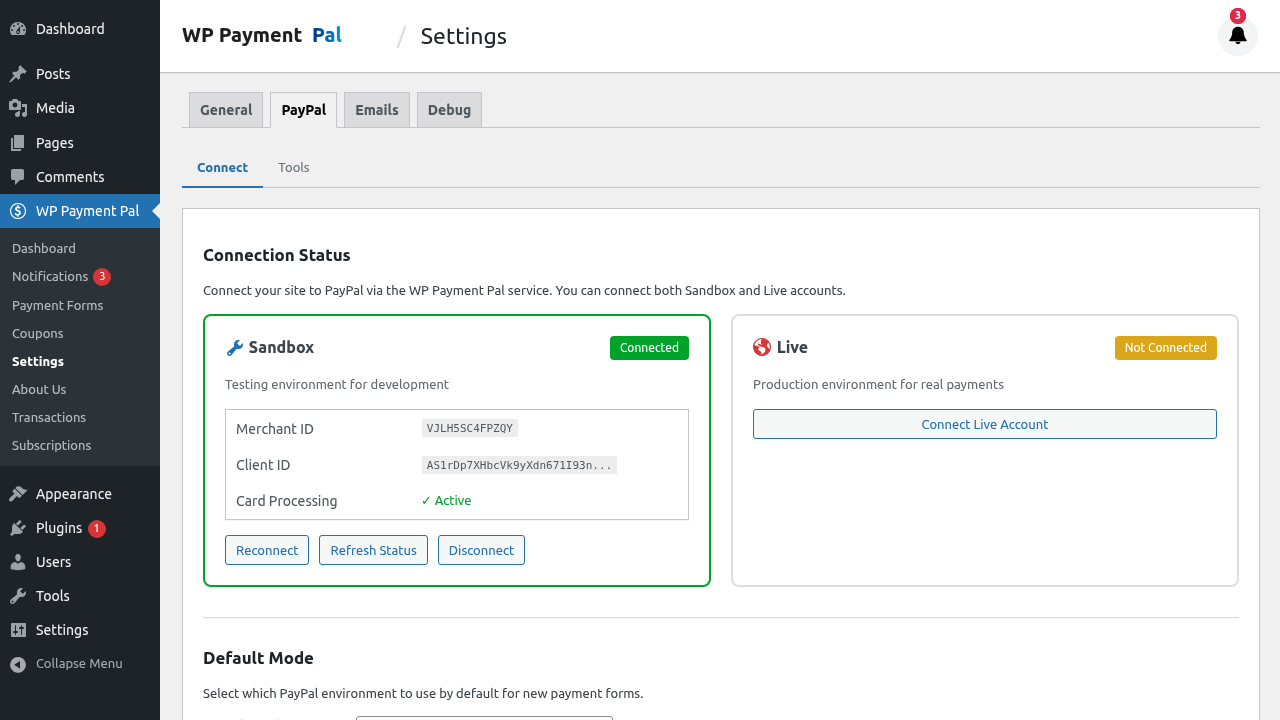
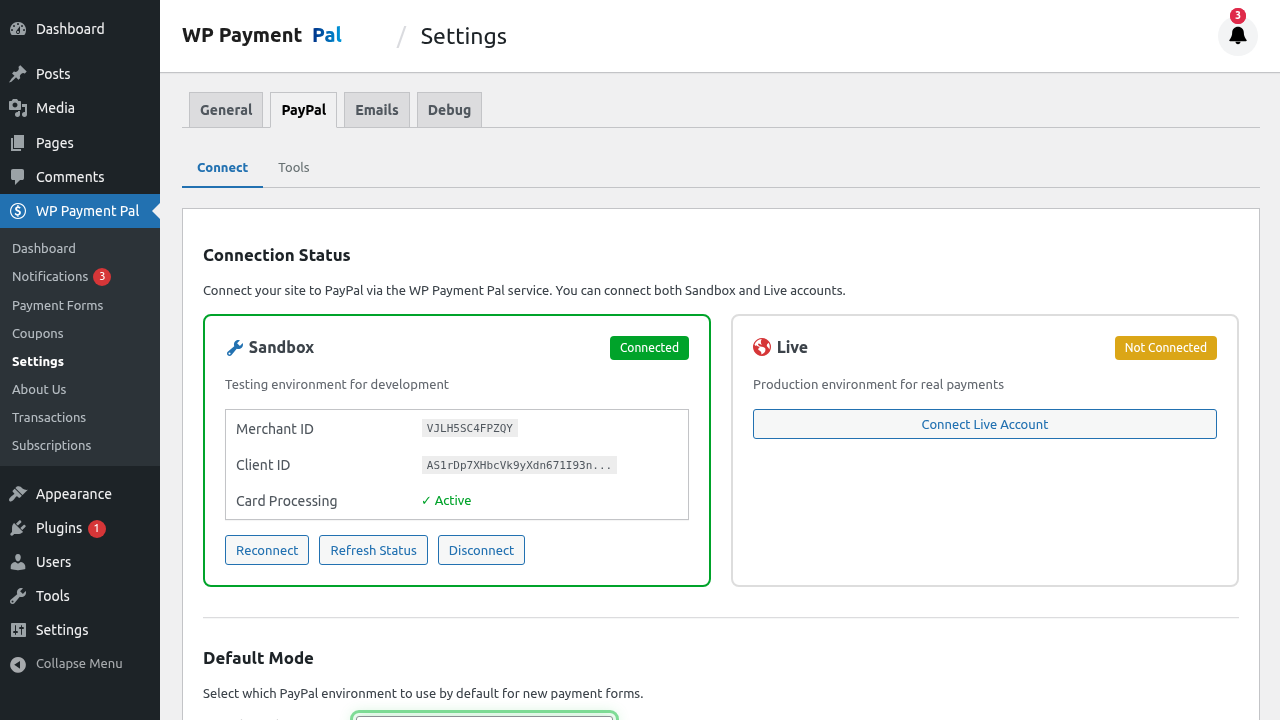
- Go to WP Payment Pal > Settings in your WordPress admin
- Click the PayPal tab
Step 2: Choose Your Mode
Select which mode you want to connect first:
| Mode | Purpose |
|---|---|
| Sandbox | Test payments without real money |
| Live | Accept real payments from customers |
We recommend connecting Sandbox first to test your forms.
Step 3: Connect Sandbox Account
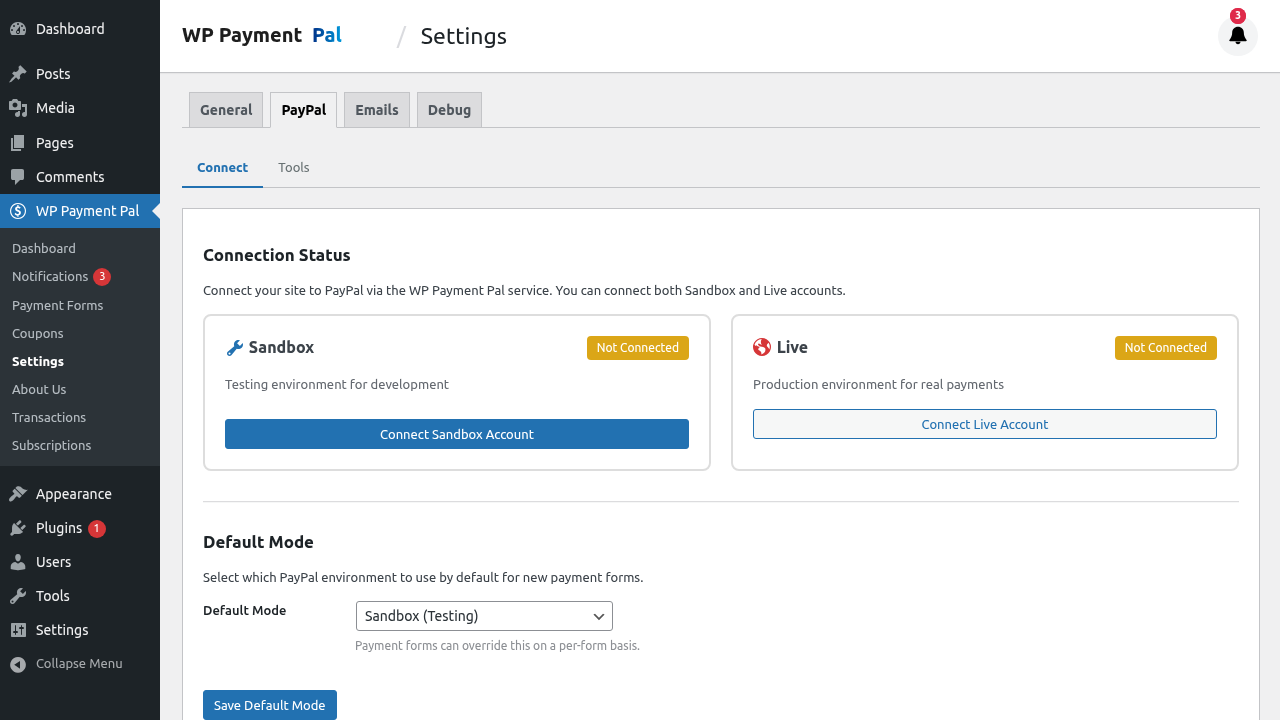
- In the PayPal settings, find the Sandbox Connection section
- Click the Connect with PayPal button
3. A PayPal popup window will appear
4. Log in with your PayPal Sandbox credentials
5. Authorize the connection by clicking Agree and Connect
6. The popup will close and you’ll see a success message
After connecting, you’ll see:
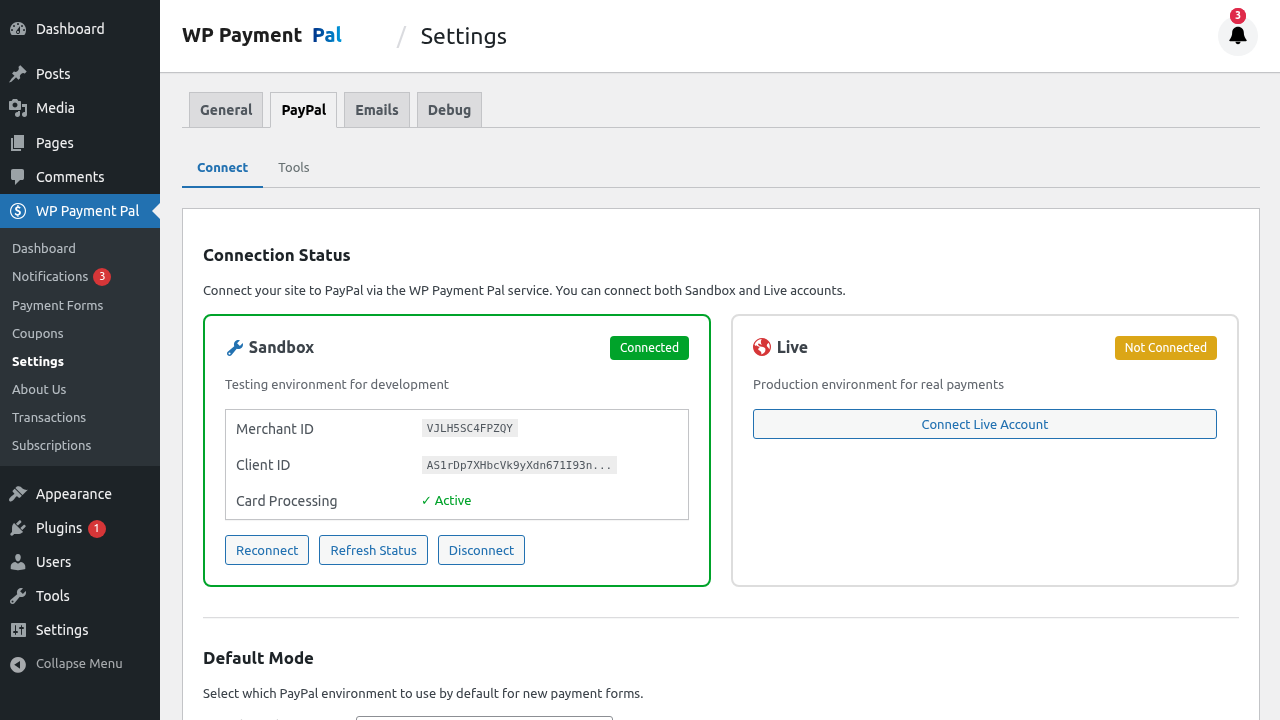
- Your Sandbox email address displayed
- A green “Connected” status indicator
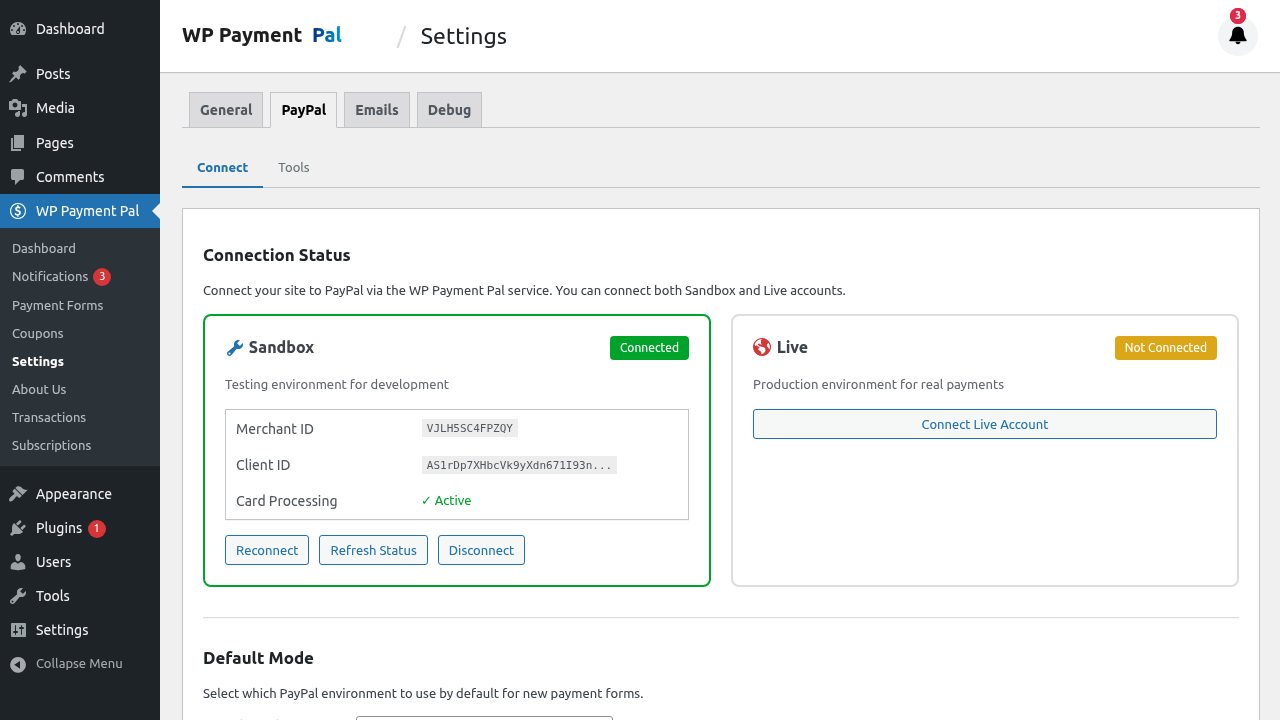
- A Disconnect button (if you need to change accounts)
Step 4: Connect Live Account
Once you’ve tested with Sandbox, connect your Live account:
- Scroll to the Live Connection section
- Click Connect with PayPal
- Log in with your real PayPal Business credentials
- Authorize the connection
- Verify the connection shows “Connected”
Step 5: Set Default Mode
Choose which mode forms should use by default:
- Find the Default Mode setting
- Select Sandbox for testing or Live for production
- Click Save Changes
Individual forms can override this setting.
Understanding the Connection
When you connect your PayPal account, WP Payment Pal:
- Receives API credentials to process payments
- Sets up webhooks to receive payment notifications
- Does NOT store your PayPal password
- Creates a secure OAuth connection
Troubleshooting
Popup doesn’t appear
- Disable popup blockers for your site
- Try a different browser
- Ensure JavaScript is enabled
Connection fails
- Verify you’re using a Business account (not Personal)
- Check that your PayPal account is verified
- Try disconnecting and reconnecting
Wrong account connected
- Click the Disconnect button
- Reconnect with the correct credentials
Security Notes
- Your PayPal login credentials are never stored on your site
- The connection uses secure OAuth 2.0 authentication
- You can revoke access anytime from your PayPal account settings
What’s Next?
- Understanding Sandbox vs Live Mode – Learn when to use each mode
- Creating Your First Payment Form – Build a payment form